



How to Sign Up for Meta Muse and Use a Referral Code
Muse has recently become one of the most talked-about AI Agent products in the AI tools space. As a new AI Agent from …
Learn how to use WhatsApp Web, including QR code and phone number login, troubleshooting QR code and login issues, making voice and video calls, and managing WhatsApp across multiple devices and accounts.

Get an AI-Powered Summary of This Article
WhatsApp Web is WhatsApp’s web-based service that lets you use WhatsApp directly from a computer browser without installing a separate app. However, you may run into issues when using WhatsApp Web, such as the QR code not loading, login failures, or problems linking your account with a phone number.
This guide covers the basics of WhatsApp Web, including QR code login, phone number linking, voice and video calls, and solutions to common login and connection problems.
WhatsApp Web is the web version of WhatsApp that you can access directly from a computer browser.
After logging in, you can use many of WhatsApp’s everyday messaging features on your computer, including sending and receiving messages, joining group chats, and sharing photos, videos, and files.
Keep in mind that WhatsApp Web is not a separate WhatsApp account. Instead, it connects an existing WhatsApp account to your browser or another device.
WhatsApp Web offers many of the same features as the mobile version of WhatsApp. If you mainly use WhatsApp for messaging, replying to customers, or handling conversations from a computer, WhatsApp Web provides a convenient way to use your account without constantly switching between your phone and computer.
The most common way to log in is by linking your account with a QR code.
Follow these steps:
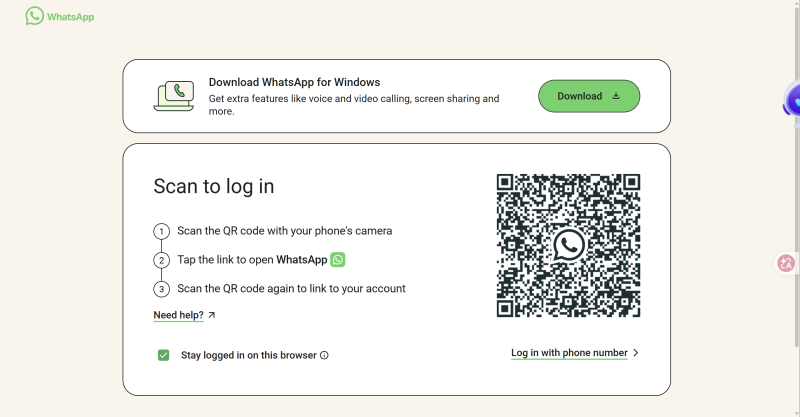
If the QR code does not appear properly, you will need to troubleshoot the webpage before you can link your device.
First, determine which of these two situations you are experiencing:
You can work through the following troubleshooting steps.
If the QR code stays stuck on the loading screen, refresh the page first.
You can also close the WhatsApp Web tab and open it again to reload the page and generate a new QR code.
If the problem is caused by a temporary loading error, reopening the page may resolve it.
If the webpage itself does not load correctly, the QR code may not appear either.
Try the following:
If the QR code loads normally after switching networks, the original network connection may be causing the problem.
If WhatsApp Web used to work normally but recently started having QR code or login issues, try clearing your browser cache and cookies.
After clearing them, reopen WhatsApp Web and try loading the QR code again.
This can help resolve login-session or webpage-loading problems that occur after using WhatsApp Web for an extended period. Keep in mind that clearing cookies may also sign you out of other websites.
If the QR code appears normally but you cannot complete the login after scanning it, check WhatsApp on your phone.
Make sure your phone has a stable internet connection and that WhatsApp opens and works normally.
Then open Linked Devices and check the devices currently connected to your account. If you see devices you no longer use, you can log them out and try linking your computer again.
If the QR code appears and your phone can scan it, but WhatsApp Web remains on the login page, try these steps:
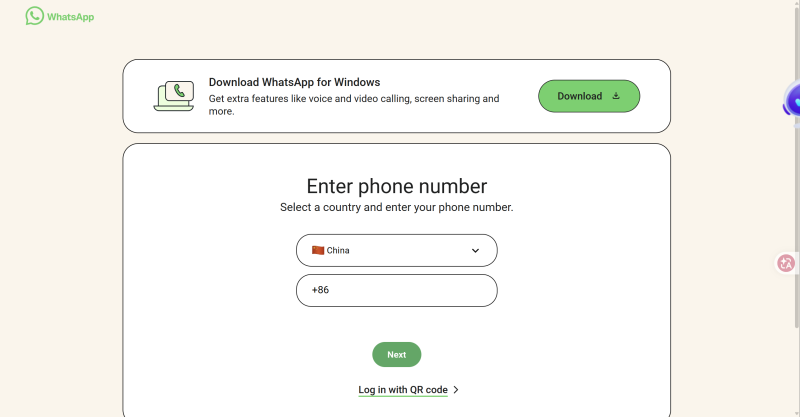
If the WhatsApp Web QR code does not load properly or scanning a QR code is inconvenient, you can also try linking your device with a phone number.
However, “phone number login” does not mean entering your phone number and receiving an SMS verification code to sign in directly to WhatsApp Web. Instead, it is another device-linking method provided by WhatsApp. You enter the phone number already registered with your WhatsApp account, and WhatsApp Web displays a one-time code. You then confirm the linking process from your phone to connect the computer to your existing WhatsApp account.
To link your device using a phone number:
Meta announced on July 28, 2026, that WhatsApp Web was beginning to roll out one-to-one and group voice and video calling. Depending on availability, users can access features including:
Calls on the web use end-to-end encryption and do not have a call-duration limit or additional calling fees. Your browser needs microphone access for voice calls, while video calls also require camera access.
If the calling feature does not appear or does not work properly, check your browser, permissions, and network connection.
You can generally start a voice or video call directly from WhatsApp Web when the feature is available for your account. If you do not see the relevant call buttons, check the following:
If the required permissions are enabled but calling still does not work, try another browser to rule out browser compatibility issues.
If none of these steps helps, your account may not have access to the feature yet. WhatsApp is still rolling out web calling, so the calling options may not be available to every account at the same time.
WhatsApp Web uses linked devices, so you do not need to keep the WhatsApp app open on your phone at all times after linking a device. However, under WhatsApp’s current device-linking system, you need to log in to WhatsApp on your primary phone periodically to keep your linked devices connected.
Yes. WhatsApp allows one account to be linked to multiple devices. The exact device limits and rules may change as WhatsApp updates its policies and features. Currently, you can link up to four non-phone devices in addition to your primary phone.
If you no longer use a particular computer or device, you can remove it from Linked Devices in WhatsApp on your phone.
It depends on whether the browser still has an active login session and whether the device remains linked to your WhatsApp account.
If the linked session is still valid, you may be able to use WhatsApp Web again without scanning the QR code. If the session has expired, you will need to link the device again.
This can be caused by your network connection, browser cache, WhatsApp Web session, or the status of your linked devices.
Start by refreshing the page and scanning the QR code again. If the problem continues, clear your browser cache and cookies, then try linking the device again through Linked Devices on your phone.
If you only need to manage a small number of accounts, you can use WhatsApp’s built-in multiple-account features where available. For managing more accounts, you can consider using a fingerprint browser or a cloud phone .
Fingerprint browsers create separate browser environments for different accounts, making them useful when you mainly manage accounts from a computer. Cloud phones provide separate Android environments for each account, which can be more suitable when you need to use the WhatsApp mobile app and manage multiple accounts independently.
If you need to manage multiple WhatsApp accounts in separate device environments, DuoPlus Cloud Phone lets you create individual cloud phones for different accounts and manage multiple devices from one place.
Muse has recently become one of the most talked-about AI Agent products in the AI tools space. As a new AI Agent from …

OpenAI Codex is an AI coding agent designed to help developers write, modify, review, and deliver code. It is available …

VK (VKontakte) is one of the major social media platforms in Russia. In addition to account management, content …
No need to purchase multiple real phones.
With DuoPlus, one person can operate numerous cloud phones and social media accounts from a single computer, driving traffic and boosting sales for you.