5 Social Media Management Challenges, and How DuoPlus and Loopway Solve Them Together
5 Social Media Management Challenges, and How DuoPlus and Loopway Solve Them Together Running one social media account …
Learn how to use DuoPlus RPA templates to automate repetitive WhatsApp messages, configure one-time or recurring tasks, and check execution results.

Get an AI-Powered Summary of This Article
WhatsApp is a widely used messaging app for everyday communication and business conversations. For users who need to maintain customer relationships or manage multiple accounts, tasks such as sending and replying to messages often involve repeating similar steps.
DuoPlus RPA templates support WhatsApp automation scenarios, including sending direct messages and replying to messages. With a preset template, you can use an existing workflow, select the target cloud phone, and configure a task schedule.
This guide explains common use cases for WhatsApp message automation, how to find a suitable RPA template in DuoPlus, how to create an automation task, and how to check its execution results.
RPA is suitable for message tasks with fixed steps, a relatively high execution frequency, and no need to reassess the handling method each time. If a WhatsApp task repeatedly requires opening a chat, entering similar content, and performing the same actions, an automation workflow can reduce manual work.
When maintaining customer relationships and handling routine business communication, some WhatsApp accounts need to send business notifications, event reminders, or follow-up messages to the same contacts on a regular basis. These messages usually have clearly defined recipients and content, and the sending steps are consistent.
If you need to repeat these actions according to a set schedule, you can use RPA to handle the fixed steps. This reduces the time spent repeatedly opening WhatsApp chats, entering message content, and sending messages.
In customer conversations on WhatsApp, some questions may come up repeatedly and have relatively standard answers. For example, when customers ask about business hours, service procedures, or order status, staff may need to open the relevant chat and respond using existing reply content.
If the reply content and workflow are already defined and do not require interpreting complex chat context, RPA can handle the repetitive in-app steps and reduce the workload of processing similar messages one by one.
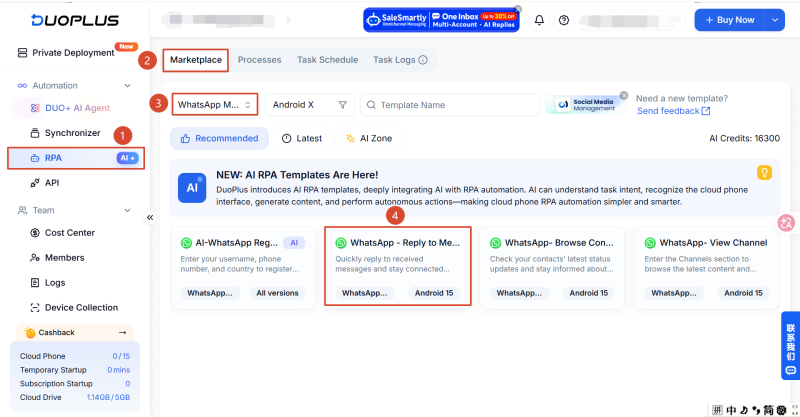
DuoPlus RPA Marketplace provides preset workflows. When using a template, you can select a device based on the template's purpose, configure task parameters, and set the execution time.
①Sign in to the DuoPlus Cloud Phone console.
②Select RPA from the left-hand menu.
③Open RPA Marketplace.
④Use the platform filter to select WhatsApp Messenger.
⑤Select the WhatsApp - Reply to Message template.
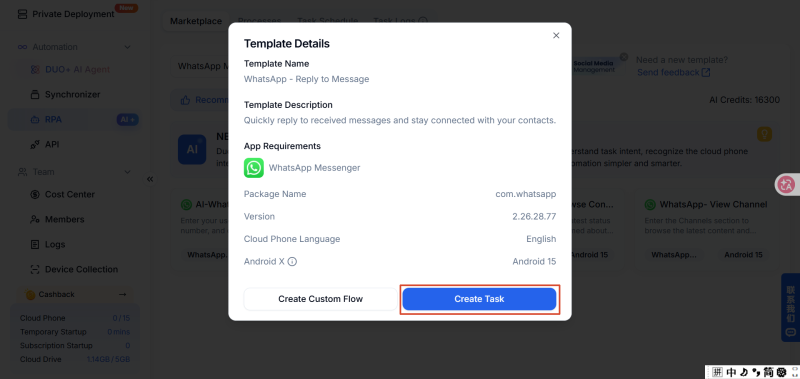
On the template details page, review the supported app information, version requirements, and cloud phone language requirements.
After selecting a template and opening its details page, you will generally see two options: Create Task and Create Custom Flow.
The difference is whether you want to use the template as provided or adjust its workflow steps. For a general explanation of these options, please refer to the article below:How to Create Social Media Automation Tasks with DuoPlus RPA Templates?
Select Create Task to start configuring the automation task.
First, enter a name for the task.
On the cloud phone selection page, select the device or devices that should run the task. DuoPlus RPA supports selecting one or multiple cloud phones, depending on the scale of the task.
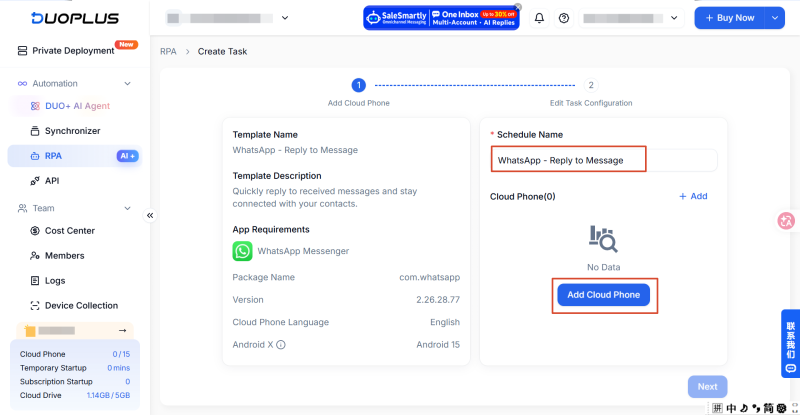
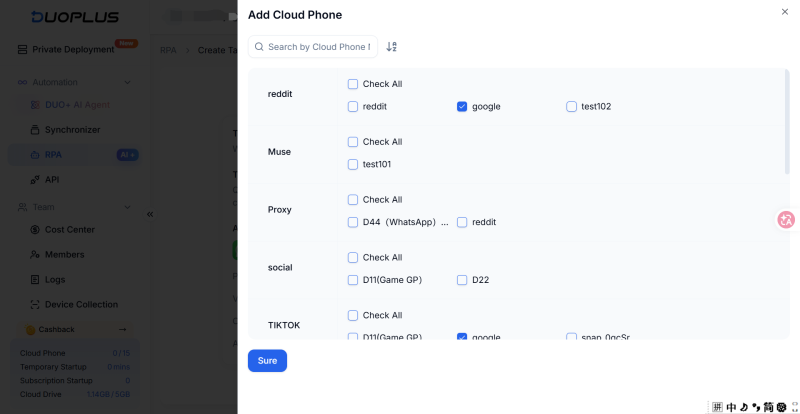
Before submitting your device selection, make sure each target cloud phone is running properly, has WhatsApp installed, and is signed in to the account that will perform the task.
After entering the plan name and selecting the devices, submit the settings to continue to task parameter configuration.
After selecting the devices, open the task configuration page and choose either a one-time task or a recurring task.
One-Time Task
Choose a one-time task if the message workflow only needs to send or reply to a specific message once.
Configure the task as follows:
Select the time zone and execution time for the relevant region. A scheduled task runs according to the local time in the selected time zone.
For example, if you select a US time zone and set the execution time to 09:00, the task will run at 9:00 a.m. in the selected US time zone.
Enter the corresponding username and the message content to be sent.
Review all settings. When everything is correct, submit the task using the publishing option on the task page. The task will start at the scheduled time.
Recurring Task
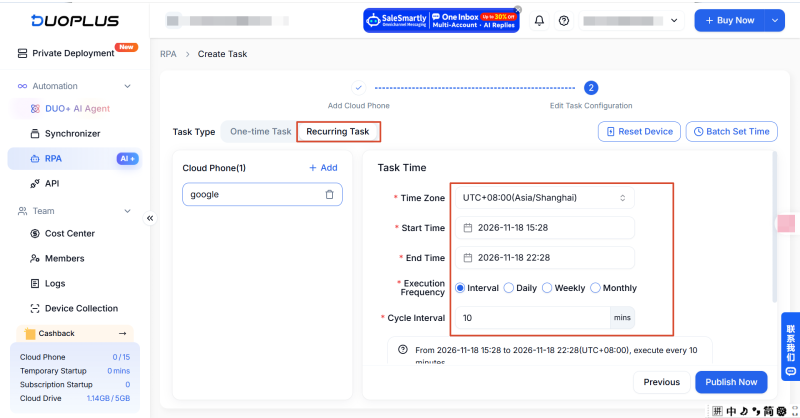
A recurring task is suitable when an operation needs to run on a defined schedule. For example, if a WhatsApp account needs to send the same message on different dates according to a plan, you can choose a recurring task. Unlike a one-time task, a recurring task requires additional settings for the task period, execution frequency, and time range.
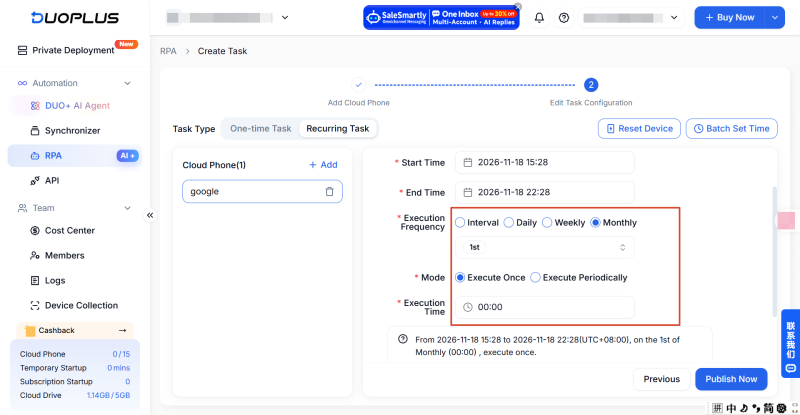
DuoPlus RPA supports recurring schedules by interval, day, week, or month. Choose the schedule that matches your actual communication plan.
Follow these steps:
①Select the time zone used for task execution so the schedule runs at the intended local time.
②Set the start and end times for the recurring task.
③Choose an execution frequency based on the WhatsApp account's messaging requirements.
If you select an interval schedule, set the recurring interval to define the time between task executions.
For daily, weekly, or monthly schedules, you may also need to choose between a single execution and repeated execution within a time range, depending on your requirements.
After configuring the frequency and time range, review the plan name, target cloud phones, message parameters, time zone, and schedule. Submit the task after confirming that all settings are correct.
After publishing a task, check whether the automation workflow ran properly and whether the actual message actions in WhatsApp match your expectations. You can check the DuoPlus RPA Task Log and WhatsApp on the cloud phone separately.
Select RPA from the left-hand menu, then open Task Log.
The Task Logs displays execution records for published tasks, including task status, publishing time, run time, and execution reports.
If a task is completed successfully, review the corresponding record to confirm its execution. If a task fails or stops unexpectedly, open the execution report to identify the step where the issue occurred.
For recurring tasks, you can also use Task Schedule to view published recurring plans and check whether they are currently running or paused.
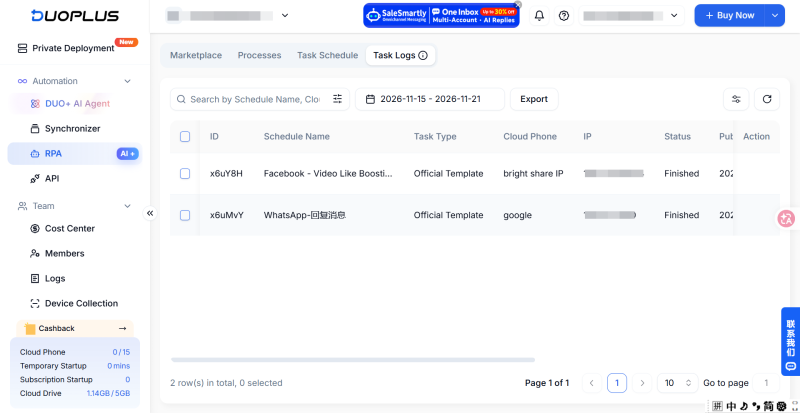
The Task Log shows how the automation workflow ran, but it does not replace checking the result in WhatsApp. After the task finishes, open the relevant cloud phone, launch WhatsApp, and review the corresponding chat history.
If a WhatsApp RPA task does not run as expected, use the Task Log to locate the issue first, then check the corresponding device and app status.
| Common Issue | What to Check |
|---|---|
| The task did not start as scheduled | Check the task time zone, execution time, and plan status. Confirm that the task was published successfully. |
| WhatsApp will not open | Check whether the cloud phone is running properly, WhatsApp is installed, and the account can be opened normally. |
| The message action was not completed | Check the template parameters, account status, and whether the current WhatsApp page matches the preset workflow requirements. |
| The task stopped midway | Open the execution report, identify the failed step, and check the page state and parameter settings for that step. |
| The task completed, but the message status looks incorrect | Review the WhatsApp chat history and distinguish workflow execution status from message delivery status. |
DuoPlus supports republishing failed tasks. You can use the log to identify and address the issue, then republish the failed task without creating it again.
Task execution depends on the selected cloud phone and its app environment. Before running a task, make sure WhatsApp is installed correctly, the target account can sign in, and the cloud phone has a stable network connection.
If the account is signed out, the app interface changes, or the device encounters an issue, the RPA workflow may not run as expected. For recurring plans, check the device and account status regularly.
Recurring tasks are useful for operations that genuinely need to be repeated on a schedule. However, this does not mean every WhatsApp message should be sent automatically on repeat.
Before setting up a recurring plan, confirm that the task needs to run more than once. Review the message content, execution time, and schedule to avoid sending the same content repeatedly and disrupting normal communication.
DuoPlus RPA provides preset workflows for repetitive WhatsApp operations such as sending and replying to messages. You can select a suitable WhatsApp template in the RPA Marketplace, choose the target cloud phone, configure the task parameters, and set a one-time or recurring schedule based on how often the task needs to run.
After publishing a task, check the execution results using both the RPA Task Log and WhatsApp chat history, and troubleshoot any issues based on the execution report. For users managing multiple WhatsApp accounts, DuoPlus Cloud Phone and RPA templates can help organize repetitive operations across different devices and reduce manual work.
No. DuoPlus WhatsApp RPA templates run preset actions through the WhatsApp app on a cloud phone. The WhatsApp Business Platform API is an official messaging interface for business developers that can be integrated with business systems through an API.
No. DuoPlus RPA and its templates are free to use. However, the cloud phones used to run tasks are charged according to their usage duration and the applicable pricing rules.
Common causes include network connection issues, an invalid recipient number or a recipient who cannot receive messages, WhatsApp app errors, or account restrictions. Check the network connection and recipient number first, then update or restart WhatsApp. If the issue continues, check whether WhatsApp has displayed an account restriction notice.
Yes. WhatsApp provides WhatsApp Web , which you can access through a desktop browser and link to your WhatsApp account on your phone.
5 Social Media Management Challenges, and How DuoPlus and Loopway Solve Them Together Running one social media account …

Facebook video browsing and liking are common activities in day-to-day account management. For users who manage multiple …
An Instagram profile is an important part of how an account is presented to others. When an account's positioning, brand …
No need to purchase multiple real phones.
With DuoPlus, one person can operate numerous cloud phones and social media accounts from a single computer, driving traffic and boosting sales for you.