




How to Sign Up for Meta Muse and Use a Referral Code
Muse has recently become one of the most talked-about AI Agent products in the AI tools space. As a new AI Agent from …
This guide explores efficient ways to sync video assets from desktop to mobile devices for TikTok multi-account operations. Compare traditional file transfer methods and learn how cloud phones enable one-click batch pushing for efficient, high-quality video distribution at scale.

Get an AI-Powered Summary of This Article
In 2026, as TikTok multi-account operations become more common, many teams manage multiple accounts to publish short-form videos. Since most complex video editing is done on desktop software, getting finished videos from the computer to the right mobile devices—and the right TikTok accounts—has become an essential daily task. This article covers several common file transfer methods and shows how cloud phones can help teams improve asset management efficiency at scale.
In practice, a single video typically goes through editing, export, and then distribution across different accounts. Some teams prepare different versions of a video for different account strategies—adjusting covers, subtitles, music, or clip lengths. Others post the same video across multiple accounts but schedule them at different times. In either case, large volumes of images and videos need to be transferred daily from the desktop to operational devices.
When managing just a few accounts, transferring files via chat apps, cloud drives, or USB cables usually works fine. But as the number of devices grows, operators often find themselves repeatedly uploading, downloading, and organizing files—which is time-consuming and increases the risk of version confusion, missed uploads, or incorrect asset assignments.
For teams that manage multiple TikTok accounts long-term, having a fast, unified way to sync video assets from desktop to each device is a fundamental part of daily operations. Choosing the right asset management approach reduces repetitive work and helps improve overall efficiency.

Many operators use messaging apps like Telegram, WhatsApp, or WeChat to send video files from their computer to their phone, then save them to the local gallery. This is simple and doesn't require extra tools—convenient for occasional transfers of small batches.
However, in multi-account scenarios, each device needs to receive, download, and save the same files separately. As the number of devices increases, this becomes highly repetitive and disorganized, making it better suited for individual users or small-scale use.
Using cloud drives like Google Drive, Dropbox, or OneDrive is another common approach. Operators upload videos to the cloud once, then download them on each device. Cloud storage offers centralized asset management and file sharing across team members, making it a good fit for collaboration and long-term archiving.
The downside: each device still needs to log in, download, and save the file individually. When managing many devices, these steps still require repetition, so overall efficiency is somewhat limited.
For physical phone users, files can be transferred directly via USB cable, U‑drive, AirDrop, or similar methods. This typically offers faster speeds and preserves original video quality, making it suitable for occasional large-file transfers to a single device.
But if you need to maintain multiple phones, connecting each device individually is time-consuming and adds daily management overhead. This approach works best when only a few devices are involved.
As cloud phones become more common in multi-account operations, some platforms now offer batch file push features. Operators upload videos once from their desktop and sync them simultaneously across multiple cloud phones—no need to download or import files one by one.
Batch push significantly reduces duplicate upload and download steps and makes it easier to manage assets across different accounts. As the number of operational devices grows, unified asset distribution becomes a key efficiency driver.
For teams managing multiple TikTok accounts long-term, this approach is ideal for frequent content updates, batch device management, and maintaining a consistent operational workflow.
| Transfer Method | Advantages | Limitations | Best For |
|---|---|---|---|
| Chat Apps | Simple to use, low learning curve | Repeated downloads per device, messy asset management | Small-scale operations, occasional transfers |
| Cloud Storage | Centralized storage, easy team sharing | Each device still needs separate download | Team collaboration, archiving |
| USB/Local Transfer | Fast, lossless quality | Cannot sync across multiple devices at once | Single-device transfers, large files |
| Cloud Phone Batch Push | One upload, syncs to multiple cloud phones, unified management | Requires cloud phone platform with batch push support | Multi-account operations, team collaboration, bulk asset management |
Cloud phones—virtual mobile devices running on cloud servers—address several limitations of traditional transfer methods when it comes to TikTok multi-account asset distribution:
Unlike cloud storage, which requires logging into each device and downloading individually, cloud phones typically provide a unified desktop management dashboard. Operators can select multiple cloud phones at once, push prepared video assets with one click, and have files delivered directly to each virtual device's gallery. This eliminates a large amount of repetitive manual work.
Files are transferred directly from the local computer to the cloud phone's system storage through the management dashboard. This process does not compress video quality, unlike messaging apps. The original resolution, frame rate, and audio are preserved 100%, ensuring TikTok receives the highest-quality source files.
Cloud phone batch transfer eliminates the need for cables and charging stations on your desk. Video files are stored in dedicated cloud server space allocated to each cloud phone, so they don't consume local storage on your computer or personal phone. Managing assets for dozens or even hundreds of accounts requires just a browser.
With this centralized cloud-based batch push model, video distribution across multiple accounts becomes clear and efficient. Below, we'll walk through the exact steps to push video assets one‑click to multiple devices using DuoPlus Cloud Phone.
With the built-in "File Push" feature in the DuoPlus dashboard, operators can easily distribute local video assets to multiple cloud phones without quality loss. Here are the specific steps:
Complete your TikTok video editing and post-production on your desktop. To improve publishing efficiency, use consistent naming conventions (e.g., AccountA_Video01.mp4) based on account strategy or publishing schedule, making it easier to distribute assets accurately.
Log in to the DuoPlus dashboard using your computer browser.
In the left sidebar menu, click Cloud Drive.
Upload the video files you want to push.
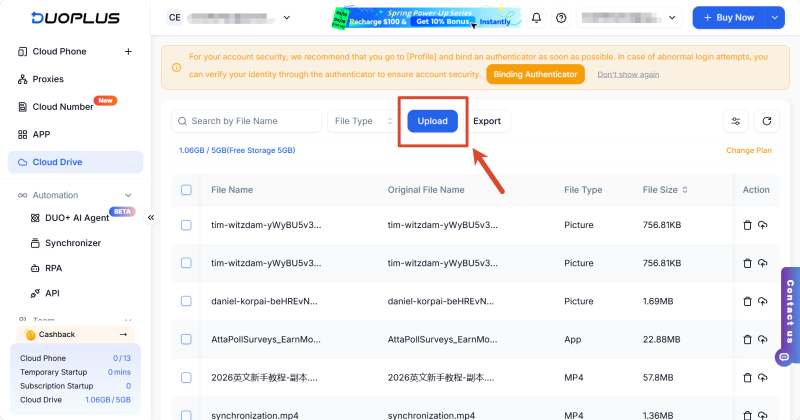
In the configuration panel, select the video files you uploaded (mp4 and other common formats are supported) for push.
In the device list, select the cloud phones that need to receive the video. DuoPlus supports multi‑selection—you can select a single device or multiple accounts' cloud phones at once.
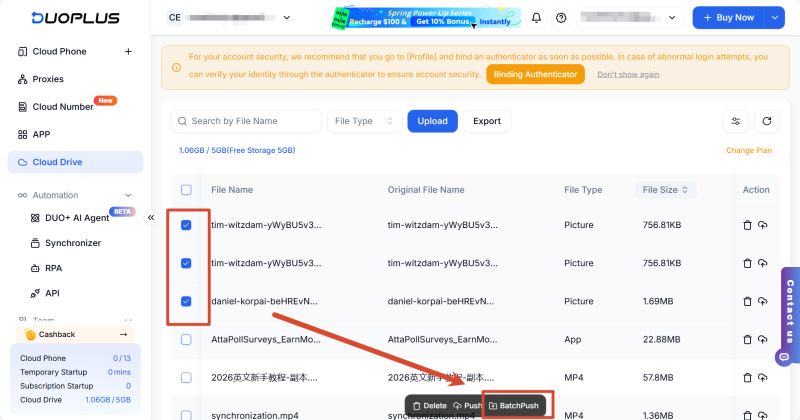
With "Batch Push," you can assign different files to different cloud phones, enabling "one device, one set of assets" for more granular content management and improved operational efficiency.
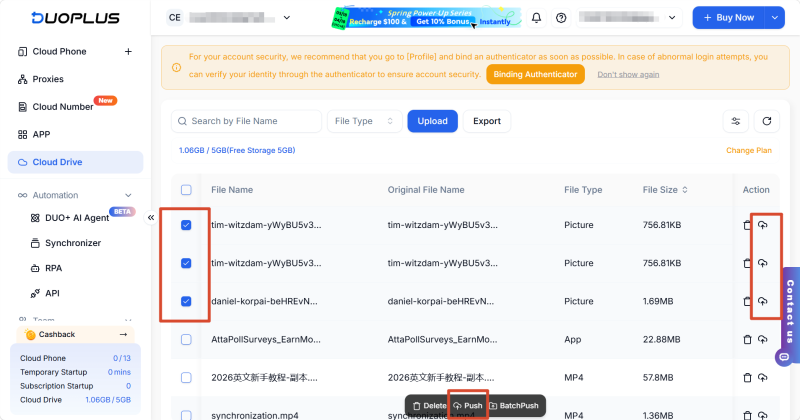
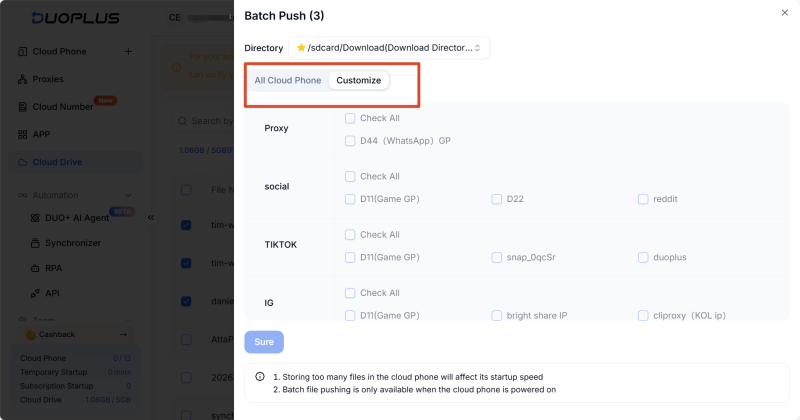
After confirming the video files and target devices are correct, click "Push." The system will start the transfer process in the cloud, securely distributing files to each device's storage path.
Once the transfer completes, operators can access each cloud phone through the preview window, locate the video in the gallery or file manager, and open TikTok to publish as usual.
1. What video formats does DuoPlus Cloud Phone support? Is there a file size limit?
DuoPlus Cloud Phone's file push feature supports common video, image, and document files and can sync them to specified cloud phones. For larger video files, we recommend uploading over a stable network connection for the best experience.
2. Why can't I see my uploaded video in the TikTok gallery?
After uploading images or videos, they need to be saved to the DCIM/Camera directory for TikTok, Facebook, Instagram, and other apps to read them directly. If saved to a different directory like Download, these apps may not display them automatically—you'll need to adjust the save path accordingly.
3. What causes file push failures and how can I fix them?
File push failures are usually related to network connection issues, target cloud phones being offline, insufficient storage, or incorrect target directory settings. Check that the cloud phone is running properly, verify your network connection and target directory, then retry. If failures persist, check the task error messages or contact DuoPlus customer support for further troubleshooting.
4. Can I push different assets to different cloud phones?
Yes. DuoPlus supports batch push, allowing you to assign specific images, videos, or other files to different cloud phones—enabling "one cloud phone, one set of assets" for multi-account operations and differentiated content distribution.
In TikTok multi-account operations, DuoPlus Cloud Phone's centralized management and one‑click file push features allow teams to distribute assets in bulk from a single browser dashboard. This significantly reduces operational overhead while providing a solid technical foundation for account management and content output. After assets are pushed, teams can also use RPA templates or DUO+ AI Agent to automate publishing, completing the full workflow from asset preparation to live content.
Muse has recently become one of the most talked-about AI Agent products in the AI tools space. As a new AI Agent from …

OpenAI Codex is an AI coding agent designed to help developers write, modify, review, and deliver code. It is available …
VK (VKontakte) is one of the major social media platforms in Russia. In addition to account management, content …
No need to purchase multiple real phones.
With DuoPlus, one person can operate numerous cloud phones and social media accounts from a single computer, driving traffic and boosting sales for you.