DuoPlus Cloud Phone Device Simulation Explained: Google Integrity, GPS, Touch and Sensor Tests
As social media operations scale, managing TikTok, Facebook, Instagram and other mobile accounts across physical phones …
Learn how to make one-to-one and group calls on Telegram, use video calls on mobile and desktop, share your screen, and troubleshoot common camera, microphone, and network issues.

Get an AI-Powered Summary of This Article
Telegram supports more than text messaging and file transfers. It also offers voice and video calls. Users can communicate with contacts through one-to-one video calls, start video chats in groups, or share their screens for remote presentations. These features are available on Android, iPhone, and desktop, although different call types have different use cases and workflows.
This article explains the main types of Telegram video calls, how to start them, and how to troubleshoot common issues. It also covers how cloud phones can be used to manage Telegram work accounts.
Telegram supports both voice and video calls. Users can make one-to-one calls with individual contacts or start calls with multiple participants for everyday communication, team meetings, and online discussions.
One-to-one video calls are suitable for conversations with friends, customer communication, and remote collaboration. During a call, users can turn the camera on or off, switch between the front and rear cameras, and adjust the audio output method according to their needs.
Telegram's one-to-one voice and video calls use end-to-end encryption. Users can also compare the emoji displayed in the call interface to verify the encryption key shared by both sides and check whether the connection matches their expectations.
Telegram groups support voice chats and video chats, which can be started from an existing group. A group admin can start a voice chat. After joining, members can participate with audio or turn on their cameras to join the video discussion.
Group video chats are suitable for group discussions, online events, and team meetings. In addition to sharing camera feeds, participants may also be able to share their screens or video content, depending on their permissions.
Telegram group video chats are different from channel livestreams. Group video chats are primarily designed for interaction among group members, while channel livestreams are more focused on broadcasting content to a large audience.
Standalone group calls do not require an existing group or channel. Users can create a call with multiple participants directly and then invite others to join.
In 2025, Telegram introduced an upgraded standalone group-calling feature . It supports inviting other users through a call link or QR code, and participants can also be added from an ongoing call.
This format is suitable for ad hoc meetings and short-term collaboration. For example, if several colleagues need to discuss a work issue but are not members of the same Telegram group, they can start a group call directly without creating a separate group chat.
In addition to basic voice and video communication, Telegram offers several supporting features:
These features make Telegram useful not only for everyday video conversations but also for remote meetings and group collaboration.
One-to-one video calls on Telegram are available on mobile and desktop. Button locations may vary between clients, but the basic process is to open a contact’s profile and start a call from there.
You can start a video call from a contact's profile on your phone. Follow these steps:
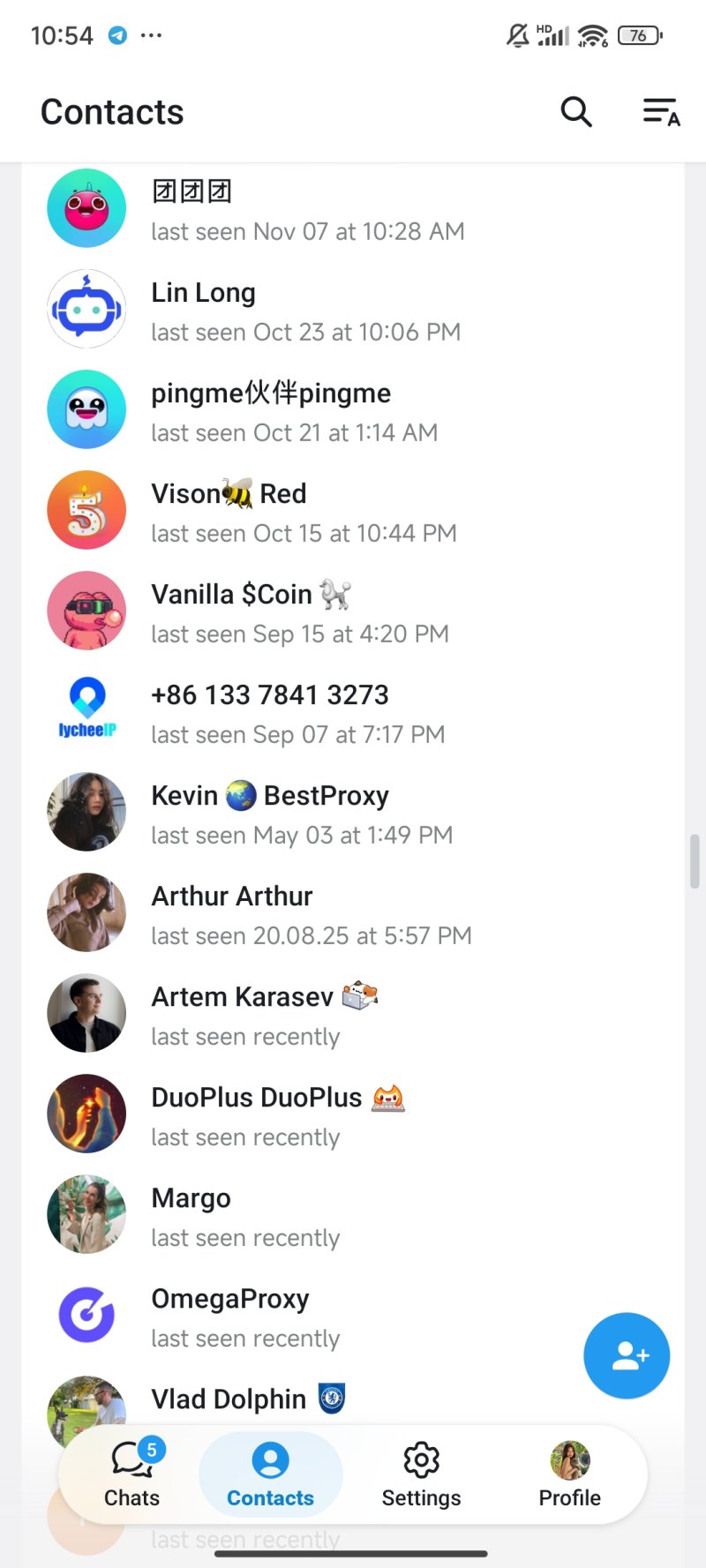
①Open Telegram and go to the chat list. Find the person you want to contact and open the chat.
②Tap the contact's name or profile picture at the top of the page to open their profile.
③Tap the video call icon to start a video call. If the client initially shows only the voice call option, you can start a voice call first and then tap the camera icon in the call interface to turn on video.
④If your operating system displays a permission request, allow Telegram to access your camera and microphone.
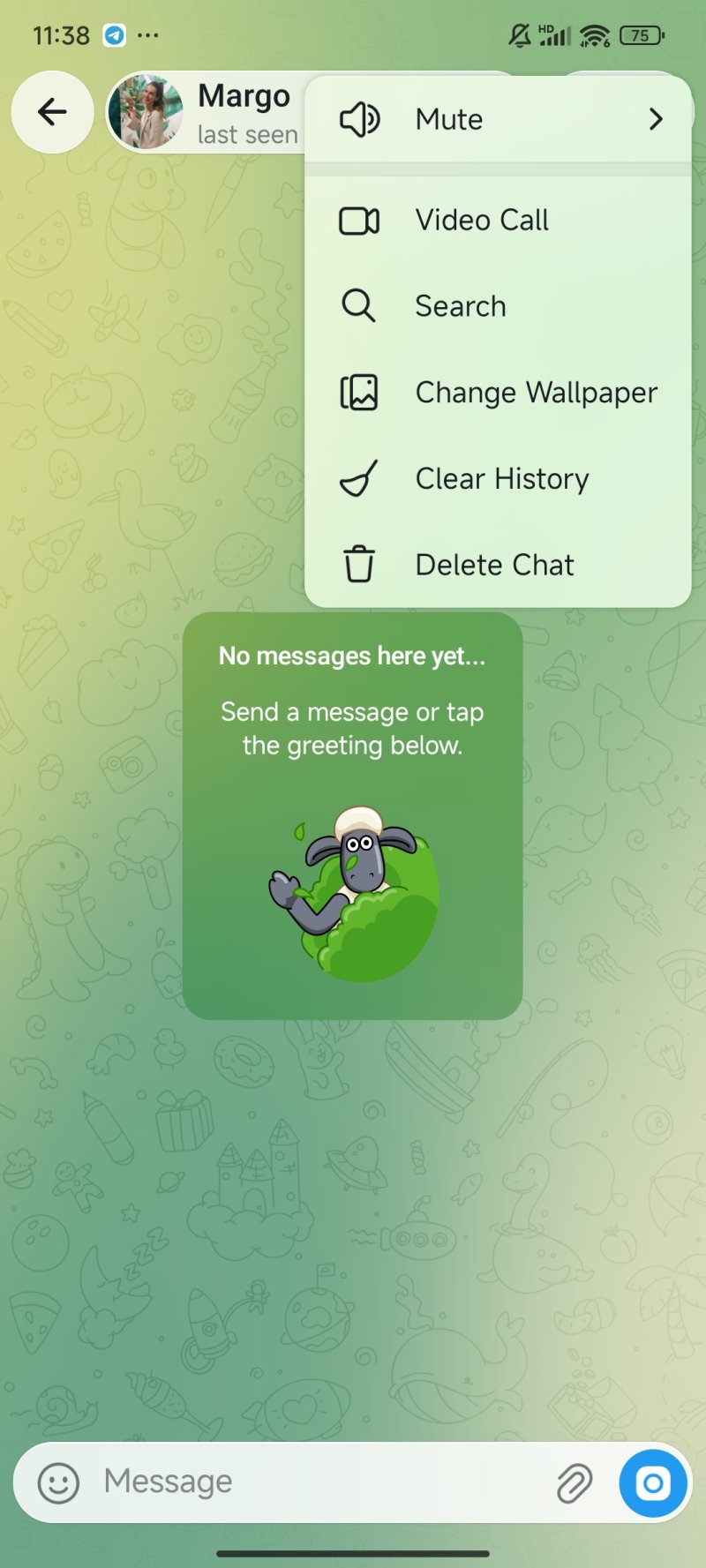
If you cannot turn on the camera or microphone, check the system permission settings:
Telegram Desktop also supports voice and video calls, making it suitable for users who need to communicate remotely from a computer.
The basic steps are as follows:
①Open Telegram Desktop and sign in to your account. Find the contact you want to reach in the chat list.
②Open the chat and click the contact's profile or the call entry point.
③After starting the call, turn on the camera and microphone according to the on-screen prompts.
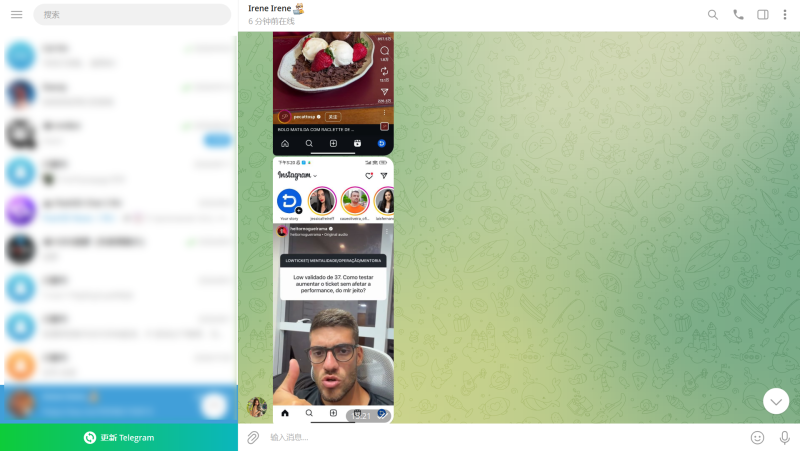
If there is no video or sound, check your computer's system privacy settings and make sure Telegram has the required permissions.
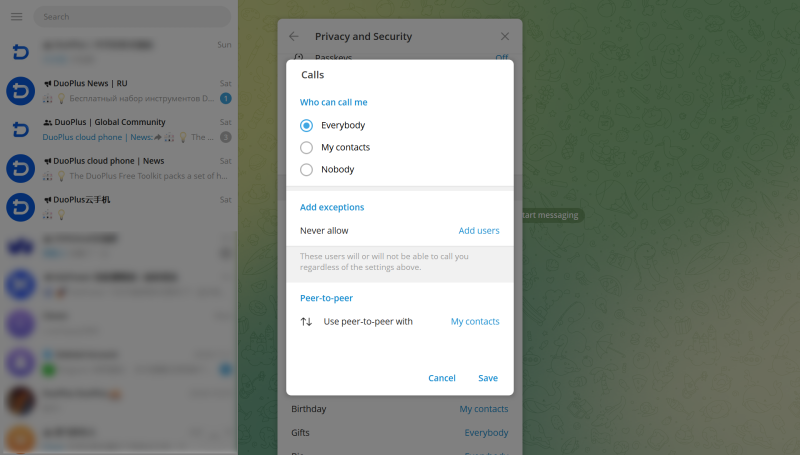
Depending on the client, you may also be able to select audio input and output devices on your computer. For example, when using an external webcam or headset, make sure the system recognizes the device correctly and has selected it as the current call device.
Telegram offers two types of calls with multiple participants: group video chats and standalone group calls that do not require a group to be created. Both support multiple participants, but they differ in how they are started and when they are most useful.
| Comparison | Group Video Chat | Standalone Group Call |
|---|---|---|
| Requires a group | Uses an existing group | No group needs to be created |
| How to start | Started by a group admin with the required permissions | Created from an existing call or the call/meeting entry point |
| How to invite participants | Group members can join the call, and the call entry point can also be shared | Participants can be invited through a call link or QR code |
| Typical use cases | Established communities, project teams, and ongoing discussions | Ad hoc meetings, group conversations, and short-term collaboration |
| Call association | Associated with a group or channel | Independent of groups and channels |
If participants are already members of the same Telegram group, a group video chat is usually more convenient. If you only need to invite several people to a temporary discussion, a standalone group call can reduce the steps involved in creating and maintaining a group.
Problems with Telegram video calls may be related to the client version, device permissions, network connectivity, or call settings. Identify the specific symptom first, then check the relevant settings one by one.
If the call option does not appear on a contact’s profile, check the following:
After checking these settings, close and reopen the chat to see whether the call option appears. If the problem persists, check the same account’s calling features on another device where you are signed in. This can help determine whether the issue is specific to the current client.
If a call has connected but the other person cannot see your video, check the camera permission and device status first.
After changing the permissions, close Telegram and reopen it before starting the video call again.
No sound during a video call may be caused by microphone permissions, the audio output device, or mute settings.
Check the following in order:
If you cannot hear the other person, focus on the audio output device. If the other person cannot hear you, check the microphone permission and input device first.
Video calls require continuous transmission of audio and video data. An unstable network connection may cause calls to fail, video delays, or choppy audio.
Try the following:
If voice calls work normally but the connection becomes noticeably unstable when video is enabled, try turning off the camera or screen sharing to see whether the call improves with a lower network load.
If you cannot join a Telegram group video chat or standalone group call, start by checking the invitation method and the call status.
First, confirm that the call is still in progress. If it has ended, the original invitation entry point may no longer work. Next, check whether the invite link or QR code is complete and valid, and confirm that your account has permission to join the relevant group or call.
If the link opens but you still cannot enter the call, update the Telegram client, sign in again, and retry. If other members cannot join either, contact the person who started the call to confirm the meeting status and invitation settings.
Teams that use Telegram to communicate with different customers may maintain multiple work accounts for customer inquiries, community discussions, and project communication. In addition to account management, different communication scenarios may require access to devices such as cameras and microphones. DuoPlus Cloud Phone provides cloud-based Android device environments and supports camera and audio/video input capabilities, offering device support for these workflows.
If your team uses multiple Telegram accounts to communicate with different customers, you can assign a separate DuoPlus Cloud Phone to each account according to your team's workflow and install Telegram on the corresponding device.
DuoPlus supports remote operation of cloud phones from a computer. Users can view and operate different devices through the management console without frequently switching between multiple physical phones. You can also configure proxy settings, device brands and models, languages, and time zones according to each account's actual requirements, making it easier to distinguish the device environments used by different accounts.
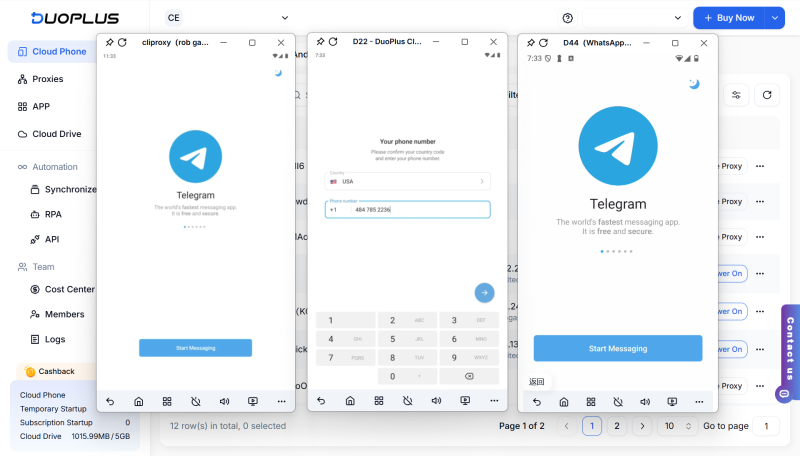
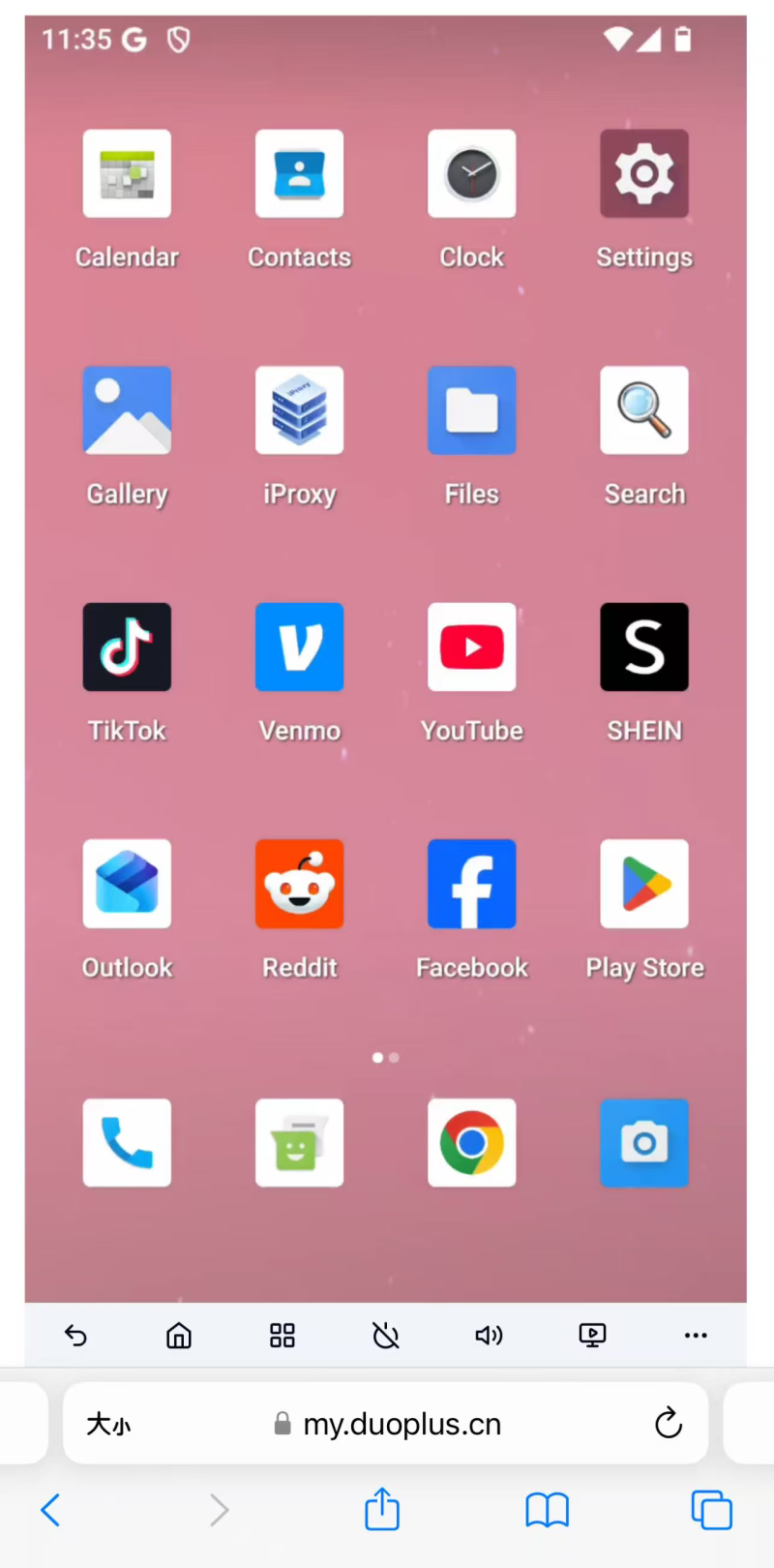
Video calls require access to devices such as cameras and microphones. DuoPlus Cloud Phone supports accessing the camera on a user's computer or phone. It also supports sending audio and video streams to the cloud phone through an OBS virtual camera and VB-Audio.
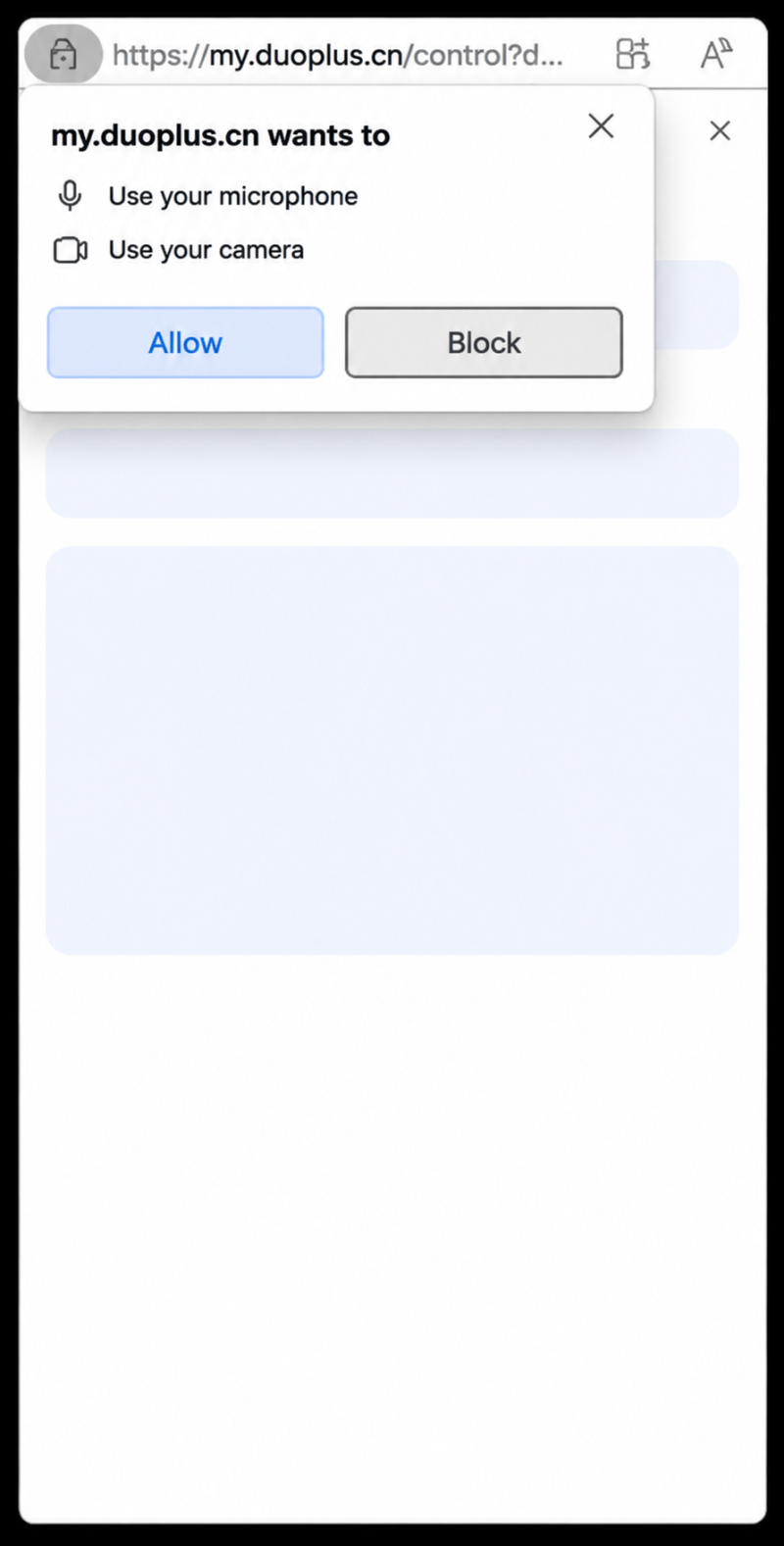
Users can install OBS and VB-Audio on a computer and configure the video source and audio output. Next, open the Live feature in the DuoPlus Cloud Phone interface, allow the browser to access the camera, and select the corresponding audio and video input devices.
After setup is complete, apps running on the cloud phone can use the corresponding audio and video input sources.
DuoPlus Cloud Phone Free Trial
Telegram offers one-to-one video calls and group video chats, allowing users to communicate with contacts in real time from a phone or computer. Camera and microphone permissions, network connectivity, and client settings can all affect the calling experience. When problems occur, troubleshoot them step by step according to the specific symptoms.
For teams that use multiple Telegram work accounts, DuoPlus Cloud Phone provides separate cloud-based Android device environments to help manage different accounts. DuoPlus also supports camera access and audio/video input, which can be used to configure the audio and video input environment on a cloud phone.
Usually, yes. Participants need to join through a Telegram client or an entry point that supports the relevant calling feature.
Yes. You can turn off the camera during a call and continue talking through audio.
Yes. Telegram allows users to find other people through public usernames, so you do not need to know their phone numbers in advance. After finding the person and starting a chat, you can try to make a voice or video call. Whether the call can connect depends on the other person's call privacy settings.
Some group video chats support recording initiated by an admin. The recording can be saved to the admin's Saved Messages. The available options depend on the call type and client support.
Data usage depends on call duration, video quality, network conditions, and whether the camera is enabled. Video calls generally use more data than voice-only calls. Keeping high-definition video on or joining a group video call may increase data usage further.
As social media operations scale, managing TikTok, Facebook, Instagram and other mobile accounts across physical phones …
Joining groups, opening invite links, and accessing chat pages are common tasks when using Telegram. However, users may …

Many cloud phone tasks used in account operations, multi-account management, and mobile app testing are simple but …
No need to purchase multiple real phones.
With DuoPlus, one person can operate numerous cloud phones and social media accounts from a single computer, driving traffic and boosting sales for you.