




How to Sign Up for Meta Muse and Use a Referral Code
Muse has recently become one of the most talked-about AI Agent products in the AI tools space. As a new AI Agent from …
A 2026 guide to creating a LINE account, covering phone number registration, Apple or Google account sign-up, common registration issues, and ways to manage multiple LINE accounts with cloud phones.

Get an AI-Powered Summary of This Article
LINE is a messaging app widely used in many countries and regions across Asia. In addition to text messaging, it supports voice and video calls, group chats, and sharing photos, videos, files, and stickers. For users who need to stay in touch with friends, customers, or teams overseas, LINE can be a convenient communication tool.
However, the LINE registration process is not the same everywhere. In some countries and regions, you can create a LINE account using a phone number and verify it by SMS or phone call. In other regions, LINE requires you to sign up with an Apple or Google account.
This guide explains how to create a LINE account and covers some of the most common registration problems and how to fix them.
LINE is a messaging app mainly used for private conversations, group communication, and voice and video calls. Users can send text messages, photos, videos, files, and stickers, as well as create groups for conversations with multiple people.
LINE also offers official accounts, stickers, and other content services. As a result, it can be used not only for personal communication but also for customer communication and other business-related purposes.
If you want to use LINE's messaging, calling, and other features, you first need to create a LINE account.
According to LINE's official help center , the available account creation methods vary depending on your country or region.
Currently, users in Hong Kong, Japan, South Korea, Taiwan, and Thailand can create a LINE account with a phone number, while users in other regions need to sign up with an Apple or Google account.
The same phone number, Apple ID, or Google account cannot be used to create multiple LINE accounts.
If phone-number registration is available in your region, you can create a LINE account directly through the LINE app.
Follow these steps:
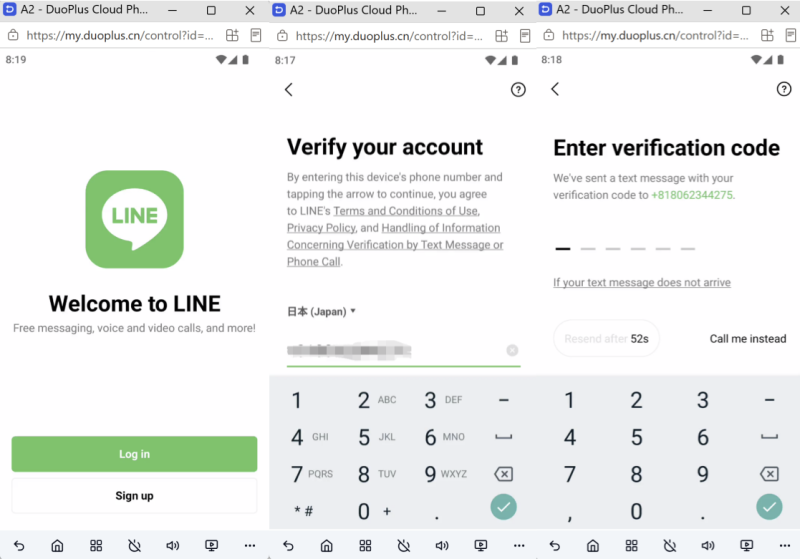
The phone number you use must be able to receive verification messages. LINE does not support registration with numbers starting with 050 or virtual phone numbers, so a regular mobile number provided by a mobile carrier is recommended.
Also, if the phone number is already linked to another LINE account, using the same number to create a new account may affect the existing account. Before using an old number, make sure it is not already associated with another LINE account.
If the registration page does not offer a phone-number option, it does not necessarily mean that LINE cannot be used in your region.
In some countries and regions, LINE no longer offers phone-number registration. Instead, you need to select Continue with Apple or Continue with Google, sign in with your Apple or Google account, and follow the instructions to set up your name, profile picture, password, and other account details.
Most LINE registration problems are related to the available registration method, verification codes, or existing account information.
This is usually related to your country or region.
LINE offers different account creation methods depending on where you are located. In some regions, phone-number registration is no longer available, so the registration page may only show options to continue with an Apple or Google account.
In this case, simply use the Apple or Google registration option provided on the screen.
If phone-number registration is available in your region but you do not receive the verification code, try the following:
If your phone cannot receive SMS messages but the registration page shows Call me instead, you can use phone verification. LINE will provide the verification code through an automated phone call.
However, phone verification is not available in every country or region. If the option does not appear, you will need to use the registration method currently supported in your region.
If you see "Welcome back, XXXX!" after verifying your phone number, the number may already be associated with an existing LINE account.
If the displayed name does not belong to you, do not continue using that account. Instead, select:
No, that's not me → Next → No, create a new account
Then follow the instructions to create a new LINE account.
If you cannot continue the registration process, check the following:
If none of these solutions work, check the LINE Help Center for additional guidance on account creation.
After creating your account, there are a few basic settings you can configure to make LINE easier to use.
You can set your name and profile picture during registration. If you want to change them later, you can do so from your profile settings.
If you mainly use LINE for work or customer communication, consider using a recognizable name and clear profile picture so that other users can easily identify you.
LINE allows you to add friends through contacts and other available methods. If you allow LINE to access your contacts during registration, LINE can use the phone numbers in your address book to find people who are already using LINE.
If you do not want to add contacts automatically, you can choose whether to enable this feature based on your needs.
After registration, you can adjust your notification, friend, and other privacy settings.
If you mainly use LINE for work, it may be useful to configure notifications so that important messages are not missed. For personal use, you can adjust friend and notification settings according to your preferences.
Once the basic setup is complete, you can use LINE to chat with friends, participate in group conversations, and make voice and video calls.
If you plan to use LINE regularly, keep your account information up to date and make sure you have access to the information associated with your account. This can make it easier to continue using your account when changing devices or updating account settings.
After completing the account setup, continue with the guide to adding LINE friends and using OpenChat to learn how to add contacts by LINE ID, phone number, or QR code and how to find, join, and create OpenChat communities.
If you need to use multiple LINE accounts, first review the LINE multi-account management guide to distinguish multiple independent accounts, multi-device access to one account, and team management. Then plan account creation and device usage carefully. The same registration information cannot be used to create multiple LINE accounts, and using separate devices for different accounts makes account management easier.
Therefore, if you need multiple LINE accounts, you should prepare different registration information for each account and use the accounts in separate device environments.
For example, if you need to manage five LINE accounts, you would need five sets of account registration information and separate device environments for those accounts.
Using physical phones for every account means purchasing multiple devices, installing LINE on each one, logging into each account, and maintaining all of those devices. As the number of accounts grows, device setup and daily management can become increasingly time-consuming.
This is where cloud phones can be useful. A cloud phone allows you to create multiple independent Android environments in the cloud, with each environment assigned to a different LINE account. This reduces the need to purchase a separate physical phone for every account and makes it easier to keep accounts separated.
You can manage multiple LINE accounts by following a one account, one independent cloud phone environment setup. Using DuoPlus Cloud Phone as an example:
1. Create a Separate Cloud Phone for Each LINE Account
Start by creating multiple cloud phone environments based on the number of LINE accounts you need to manage.
For example, LINE Account A can be assigned to Cloud Phone A, while LINE Account B is assigned to Cloud Phone B. Keeping accounts in separate Android environments reduces the need to repeatedly switch between accounts.
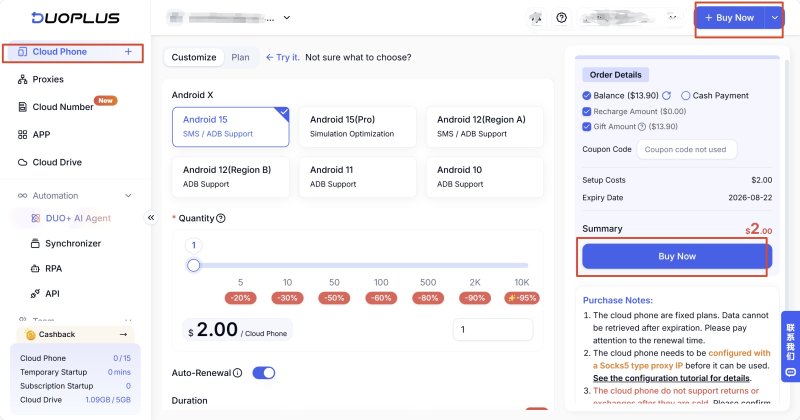
2. Configure the Network Environment for Each Cloud Phone
Configure the appropriate network environment for each cloud phone based on your operational requirements.
Keeping each account associated with its corresponding cloud phone and network environment makes it easier to identify and manage different accounts.
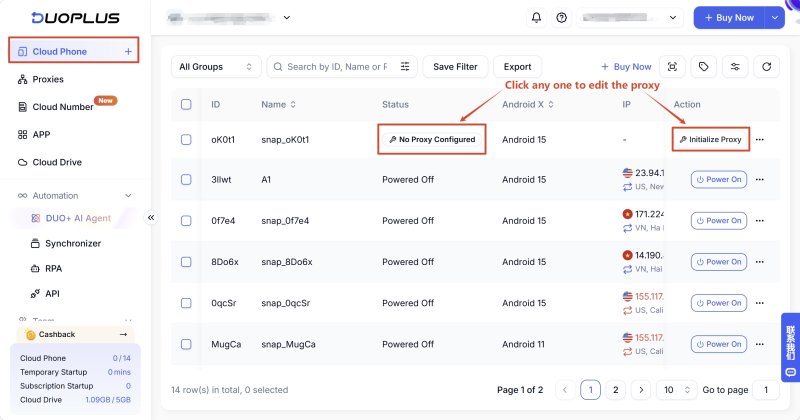
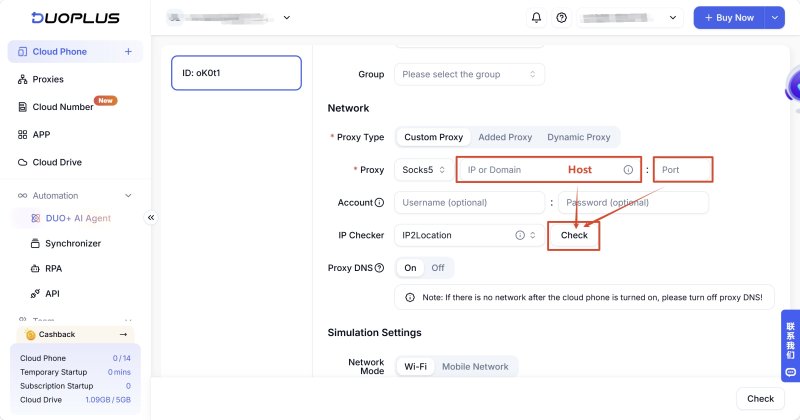
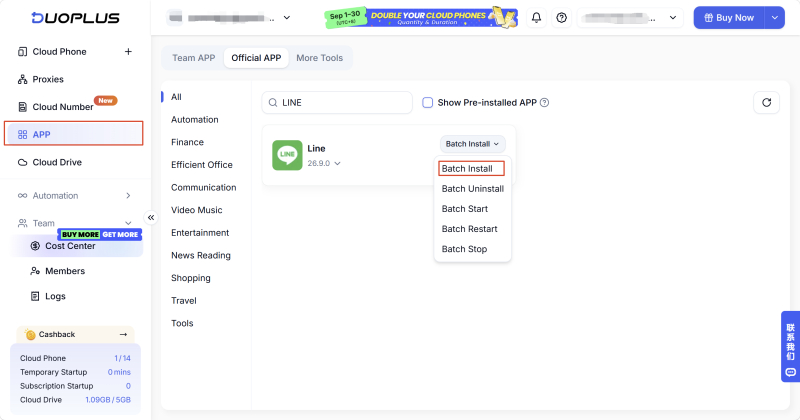
3. Install the LINE App in Bulk
After creating multiple cloud phones, you can install the LINE app across the devices.
Compared with preparing physical phones one by one, bulk app installation can reduce repetitive setup work. When you need to add another LINE account, you can create a new cloud phone and complete the app setup there.
4. Register or Log In to LINE Accounts
Once the cloud phones and LINE app are ready, you can register or log in to the corresponding LINE accounts separately.
If phone-number registration is available in your region, you can use DuoPlus Cloud Numbers to provide a corresponding number for each account and complete the verification process according to LINE's registration requirements.
Keep in mind that LINE's registration methods vary by country or region. Some regions support phone-number registration, while others require an Apple or Google account. Always follow the registration options currently shown by LINE.
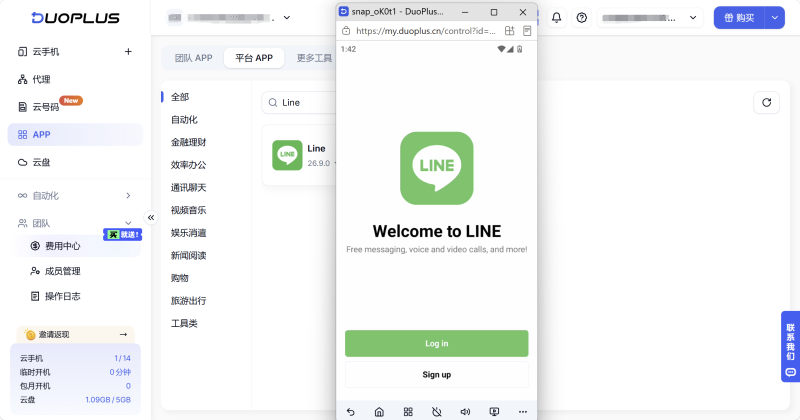
5. Manage Multiple Cloud Phones From One Workspace
Once the LINE accounts are set up, you can manage the corresponding cloud phones from a centralized workspace.
This allows each LINE account to remain associated with its own cloud phone environment while multiple devices can be viewed and managed from one interface. Compared with maintaining a large number of physical phones, this approach can be more practical when managing multiple accounts.
Yes, but the exact process depends on your account and the options currently available in LINE.
If you need to change your phone number, first make sure the new number meets LINE's current requirements before updating the account information.
Yes, but the available options depend on the type of device and LINE's current account and device policies. The way LINE works across phones, computers, and other devices is not exactly the same.
If you are switching to a new primary device, make sure your account has been properly linked or transferred before making the change.
It is not recommended. You should select the country or region where you are actually located because LINE provides different registration methods depending on the region.
Choosing a region that does not match your actual location may affect the registration process or the options available to you.
Muse has recently become one of the most talked-about AI Agent products in the AI tools space. As a new AI Agent from …

OpenAI Codex is an AI coding agent designed to help developers write, modify, review, and deliver code. It is available …

VK (VKontakte) is one of the major social media platforms in Russia. In addition to account management, content …
No need to purchase multiple real phones.
With DuoPlus, one person can operate numerous cloud phones and social media accounts from a single computer, driving traffic and boosting sales for you.