




How to Sign Up for Meta Muse and Use a Referral Code
Muse has recently become one of the most talked-about AI Agent products in the AI tools space. As a new AI Agent from …
This guide covers 6 ways to add friends on LINE, troubleshooting for failed friend requests, differences between OpenChat and regular groups, how to find and join OpenChat groups, management tips, and multi-account management advice.

Get an AI-Powered Summary of This Article
For users who are new to LINE, adding friends and joining communities are usually the first steps after completing LINE registration . LINE's friend-adding methods differ from those of many other messaging apps, and users often run into issues such as being unable to find someone by ID, phone number, or QR code, or not seeing a newly added contact in their friend list.
At the same time, OpenChat is LINE's public community feature, supporting up to 5,000 members. Its entry points and joining process are different from those of regular group chats, so many users are unsure how to find and join communities that interest them. This guide covers the two main topics—adding LINE friends and joining OpenChat communities—and explains the available methods and solutions to common issues.
LINE provides several ways to add friends. Choose the method that best matches the information you have about the person.
1. Add a Friend by Searching LINE ID A LINE ID is a unique account identifier set by the user and is one of the most common ways to add friends.
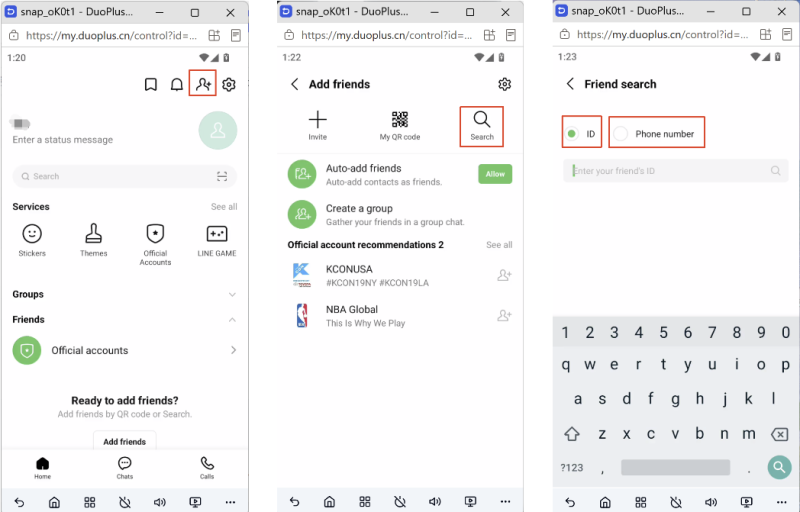
Open LINE, tap the Add Friends icon in the upper-right corner of the Home tab → select Search → enter the person's LINE ID → tap Add.
If the person has not set a LINE ID or has disabled Allow others to add me by ID, you will not be able to find them.
2. Add a Friend by Phone Number Open LINE, tap the Add Friends icon in the upper-right corner of the Home tab → select Search → enter the person's phone number → tap Add.
Phone-number search may be affected by regional and account restrictions, and some newly registered accounts may not support this feature by default. Using an ID or QR code is generally recommended.
3. Add a Friend by Scanning a QR Code Tap the Add Friends icon → QR Code, then scan the other person's QR code. You can also tap My QR Code to generate your own QR code for others to scan.
LINE also allows users to share friend links through other channels. Tapping the link takes the recipient directly to LINE to add the contact.
4. Automatically Add Friends from Your Contacts After allowing LINE to access your contacts, LINE can automatically match people in your address book who are using LINE.
You can turn Auto-add friends on or off in Settings. Automatic matching also depends on the other person's privacy settings.
5. Add Someone from a Group Chat If you and the other person are in the same LINE group or OpenChat community, open the chat, tap the person's profile picture, then tap Add.
You do not need to know their LINE ID or phone number, making this a convenient option in group and community scenarios.
6. Add Friends from People You May Know LINE can recommend contacts based on information such as contact matching, shared groups, and existing friend relationships. You can open the friend recommendations section and add people directly.
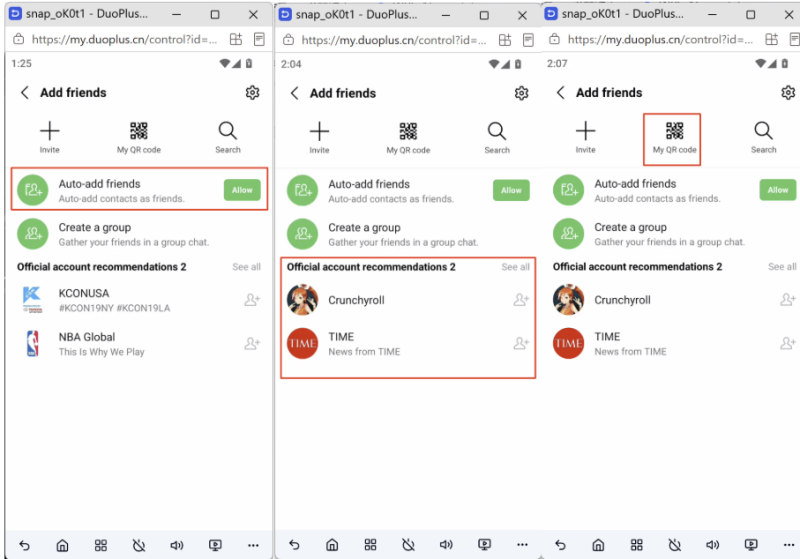
For most users, searching by LINE ID or scanning a QR code is the easiest option. QR codes are particularly convenient when the other person is nearby.
Different friend-adding methods can fail for different reasons. Here are the most common situations.
1. Can't find someone by LINE ID The person may not have set a LINE ID or may have disabled Allow others to add me by ID. Ask them to enable this option in their profile settings.
2. Can't find someone by phone number Phone-number search may be restricted by region or account status. Some newly registered accounts may not support this feature by default. The other person may also need to enable the relevant privacy setting.
3. QR Code addition failed After scanning a QR code, the contact may be added directly if automatic friend addition is enabled. Otherwise, you may need to send a friend request and wait for the other person to accept it.
4. Search temporarily restricted Entering incorrect IDs or phone numbers repeatedly in a short period may trigger temporary restrictions. Wait before trying again, or use another method such as a QR code, friend link, or group-member addition.
5. Automatic contact matching does not work Check your own LINE settings and ask the other person to verify their privacy settings. Also make sure the contact has not been hidden or blocked.
The relevant settings can generally be found under Home → Settings → Friends → Hidden accounts / Blocked accounts.
6. You may have been blocked If someone has blocked you, you may be unable to find or add them through certain methods. In that case, you may need to contact them through another channel.
7. "This person cannot accept more friends" This indicates that the other person's friend list may have reached its limit. LINE currently supports up to 5,000 friends, subject to account and feature limitations.
8. "An unknown error occurred" This may be related to account restrictions or temporary service issues. Wait and try again later. If the problem continues, contact LINE Support.
A practical troubleshooting order is: check the other person's settings → check your own settings → try another friend-adding method.
OpenChat is LINE's public community feature for interest-based discussions and community management. It supports up to 5,000 members and allows users to create separate nicknames and profile pictures for each community. OpenChat also provides management features such as admin roles, spam filtering, and automated replies, making it suitable for larger communities and brand operations.
When you join an OpenChat community, the nickname and profile picture you use there are separate from those on your main LINE account. Other members see your OpenChat profile rather than your main LINE profile.
| Comparison | OpenChat | Regular Group Chat |
|---|---|---|
| Member limit | Up to 5,000 | Up to 500 |
| Joining methods | Public search, invite links, QR codes | Mainly member invitations |
| Member profiles | Separate nickname and profile picture | Uses the member's LINE profile |
| Message history | New members may be able to see some previous messages, depending on settings | Generally cannot see messages sent before joining |
| Admin permissions | Admins and co-admins | No separate admin role in the same way |
| Management tools | Keyword filtering, auto-replies, sub-chats | Limited |
| Sub-communities | Supported in some cases | Not supported |
On mobile: From the Home tab, find the OpenChat icon in the services section. You can also open the Chat tab, tap the feature icon in the upper-right corner, and select OpenChat.
On desktop: Update LINE to the latest version and select the OpenChat icon from the main menu on the left.
OpenChat is currently available only in certain countries and regions, including Japan, Taiwan, and Thailand. Accounts registered in unsupported regions may not see the OpenChat entry point, and shared OpenChat links may display a message saying that the service is unavailable in the user's country or region.
When joining an OpenChat community, you may be asked to create a nickname and profile picture specifically for that community. This profile is separate from your main LINE account profile.
Once everything is configured, tap Create to set up the community. You can modify the community information and permissions later.
For e-commerce teams, brand operators, and content creators, one LINE account may not be enough to cover different business needs. Separate LINE accounts may be required for different markets, brands, or business lines, while multiple OpenChat communities may also need to be managed as user engagement channels.
As the number of accounts grows, preparing phone numbers, managing login devices and network connections, and handling daily messages and community operations can become increasingly time-consuming.
Cloud phones provide a practical way to manage multiple LINE accounts. A cloud phone runs mobile device environments in the cloud, allowing each account to operate in an independent environment and making it easier to manage multiple accounts without maintaining a large number of physical devices.
For example, the DuoPlus LINE multi-account management solution explains the differences between independent accounts, multi-device access, and team management. With DuoPlus Cloud Phone, you can use features such as:
If you also use LINE Official Account for brand content and customer communication, continue with the LINE Official Account marketing guide .
LINE provides six common ways to add friends: ID search, phone-number search, QR codes, contact matching, group members, and friend recommendations. When adding a friend fails, check the other person's settings first, then your own settings, and finally try another way to add them.
OpenChat provides a larger, more flexible community experience than regular LINE group chats. Users can find communities through keyword search, external invitation links, or QR codes, and can also create their own communities with custom profiles and access settings.
For users managing multiple LINE accounts, cloud phone tools can provide independent device environments and more centralized account management, helping streamline day-to-day operations.
Q: Why didn't the other person receive my LINE friend request? They may have disabled notifications, muted the conversation, or not yet processed the request. Ask them to check LINE notification settings and their friend requests.
Q: Is joining an OpenChat community completely anonymous? Other members and admins see the OpenChat-specific nickname and profile picture rather than your main LINE profile. However, LINE may still have access to your account information, so avoid sharing sensitive personal information in communities.
Q: Why can't my newly created OpenChat community be found in search? The community may not yet be fully indexed, search visibility may be disabled, or the community may rank lower due to limited activity. Check that search visibility is enabled and allow some time for the listing to appear.
Q: Can I use the same LINE account on both my phone and computer at the same time? Yes. LINE supports using a phone as the primary device while computers or tablets can be linked as additional devices, although some features may be limited on secondary devices.
Muse has recently become one of the most talked-about AI Agent products in the AI tools space. As a new AI Agent from …

OpenAI Codex is an AI coding agent designed to help developers write, modify, review, and deliver code. It is available …

VK (VKontakte) is one of the major social media platforms in Russia. In addition to account management, content …
No need to purchase multiple real phones.
With DuoPlus, one person can operate numerous cloud phones and social media accounts from a single computer, driving traffic and boosting sales for you.