How to Appeal a Suspended or Disabled Google Account
A Google Account is more than just your Gmail address.It launches Drive, Photos, YouTube, Play and "Sign in with …
The DuoPlus RPA Marketplace offers automation templates for changing Instagram profile pictures and display names. Learn how to find the profile update template, create an RPA task, and check the execution results to maintain Instagram profiles more efficiently.

Get an AI-Powered Summary of This Article
An Instagram profile is an important part of how an account is presented to others. When an account's positioning, brand identity, or content direction changes, you may need to update its profile picture and display name.
DuoPlus includes an RPA Marketplace with automation templates for changing Instagram profile pictures and display names. You can select the relevant template, create a task, and use a cloud phone to carry out the profile updates.
This guide explains how to find the Instagram profile update template, configure a task, and check whether the profile picture and display name have been updated successfully.
An Instagram profile picture and display name are not necessarily set once and left unchanged. As an account's positioning, brand visuals, or content direction evolves, you may need to update its profile information. If you manage multiple Instagram accounts, each account may represent a different brand, product, or content theme, so the profile pictures and display names you maintain may also vary.
Every time you update an Instagram profile, you need to open the relevant account's profile, find the profile editing option, and then change the picture or display name. These actions are not complicated, but repeating them across a growing number of accounts takes time.
RPA can perform repetitive actions according to a predefined workflow. With a DuoPlus RPA template, you do not need to build the entire automation workflow from scratch. You can select an existing template and configure it according to the task requirements. For operators who need to maintain account profiles regularly, using a preset template can reduce repetitive work and make the update process more centralized.
First, sign in to the DuoPlus and open the cloud phone management interface.
Next, find the RPA entry for your cloud phones and open the RPA Marketplace. Select the Instagram section to browse the available templates.
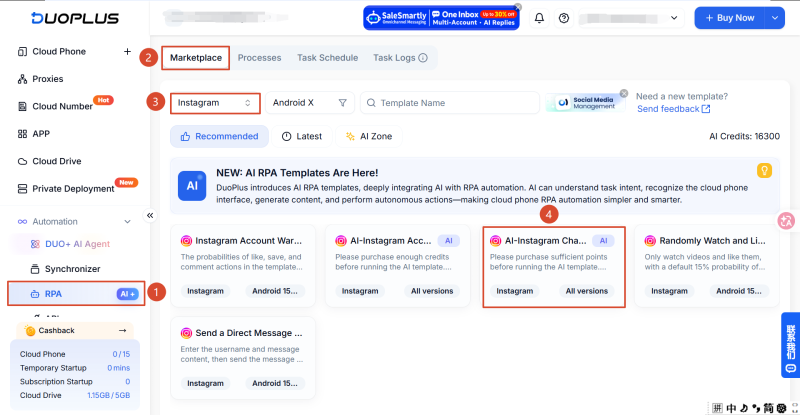
After selecting the AI-Instagram Change Profile Picture and Name template, you can choose Create Task or Custom Flow according to your needs.
The template details page generally provides two options: Create Task and Create Custom Flow. The difference is whether you need to modify the template's original operation steps.For detailed information, please refer to the article below:How to Create Social Media Automation Tasks with DuoPlus RPA Templates?
Once you find the template, you can use its preset workflow to create a task directly. DuoPlus RPA supports one-time tasks and recurring tasks. Choose the task type based on how often you need to update the profile.
First, open the Instagram profile update template in the RPA Marketplace to access its details page.
Select Create Task and follow the on-screen instructions. Enter a schedule name, select the cloud phone that should run the task, and submit your selection.
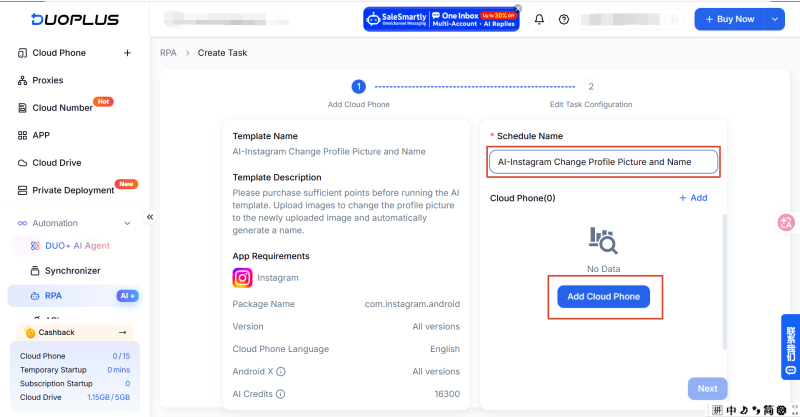
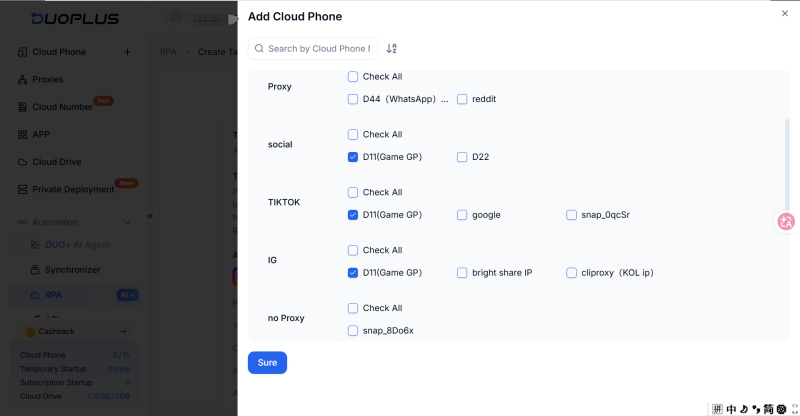
After selecting the device, you will be taken to the task configuration page, where you can choose between a one-time task and a recurring task.
If you only need to change an Instagram account's profile picture and display name once, choose a one-time task. This is also the more common option for routine profile updates.
Follow these steps:
Select the time zone and execution time for the target region. A scheduled task runs according to the local time in the selected time zone.
For example, if you select a US time zone and set the execution time to 09:00, the task will run at 9:00 a.m. in that time zone.
Next, find the upload area for the profile picture on the task configuration page and select the image file you prepared in advance. After you upload the profile picture, the template automatically generates a corresponding name.
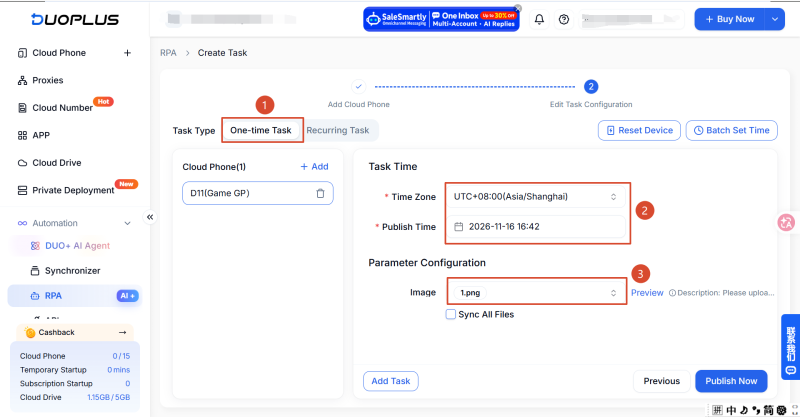
After checking the configuration, submit the task using the submission option on the task page. A one-time task is suitable for temporary profile adjustments or updates that only need to be performed once.
After submitting the task, you can use the RPA task logs to check its execution status and visit the Instagram profile to confirm whether the information has been updated.
If you need to perform profile update tasks on an ongoing basis, you can choose a recurring task.
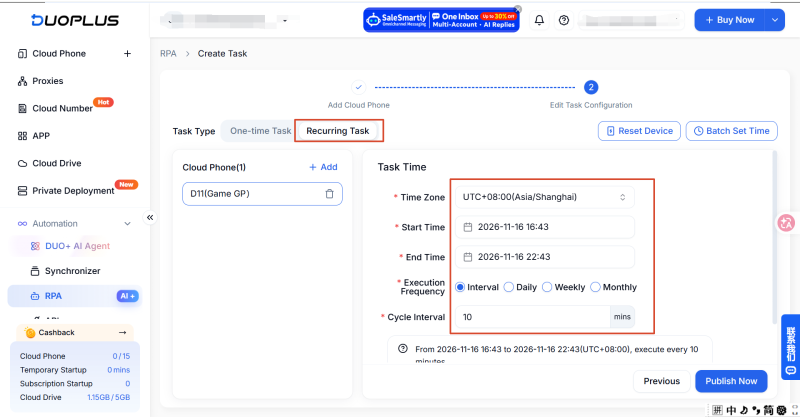
Compared with a one-time task, a recurring task requires additional settings for the execution period, frequency, and time range. DuoPlus RPA supports interval-based, daily, weekly, and monthly schedules. Choose the frequency that matches your plan.
Follow these steps:
①Upload the Instagram profile picture as required by the template, then check the automatically generated display name and the other task settings.
②Select the time zone for task execution to ensure the schedule runs at the intended local time.
③Set the start and end times for the recurring task based on your content or account maintenance schedule. This defines the period during which the task remains active.
④Choose the execution frequency according to your needs.
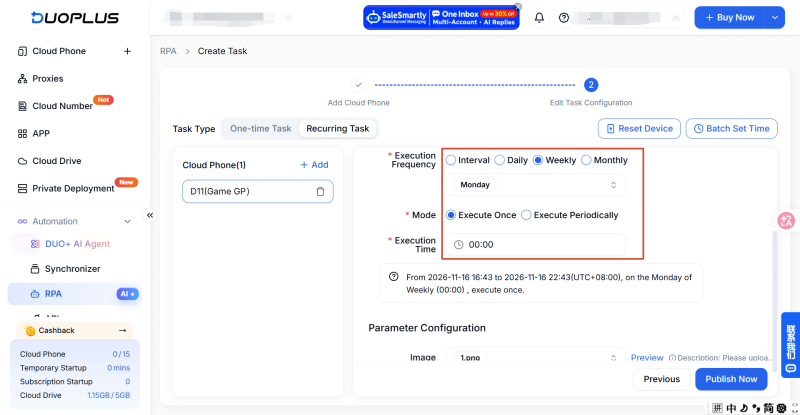
DuoPlus RPA recurring tasks support different execution frequencies.
If you choose an interval-based schedule, set the repeat interval to define the time between task executions.
If you choose a daily, weekly, or monthly schedule, you can also select either a single execution or repeated execution within a time range.
A single execution lets you set a specific time for the selected frequency. Repeated execution within a time range requires you to set the execution window and repeat interval, so the task runs repeatedly during the specified period.
After configuring the task, review the plan name, target cloud phone, and task settings. Submit the task once everything is correct.
A recurring task is not necessary for routine Instagram profile changes. Configure a recurring schedule only when you have a genuine need to repeat the operation. Since profile pictures and display names are public-facing account details, check the task content and generated results before enabling repeated execution to avoid unnecessary profile changes.
If the preset template does not fully meet your requirements, you can use the Custom Flow feature in DuoPlus RPA to adjust the automation workflow.
Unlike creating a task directly, creating a custom flow requires you to open the workflow editor, modify the workflow nodes according to the operation you need, and then debug the flow to verify the results.
Step 1: Open the Custom Flow Editor
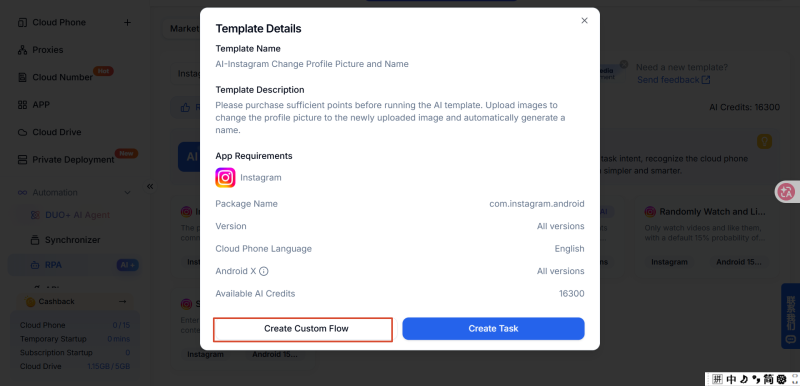
Return to the Instagram profile update template details page and click Create Custom Flow to open the workflow editor.
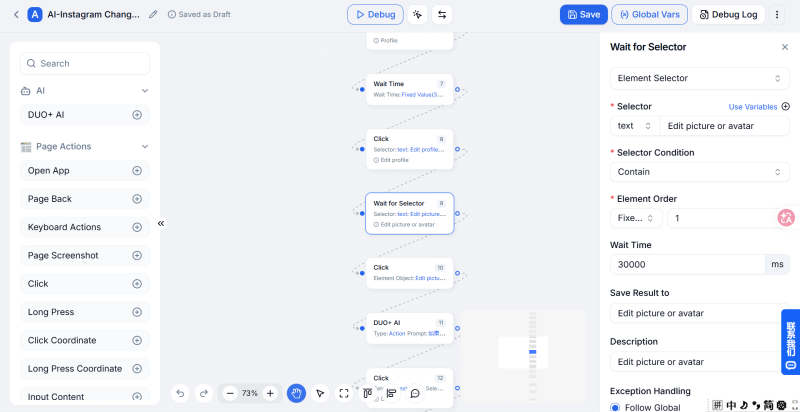
The DuoPlus RPA workflow editor displays operation nodes in a flowchart. You can review and adjust the steps according to the order in which the task should run.
Step 2: Set the Flow Name and Global Variables
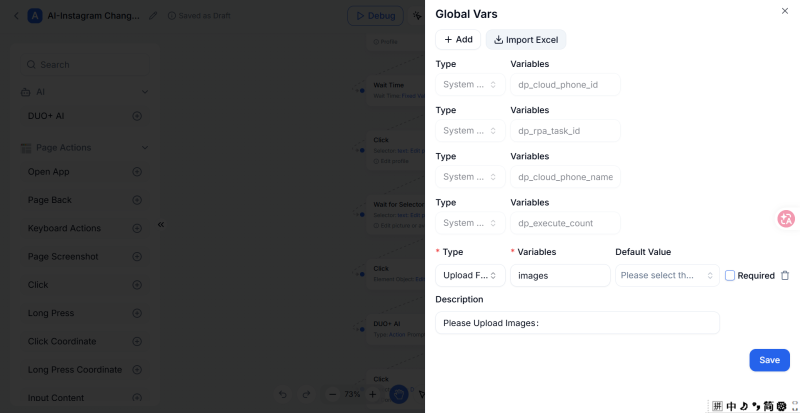
After entering the editor, you can change the flow name to make it easier to identify and manage later.
If the workflow uses fixed or external data, you can configure the relevant parameters through global variables. DuoPlus RPA supports static constant types such as batch text, Boolean values, numbers, strings, and Excel data. It also supports dynamic variables that can be retrieved and saved while the cloud phone is running the workflow.
Choose the variables you need based on the requirements of the actual workflow.
Step 3: Adjust the Operation Nodes in the Workflow
The workflow editor displays the current operation steps in execution order. You can use the action options on the left to customize the workflow and modify, add, or delete nodes as needed.
For example, if an operation step does not meet the requirements of the current task, you can adjust the corresponding node. If you need to add an operation, you can insert a new node and check that it connects properly with the preceding and following steps.
When making changes, ensure that the workflow logic remains complete. Deleting a required step may prevent the task from running correctly.
Step 4: Debug the Workflow and Check the Logs
After adjusting the nodes, click Debug Run to let the cloud phone execute the workflow as currently configured.
When debugging is complete, review the debug logs to check whether each step ran as expected. If a step was skipped, an operation failed, or the result did not meet your requirements, return to the workflow editor, adjust the nodes or parameters, and run the debug process again.
Step 5: Select a Cloud Phone and Publish the Task
Once the workflow and debug results meet your expectations, select the cloud phone that should run the task. Then publish the workflow as a scheduled task or recurring task according to your needs.
With Custom Flow, you can modify the operation logic based on a preset template, making the automation task better suited to your actual use case.
After configuring and submitting a task, you should check whether it ran successfully and whether the Instagram account displays the expected profile information. You can verify the results using both the DuoPlus RPA task logs and the Instagram profile.
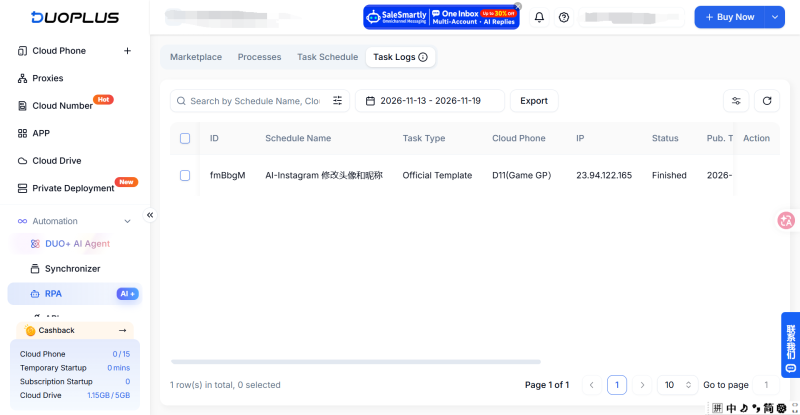
DuoPlus RPA provides task logs for reviewing the results of scheduled tasks. After submitting a task, open the Task Logs page in the RPA module, find the corresponding record, and check its status.
If you use a recurring task, you can also view the published task under Plan Management. Plan Management is mainly used to review published recurring tasks, while scheduled tasks are stored directly in the task logs.
After the task finishes, open Instagram on the target cloud phone, go to the relevant account's profile, and check whether the profile picture and display name have been updated.
Pay particular attention to the following:
If the task logs show that execution is complete but the profile does not display the expected changes, check the account's login status, task configuration, and execution records to identify where the issue occurred.
For people who manage Instagram accounts, updating a profile picture and display name is a basic task. However, repeatedly switching between accounts and making changes can increase the time and effort required for routine account maintenance.
The DuoPlus RPA Marketplace provides an automation template for updating Instagram profile pictures and display names. You can find the profile update template in the RPA Marketplace, prepare the target cloud phone and account assets, and then create a task according to the configuration requirements on the template page.
After the task runs, check the results using the RPA task logs and the Instagram profile. Using a preset template for repetitive operations and keeping each account matched with its corresponding profile assets can make Instagram profile maintenance more organized.
The display name is the name shown on an Instagram profile. It can represent an individual, brand, or account positioning. A username usually begins with @ and serves as the account's unique identifier; it also appears in the profile URL. These are two different profile fields and should not be confused.
Yes. The task runs through the Instagram app on the target cloud phone. Before starting, make sure Instagram is installed, the target account is logged in, and the account can open its profile normally.
A blurry profile picture may be caused by a low-resolution source image, repeated image compression, or a lack of clear details in the main subject. Use the original high-quality image whenever possible, and avoid images that have been forwarded or compressed multiple times.
First, check the DuoPlus RPA task logs to confirm whether the workflow completed all steps. Then check the Instagram login status on the target cloud phone, the uploaded profile picture, and the display name configuration. If the task failed, use the logs to identify the cause and run it again with DuoPlus's failed-task republishing feature.
A Google Account is more than just your Gmail address.It launches Drive, Photos, YouTube, Play and "Sign in with …

Eventually, you'll need a user ID – either your own, or someone else's – while using Discord. Bots request it, …

Many still have this problem even when the phone seems to be in fine condition and the password seems to be right. …
No need to purchase multiple real phones.
With DuoPlus, one person can operate numerous cloud phones and social media accounts from a single computer, driving traffic and boosting sales for you.