




How to Log In to Codex: What to Do If You Don't Receive the Phone Verification Code
OpenAI Codex is an AI coding agent designed to help developers write, modify, review, and deliver code. It is available …
Learn how to sign up for Meta Muse, create an account, and use a Muse referral code. This guide covers registration, invite codes, and how to use Muse on an Android cloud phone with DuoPlus.

Get an AI-Powered Summary of This Article
Muse has recently become one of the most talked-about AI Agent products in the AI tools space.
As a new AI Agent from Meta, the focus is no longer just on whether Muse can write copy or organize information. Users are increasingly interested in whether it can actually take over tasks such as browsing the web, filling out forms, handling customer service, planning schedules, and even continuing tasks after the app has been closed.
This guide walks through the Muse sign-up process, verification requirements, and invite codes, and explains how to access and use Muse in a cloud-based Android environment.
Muse is Meta's personal AI Agent. You can describe a task in natural language, and Muse can use a browser and connected apps or services to help with tasks such as research, document creation, scheduling, form filling, shopping, and customer service.
Muse is designed to do more than generate content. Once you grant the necessary permissions, it can carry out multi-step tasks on your behalf. For sensitive actions such as sending emails, purchasing products, or sharing information, Muse asks for your review or approval. According to the official information, Muse offers a free usage allowance, after which you can wait for the allowance to refresh or upgrade to a paid plan.
Muse is being rolled out in phases and by region. It is currently available in the US and Canada, and the app is listed in app stores in those regions. If you try to sign up from another region, Muse may show a prompt to join the waitlist.
1. Use Muse on the web
Go to the official Muse website at https://muse.ai and sign in with your existing account to access the web version. When using Muse for the first time, it is recommended that you complete your account setup and follow the on-screen instructions to configure permissions, notifications, and connected services.
The web version is useful for checking task progress on a computer, managing connected services, and reviewing longer task results.
2. Download the Muse app
You can get the official Muse app for iPhone, Android, and Mac from the Muse download page .
If Muse does not appear in your app store, it usually means the app is not yet available in your region or your account has not been granted access.
There are two main ways to start signing up for a Muse account: using an email address or a phone number. During registration, you may also be asked to complete additional verification steps, such as phone verification, age verification, or linking an existing Meta account.
An email address is one of the main ways to register a Muse account and may be used for sign-in, verification codes, security notifications, and account recovery. When signing up for Muse, it is best to use an email account that you control and can reliably access, such as Gmail or Outlook.
When signing up with email, keep the following in mind:
If you want to sign up for Muse using a phone number, make sure the number is an accepted number type and can receive SMS or voice verification codes. Your phone number may be used for verification, identity confirmation, or additional protection when unusual account activity is detected.
Common phone number options include:
The Muse sign-up flow may show different steps depending on your account, region, verification requirements, and the current rollout status.
Age verification
Some users may see an age verification step during registration. This is generally used to confirm that the user meets the minimum age requirement, and you may be asked to enter an age of 18 or older.
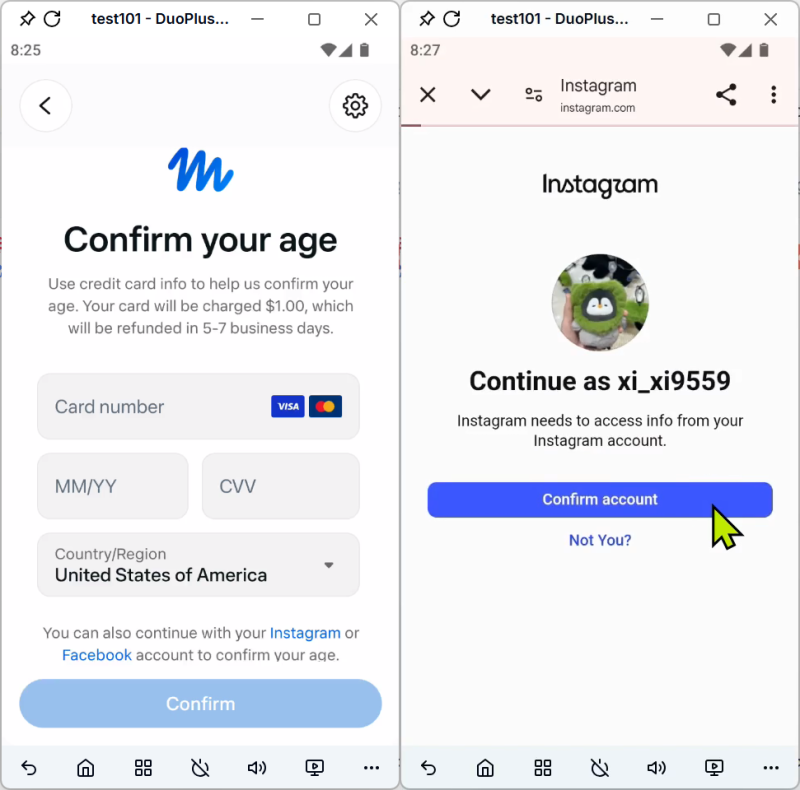
Some users may also see a prompt to add a credit card during this step. You may need to enter your card number, expiration date, security code, and ZIP code. A temporary $1 authorization may be placed on the card, which is expected to be refunded within 5–7 business days.
Linking a Meta account
In addition to age verification, some users may have the option to link an existing Meta account to complete registration or verification. An Instagram or Facebook account may be used for this step.
Because Muse is being rolled out by region and in phases, first make sure that your current location is supported before trying to access the service.
In practice, some users may choose to create a dedicated environment for accessing AI tools, such as a cloud browser or cloud phone. A cloud browser can be used for web access, verification, and account management, while a cloud phone lets you install and run the Muse app directly.
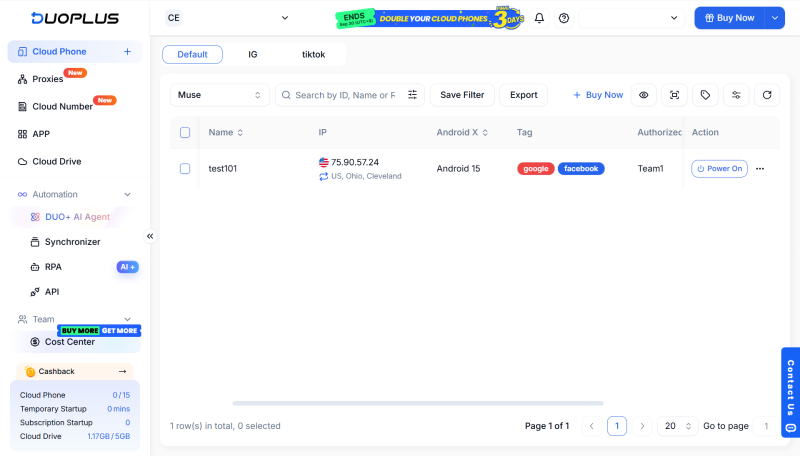
Because Facebook and Instagram are part of the broader Meta ecosystem and are commonly used on mobile devices, DuoPlus Cloud Phone provides a stable, isolated Android environment for running Muse remotely while giving you control over the device setup.
Create an Android cloud phone in DuoPlus and configure the network settings based on your needs, such as a US or Canada IP, along with the appropriate language and time zone settings.
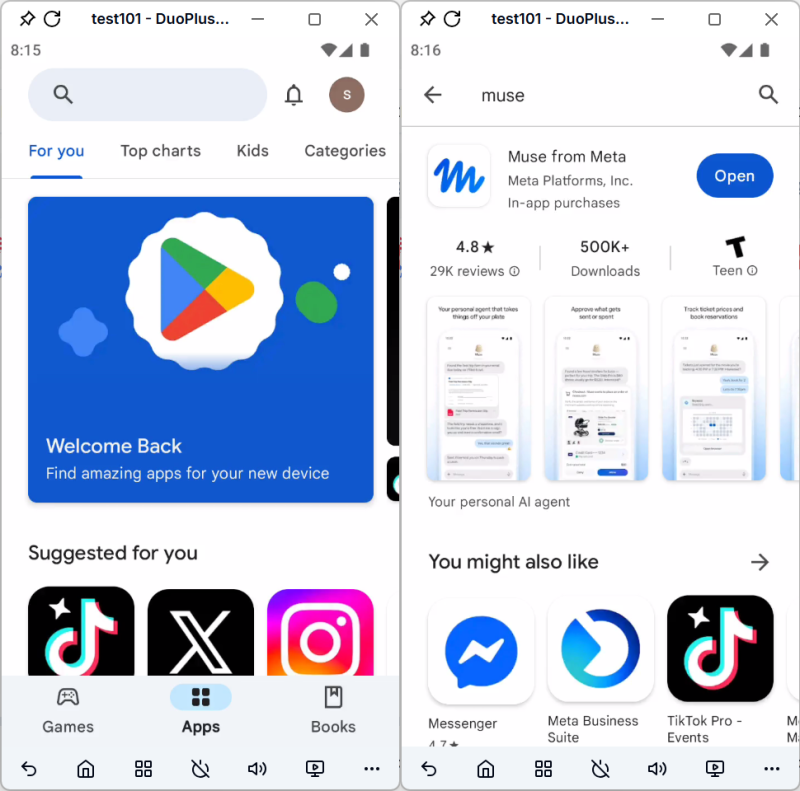
Sign in to a Google account in the Play Store and install the Muse app.
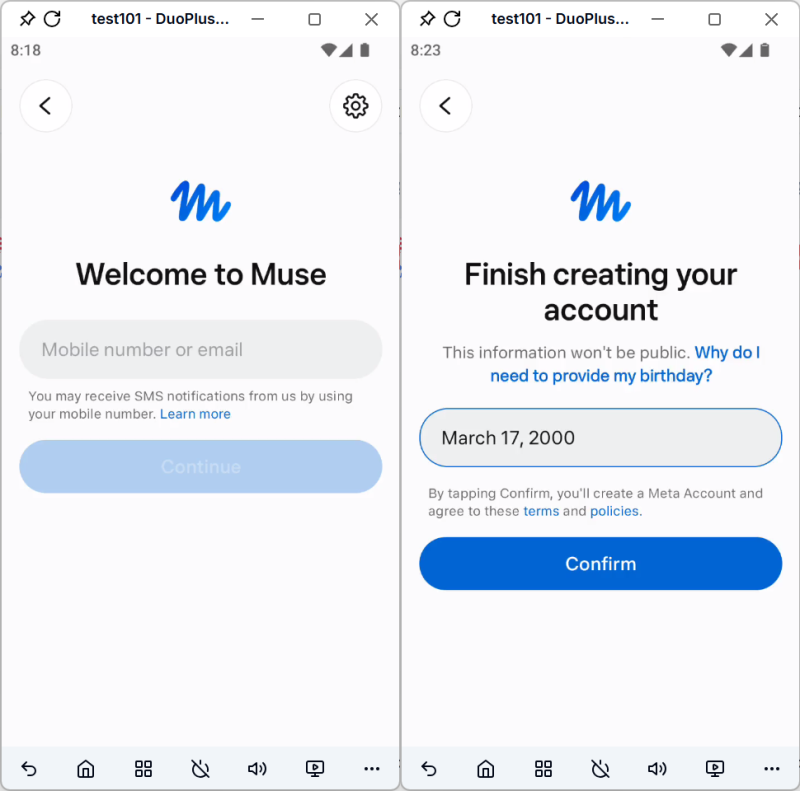
Open the app and enter your email address or phone number to start the sign-up process.
Follow the Muse sign-up prompts to receive and enter the verification code, then complete the required birthday information.
If Muse shows a message saying "the service is not currently available in your region and you can join the waitlist", you can try using a different proxy IP that matches a supported region. A residential proxy IP is recommended for account registration.
Follow the remaining on-screen instructions to finish account registration and verification.
You can send tasks to Muse and have it perform the operations automatically.
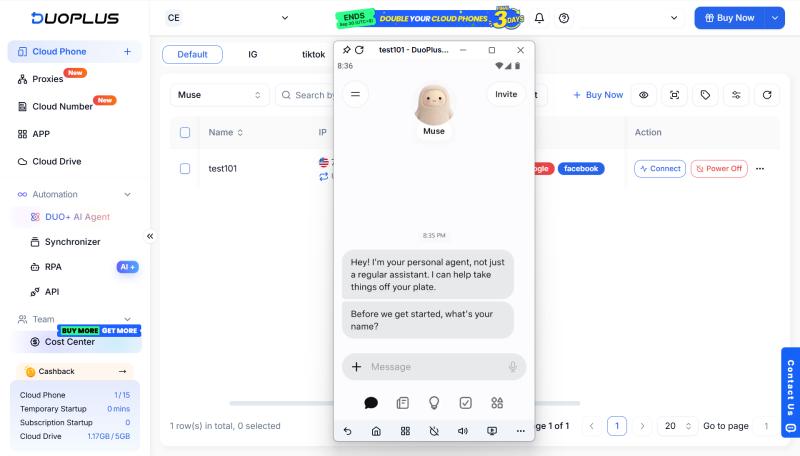
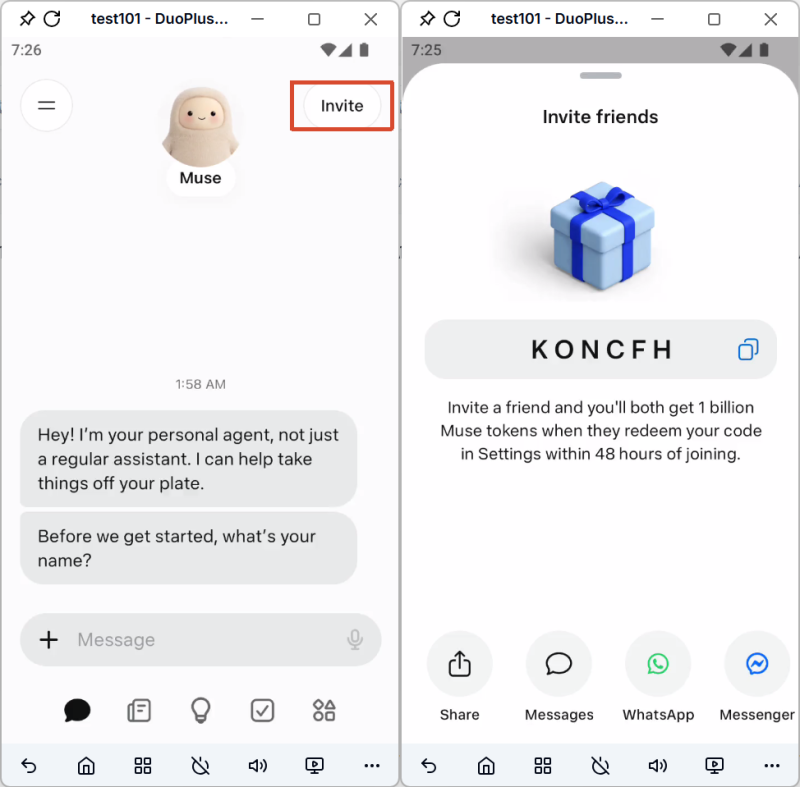
A Muse referral code is generally not required to create an account. Instead, it is part of the platform's referral reward system. After successfully registering, you can find the Invite option in the Muse app and follow the instructions to generate or enter an invite code.
Before using an invite code, check the following:
According to the current Muse invite program, each user can generate their own invite code. New users must redeem the code within 48 hours of joining Muse, and both users receive 1 billion Muse tokens. Each invite code can be used up to 30 times.
Muse offers a free plan with usage limits. Once you reach the available allowance, you can wait for it to refresh or upgrade to a paid plan. Muse currently offers the Power plan at $20 per month and the Maximum plan at $100 per month.
Not necessarily. The Muse sign-up process may vary depending on your account, region, and current verification requirements. Some users can start registration with an email address, while the exact requirements are determined by the sign-up page shown for your account.
If you do not receive an email or SMS verification code from Muse, first check that your email address or phone number is correct. You can also check your spam folder or make sure SMS messages are not being blocked. If the code still does not arrive, wait for a while before requesting another code and follow any alternative verification options shown on the page.
Muse is being rolled out in phases, so some regions or accounts may not have access yet. If you see a message asking you to join the waitlist during registration, it generally means that Muse is not currently available to your account or region.
Some Muse registration or verification flows may offer the option to link a Meta account. Whether linking a Facebook or Instagram account is required depends on the requirements shown during your registration.
OpenAI Codex is an AI coding agent designed to help developers write, modify, review, and deliver code. It is available …

VK (VKontakte) is one of the major social media platforms in Russia. In addition to account management, content …

ChatGPT is available through both the web version and desktop/mobile apps. The web version requires no installation and …
No need to purchase multiple real phones.
With DuoPlus, one person can operate numerous cloud phones and social media accounts from a single computer, driving traffic and boosting sales for you.