


How to Log In to Telegram Without Your Phone Number
Telegram is a messaging app many people use for everyday conversations, joining communities, and communicating with …
Learn how to test an Android app before publishing on Google Play. This guide covers country-specific networks, Android versions, device compatibility, Google Play closed testing, and cloud phones for multi-country app testing.

Get an AI-Powered Summary of This Article
An app working correctly on a developer's Android phone does not necessarily mean it will work properly for users after being released on Google Play.
This is especially important for apps targeting multiple countries. Network conditions, Android versions, device models, language settings, and regional services can all affect how an app is displayed and how its features work. Apps that rely on Google Play, location-based services, account authentication, or third-party APIs may require additional testing in different environments.
Pre-release testing should therefore go beyond installing the app locally and checking basic features. Developers should test the app under conditions that closely match the target markets.
This guide covers the key environments to test before a Google Play release, common testing methods, and how cloud phones can help manage Android environments across multiple countries.
An app running normally on a local Android phone only confirms that it works under that specific device and network configuration. It does not guarantee that users in other countries will be able to find, download, install, or use it through Google Play.
Different markets also have different Android devices, system versions, screen sizes, memory configurations, and network conditions. These differences can lead to installation failures, crashes, layout problems, slow performance, or other compatibility issues.
Regional settings can also affect how an app works. For example, an app may return different content based on IP location or rely on country-specific APIs, authentication services, payment methods, or other regional services.
Testing these environments before release helps identify such issues before they affect real users.
Network conditions are an important part of multi-country app testing. Testing from different network locations can help verify whether the app can access regional services and whether location-specific content works as expected.
For example, developers may test environments in the US, UK, India, Singapore, and other target markets to check:
Android versions and device models should be tested against the app's minimum requirements and the devices commonly used in target markets.
Focus on:
You don't need to test every Android device. Start with major Android versions and representative devices, then expand coverage when testing reveals compatibility issues.
Apps targeting multiple markets should also be tested with different language and regional settings.
Changes in language can affect text length and layout, while regional settings can change date, time, currency, and number formats.
Check whether:
Google Play testing is more than installing an APK. You also need to confirm that testers in the target markets can access the test version through Google Play.
Check:
These settings should be verified in Google Play Console.
| Test Area | What to Check |
|---|---|
| Google Play visibility | Can users in the target country see the app? |
| Testing track | Are Internal, Closed, or Open testing configured correctly? |
| Country distribution | Are the target markets included in Play Console? |
| Device compatibility | Are the target Android versions and devices supported? |
| Installation | Can the app be downloaded and installed? |
| First launch | Does the app crash or take too long to load? |
| Core features | Do the main features work as expected? |
| Network | Does the app work across target network environments? |
| Localization | Are language, date, time, and currency formats correct? |
| Updates | Can users update to a newer version successfully? |
| Issue reproduction | Are device, Android, network, and app versions recorded? |
Before publishing an app, some personal Google Play developer accounts may be required to complete a 12+14 closed test. The term generally refers to testing with at least 12 testers over a 14-day period. The purpose is to validate the app through Google Play's testing process before production release.
The exact requirements can vary by developer account and may change, so always follow the requirements shown in your current Google Play Console.
To start, create a Closed testing track in Google Play Console, upload the test build, and add testers or a testing group. Testers then join through the invitation link and install the app from Google Play.
During the testing period, developers should monitor installation, login, core features, updates, crashes, and other issues. If problems are found, update the app and continue testing as needed.
Closed testing can also run alongside multi-country Android testing. The two serve different purposes: 12+14 testing focuses on the Google Play testing and release process, while multi-country testing focuses on regional networks, Android versions, devices, languages, and other market-specific conditions.
For example, testers can use different Android environments during the same testing period to verify installation, updates, login, and core features across multiple markets.
There are three common approaches: physical Android devices, Android emulators, and cloud phones. Each works best for different types of testing.
Physical phones provide the most realistic user environment and are important for testing hardware-dependent features and real-world performance.
They are particularly useful for testing:
The downside is scalability. Testing multiple countries, Android versions, and device models can quickly require a large collection of physical devices.
Android emulators are useful for local development and compatibility testing.
Developers can quickly switch between Android versions, screen sizes, and system configurations to check:
Emulators are easy to create and reset, making them useful for frequent development testing. However, they cannot fully reproduce physical hardware, battery behavior, device performance, or every real-device condition.
Cloud phones provide remotely accessible Android environments. They are particularly useful when a team needs to test multiple countries, Android versions, device configurations, and repeatable workflows.
For Google Play testing, cloud phones can help teams:
Cloud phones are not a replacement for physical devices when you need to test real hardware, battery consumption, or physical sensors. However, they are useful for network, software environment, installation, and repeatable workflow testing.
In practice, physical devices are best for real hardware validation, emulators for development and debugging, and cloud phones for multi-country, multi-device, and repeatable testing.
Cloud phones let teams create separate Android environments and manage different network locations, system configurations, and testing tasks from one platform.
With DuoPlus Cloud Phone , teams can create multiple cloud phones, configure the required network environment, and manage the devices from a centralized dashboard.
Create separate cloud phones based on your target markets or testing requirements. Each environment can be assigned to a specific test scenario, reducing the need to repeatedly switch networks and device configurations on the same phone.
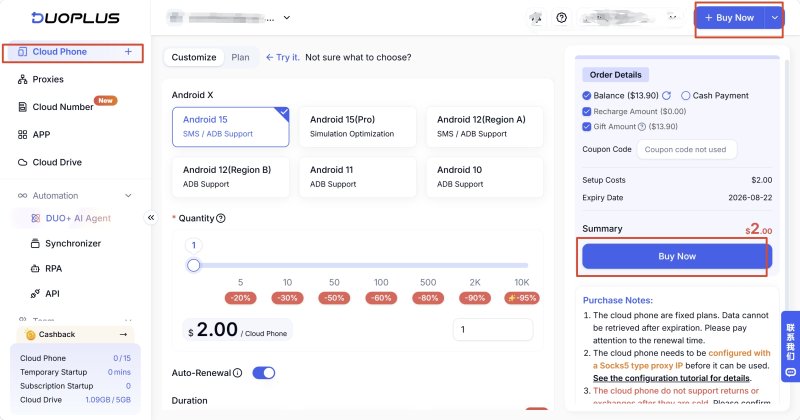
If an app returns different content based on IP location or relies on regional APIs and services, you can configure the corresponding network environment on a cloud phone.
This allows testers to compare login flows, API access, content delivery, and other location-dependent features across different markets.
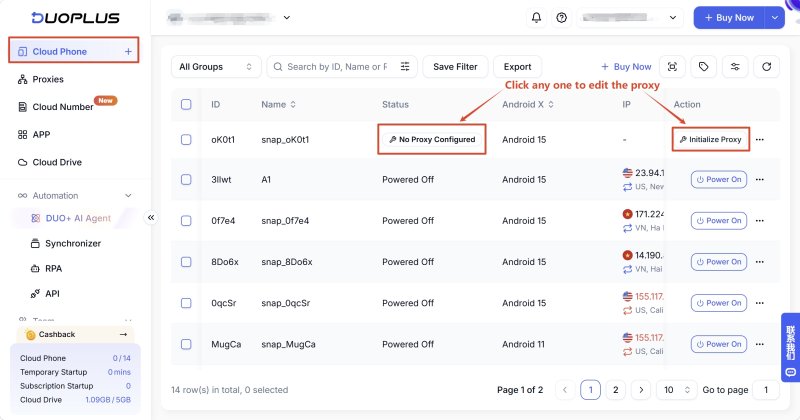
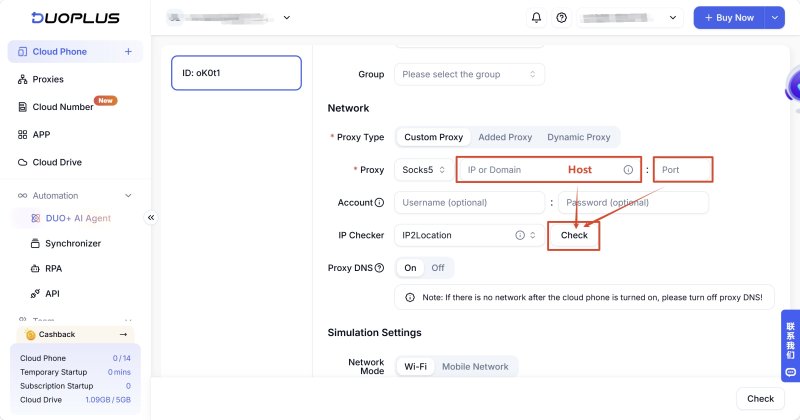
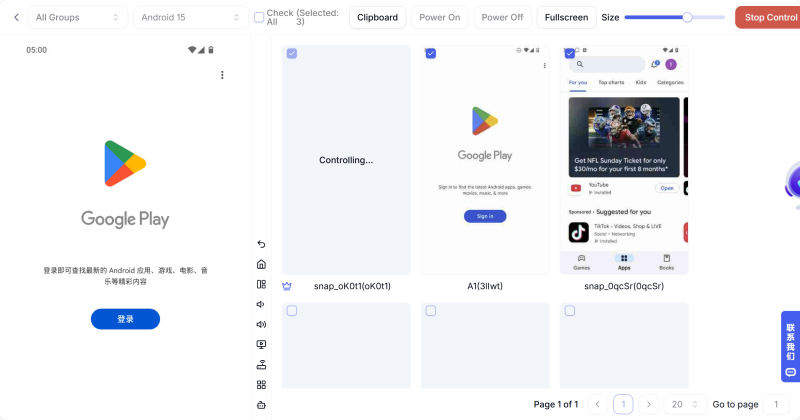
Running the same test manually on multiple devices can quickly become time-consuming.
DuoPlus supports batch management of cloud phones, making it easier to start and manage multiple Android environments and test the same app version across different configurations.
Pre-release testing often involves repetitive tasks such as downloading the app, logging in, updating the app, and running core workflows.
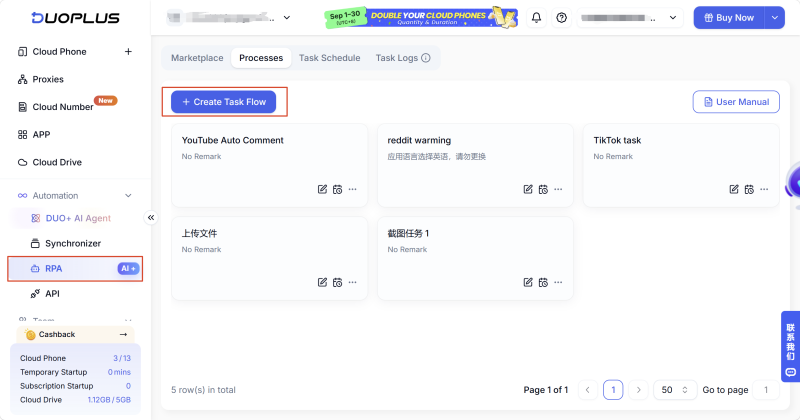
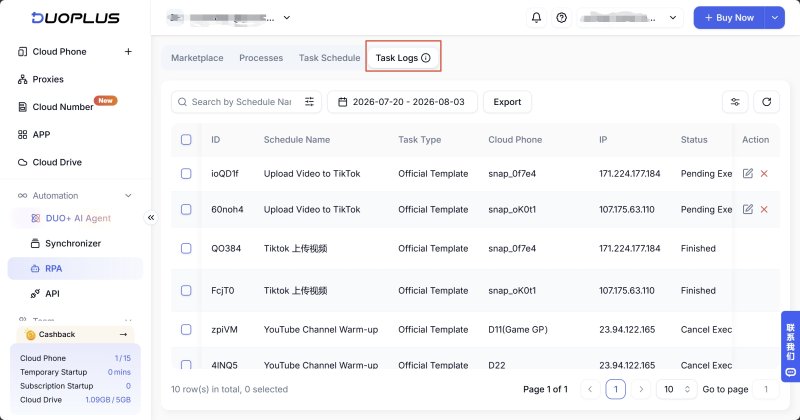
Duo+ AI Agent and RPA tools can be used to automate some of these repetitive operations.
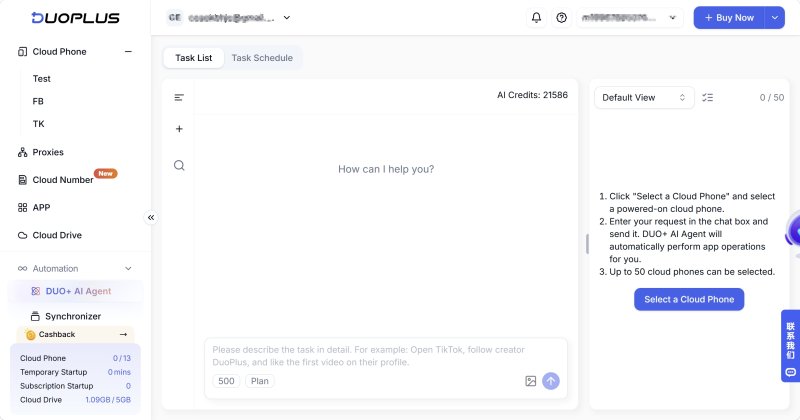
If an issue occurs, the corresponding environment and operation logs can also be retained, making it easier for developers to reproduce and investigate the problem.
Pre-release Google Play testing should cover more than whether an app works on a developer's phone. Teams should consider target countries, Android versions, device models, network environments, localization, and Google Play testing settings.
Physical devices are useful for real hardware testing, Android emulators are suited to development and debugging, while DuoPlus Cloud Phone can help teams create and manage multiple Android test environments.
Combining these methods allows developers to identify compatibility, network, and regional issues earlier and reduce problems after launch.
There is no fixed number. It depends on your target countries, Android versions, device models, and app features.
For a simple app targeting one market, a few representative devices may be enough for basic testing. For a multi-country release, it's better to test several independent environments with different network, system, and device configurations.
Common reasons include:
Check the Device catalog in Google Play Console to review device compatibility.
No.
Pre-launch reports can identify some stability, compatibility, and accessibility issues, but their device and testing coverage is limited. They cannot represent every country, device model, network condition, or real-world user scenario.
If your app depends on country-specific networks, content, or services, additional testing with physical devices, emulators, or cloud phones may still be necessary.
No.
Changing the IP mainly helps test network location and regional access. Google Play country availability also depends on settings in Play Console, testing tracks, test accounts, and device compatibility.
Network testing and Google Play distribution testing should therefore be treated as separate checks. An IP change alone cannot confirm that an app is available for a specific country.
Telegram is a messaging app many people use for everyday conversations, joining communities, and communicating with …
If engagement suddenly drops after you post on X (formerly Twitter), your account cannot be found in search, or a new …
Social media operations often involve content publishing, account maintenance, project collaboration, and staff …
No need to purchase multiple real phones.
With DuoPlus, one person can operate numerous cloud phones and social media accounts from a single computer, driving traffic and boosting sales for you.