5 Social Media Management Challenges, and How DuoPlus and Loopway Solve Them Together
5 Social Media Management Challenges, and How DuoPlus and Loopway Solve Them Together Running one social media account …
Learn how to use a DuoPlus Facebook RPA template to browse posts and like them automatically. This guide covers template selection, cloud phone setup, one-time and recurring tasks, and task log checks.

Get an AI-Powered Summary of This Article
Facebook video browsing and liking are common activities in day-to-day account management. For users who manage multiple Facebook accounts, carrying out these actions efficiently requires a clear workflow and a suitable automation setup.
DuoPlus provides RPA templates for social media tasks. Users can filter templates by social media app and cloud phone system version, select a target cloud phone, and create tasks based on their requirements. These workflows can automate selected repetitive actions according to the task configuration.
This guide explains how to find the Facebook RPA template, configure a video-browsing and liking task, review its execution results, and troubleshoot common issues.
Facebook users can discover content through videos and Reels. For account operators who regularly follow particular content categories, routine activities may include opening Facebook, navigating to the video feed, browsing relevant posts, and liking content when appropriate.
These actions are relatively simple, but teams managing multiple Facebook accounts may need to repeat them across different devices and accounts. Repeatedly opening the app, switching accounts, and navigating to content pages can take up time, especially when each account serves a different content or audience purpose.
As the number of Facebook accounts grows, so does the number of devices and workflows that need to be managed. When task progress is spread across separate devices, it can also be harder to monitor operations consistently.
For workflows with relatively fixed steps, RPA can automate selected repetitive actions. This reduces the amount of manual work involved in Facebook account automation and gives operators more time to focus on content selection, account positioning, and performance evaluation.
Before using a Facebook RPA template, check the actions it supports and the environment it requires. DuoPlus provides automation templates for different social media apps in the RPA Marketplace. You can filter templates by app and cloud phone Android version. After finding a suitable template, select the target cloud phone and configure the task.
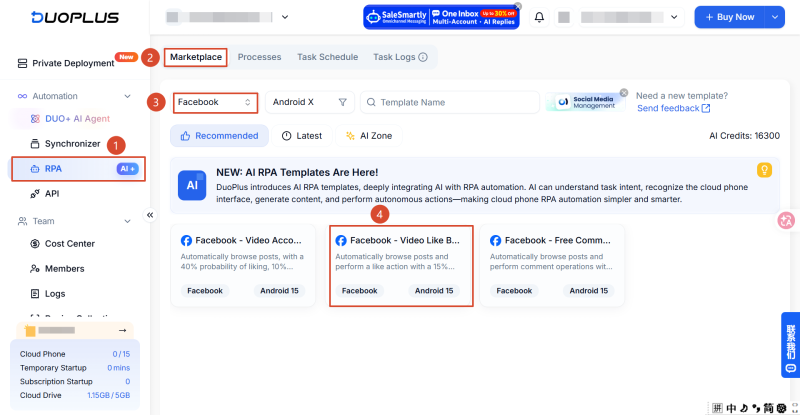
First, sign in to the DuoPlus cloud phone console and follow these steps to open the RPA Marketplace:
①Open the RPA.
②Select Marketplace to view the template list.
③Choose Facebook in the platform filter.
④Select the “Facebook - Video Like Boosting” template.
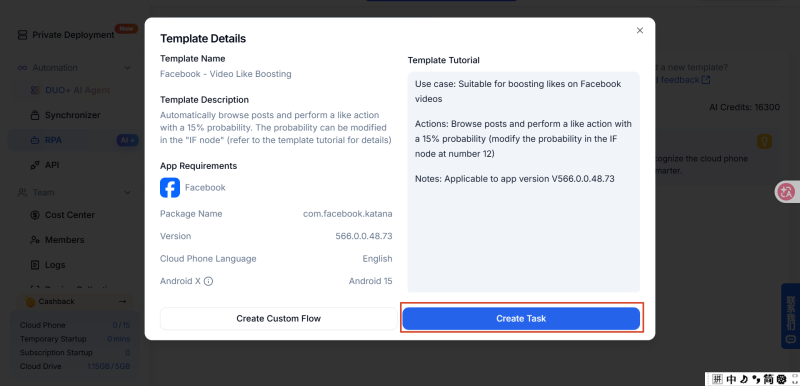
After selecting the “Facebook - Video Like Boosting” template, you can choose Create Task or Create Custom Flow, depending on whether you need to modify the template’s existing workflow.
The difference is whether you want to use the template as provided or adjust its workflow steps. For a general explanation of these options, please refer to the article below:How to Create Social Media Automation Tasks with DuoPlus RPA Templates?
On the template details page, review the template description and app requirements before proceeding. This template is designed to browse posts and perform a like action with a 15% probability. The probability can be adjusted in the IF node identified as node 12.
On the task creation page, enter a plan name and select the cloud phone that will run the task.
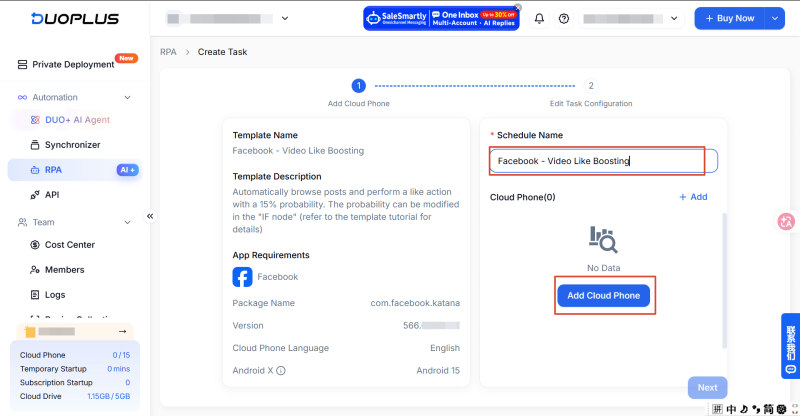
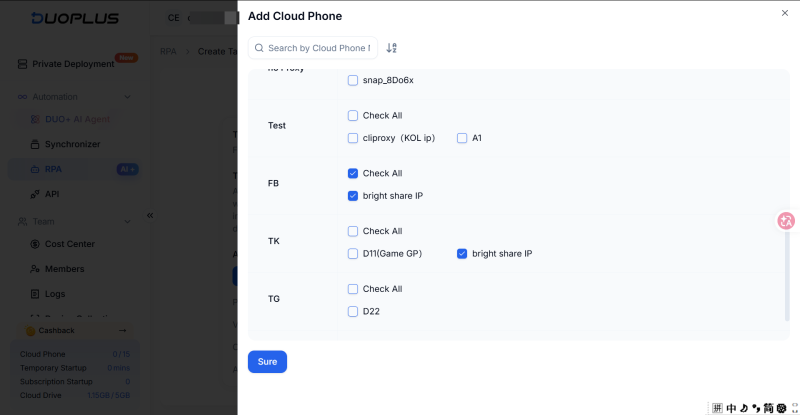
When selecting a device, make sure that Facebook is installed on the cloud phone and that the account you want to use for the task is already signed in.
After selecting the device, go to the task configuration page. You can choose a one-time task or a recurring task, depending on how often the workflow needs to run.
One-Time Task
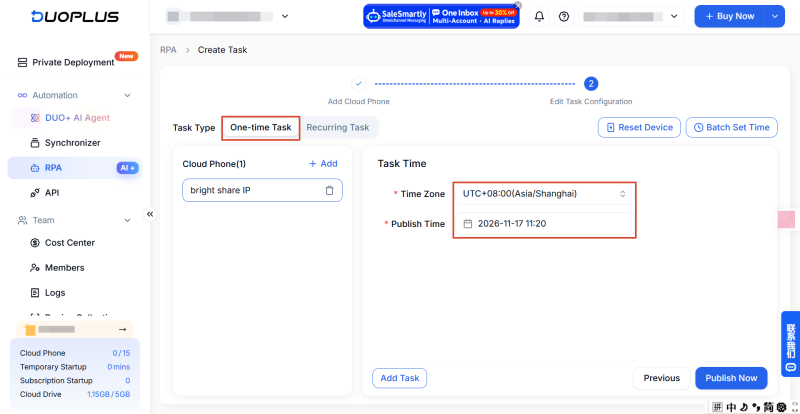
Choose a one-time task if you only need the video-browsing and liking workflow to run once.
Select the relevant time zone, publish time. A scheduled task runs according to the local time in the time zone you select.
For example, if you select a US time zone and set the task to 9:00 AM, it will run at 9:00 AM in that time zone.
Recurring Task
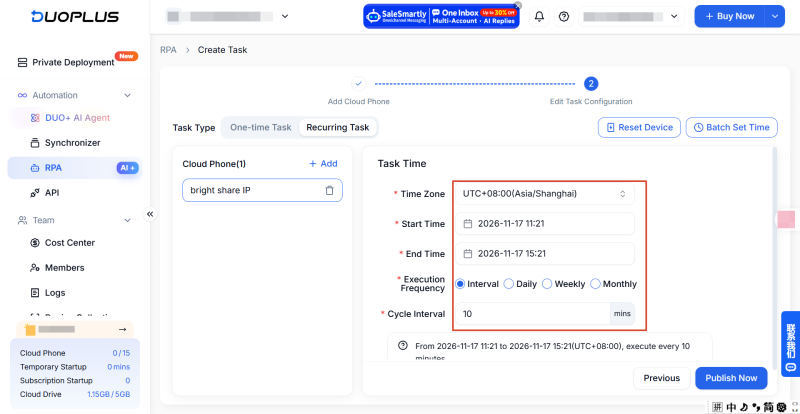
A recurring task is suitable when the same video-browsing and liking workflow needs to run on a defined schedule. For example, if a Facebook account follows a regular operating schedule, you can configure the task to repeat on selected dates.
DuoPlus RPA supports recurring schedules based on intervals, daily, weekly, or monthly frequencies. Choose the option that matches your actual operating plan.
Follow these steps:
①Select the time zone in which the task should run so that the schedule follows the intended local time.
②Set the start and end times for the recurring task according to your account-management schedule.
③Choose the execution frequency that fits your requirements.
If you choose an interval schedule, set the interval to define the time between task executions.
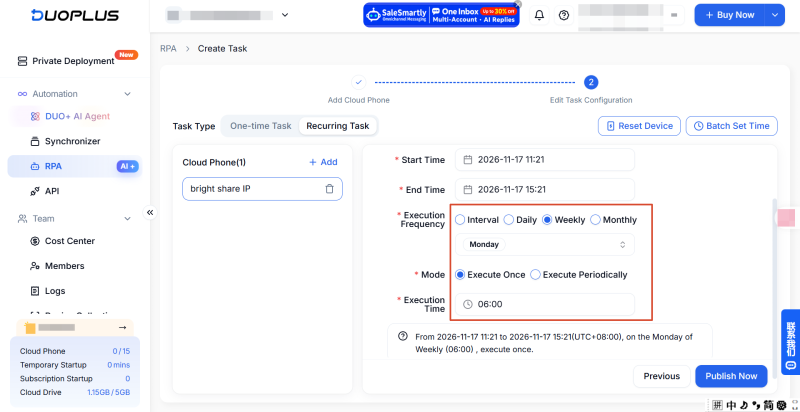
If you choose a daily, weekly, or monthly schedule, you may also need to select whether the task should run once or repeat within a specified time period.
After configuring the task, review the plan name, target cloud phone, and schedule. Submit the task once all settings are correct.
After publishing a task, check whether the workflow ran as expected and whether the corresponding actions took place in Facebook. Review the task log together with the actual state of the Facebook app. A single task status should not be treated as proof that every action was completed successfully.
DuoPlus provides a Task Logs section for reviewing task execution. In the console, go to RPA Task Logs and locate the relevant task record.
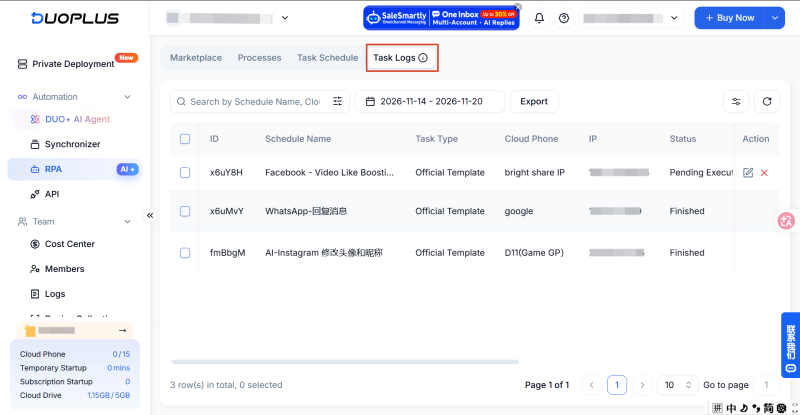
When reviewing the log, pay attention to the following:
If a task does not complete normally, use the execution report to identify the step where the issue occurred. For example, an error may happen when launching Facebook, opening the video feed, or performing a subsequent action. Once you identify the relevant step, check the cloud phone, app status, or workflow configuration.
A completed status in the task log does not necessarily mean that every action produced the intended result in Facebook. Open the cloud phone used for the task, launch the corresponding Facebook account, and verify the results directly.
Check the video-browsing result
Review the current Facebook page and available viewing history to confirm whether the task navigated to the video content page specified by the template.
Check the like status
Find the relevant video post and check whether its like status changed. If the expected state is not displayed, review the task log to confirm whether the like step was executed and whether the page loaded correctly at the time.
Verify the account and device
If the result differs from what you expected, confirm that the Facebook account you are checking is the same account selected on the cloud phone assigned to the task. This helps prevent activity from another account from being mistaken for the result of the current task.
Cross-checking the task log with the in-app state makes it easier to determine whether an issue comes from the RPA workflow, the cloud phone environment, or the Facebook page itself.
Video-browsing and liking tasks may be affected by network connectivity, app status, and changes to page layouts. If an issue occurs, check the relevant part of the workflow step by step.
| Common Issue | What to Check |
|---|---|
| Facebook does not open | Check whether the cloud phone is running normally and whether Facebook is installed. |
| The video page does not load | Check the network connection and confirm that the Facebook page can be opened manually. |
| Page actions do not run as expected | Review the task log and identify the node where execution failed. |
| The like status does not change | Check whether the like step was executed and whether the video page was in an actionable state. |
| The task stops midway | Review the execution report and check the app, network connection, and workflow configuration around the failed node. |
Browsing Facebook videos and liking posts involves several repetitive actions. When you manage multiple accounts, performing these steps manually on separate devices can increase both device-management work and time costs. With DuoPlus RPA, you can find a suitable Facebook workflow in the RPA Marketplace, select the target cloud phone, configure a task schedule, and review execution details in Task Log.
Before running a task, confirm what the selected template actually does and configure the schedule according to your account-management requirements. Combining an RPA workflow with a well-defined content strategy can make routine account operations easier to manage.
Open the Facebook app and look for Reels in the navigation bar on the home page. If it is not shown there, check the menu or available shortcuts.
No. This template is designed to browse Facebook posts and perform a like action according to the configured probability. It does not include a feature for searching by keyword or filtering videos by a specific topic.
You can look for the Videos Watched section in Facebook Activity Log to review your video-viewing activity. The records available depend on the data Facebook retains for your account.
If Facebook requests identity verification or a security check, complete the required steps according to the platform’s instructions. Do not configure automation to repeatedly attempt to bypass verification, as this may further affect normal account access.
5 Social Media Management Challenges, and How DuoPlus and Loopway Solve Them Together Running one social media account …
An Instagram profile is an important part of how an account is presented to others. When an account's positioning, brand …
A Google Account is more than just your Gmail address.It launches Drive, Photos, YouTube, Play and "Sign in with …
No need to purchase multiple real phones.
With DuoPlus, one person can operate numerous cloud phones and social media accounts from a single computer, driving traffic and boosting sales for you.