How to Organize Mobile App Testing Across Different Devices and Regions
An app may work perfectly on a developer's smartphone but suddenly crash on another device, display the wrong currency, …
This guide explains how to use DuoPlus Cloud Phone X RPA templates to automate post publishing, including template selection, task creation, one-time and recurring execution, workflow customization, and troubleshooting. Follow the process from template setup to task verification.

Get an AI-Powered Summary of This Article
When managing X (Twitter) accounts, some daily tasks need to be repeated, such as publishing posts, checking task execution, and handling eligible user interactions. Completing the same steps manually each time takes time and can also lead to missed actions.
RPA can organize some repetitive operations into predefined workflows. DuoPlus Cloud Phone provides an RPA Template Store, workflow management, schedule management, and task logs. The Marketplace also includes automation templates for social platforms such as X, helping users reduce repetitive setup.
This article explains how to filter DuoPlus RPA templates, configure and run tasks, and incorporate automated tasks into a workflow for managing multiple accounts.
When operating an X account, preparing content, publishing posts, and scheduling publication all take time. If you manage multiple accounts, repeatedly carrying out similar publishing steps can increase the daily operational workload.
RPA can organize some repetitive operations into automated workflows. With a preset template in DuoPlus Cloud Phone, you do not need to build every step from scratch. Instead, you can select an existing X template based on your task, then configure the target cloud phone, post content, and execution schedule.
For users who publish content regularly, RPA templates can reduce repetitive data entry and manual operations, bringing the publishing process into a more centralized workflow.
Keep in mind that automation is mainly intended to execute clearly defined, repetitive operations. Content planning, copy quality, and review before publication still require human oversight.
Before using RPA to publish posts automatically, find a template that matches the X app and the current cloud phone environment.
DuoPlus Marketplace provides preset workflows for different social media apps. You can first filter by app type and then choose a template based on its version requirements.
First, sign in to the DuoPlus Console, open the RPA module for cloud phones, and go to the Marketplace.
In the Marketplace, filter by social media app to find templates related to X. Then check the cloud phone system version, app version, and any other template requirements to choose one that fits the current task.
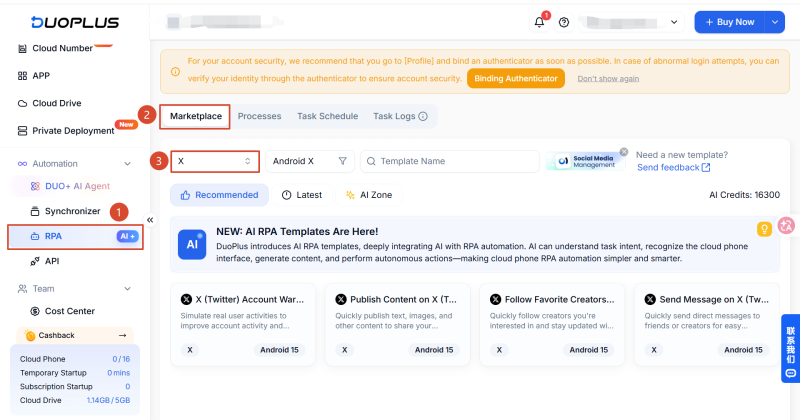
After selecting a template, you can choose one of the following options:
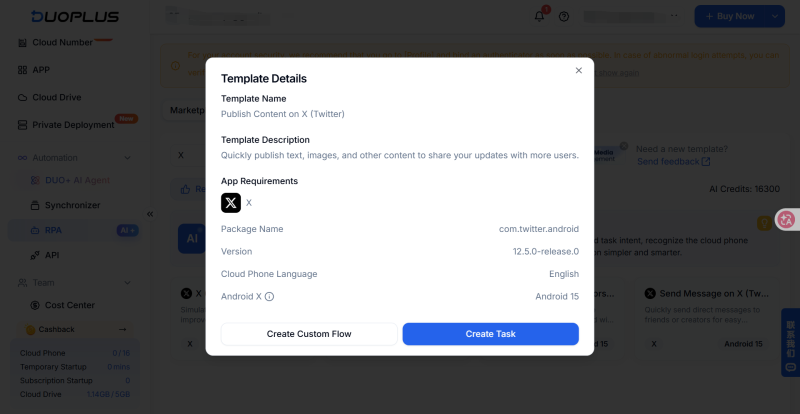
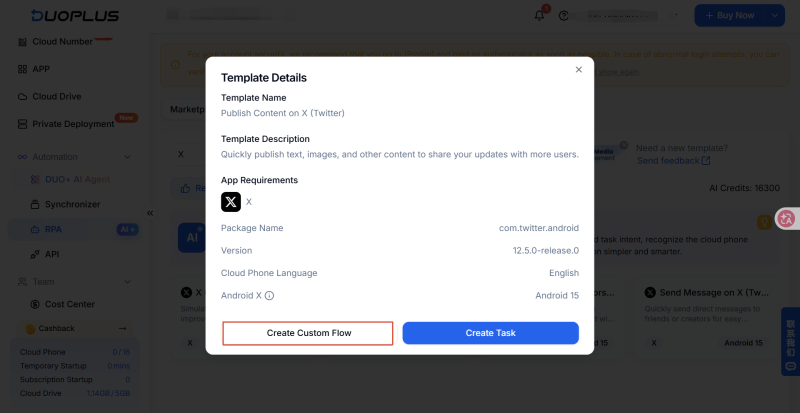
On an RPA template details page, you will generally see two options: Create Task and Create Custom Workflow. The difference is whether you need to modify the template's existing operation steps.
| Option | What It Does | When to Use It |
|---|---|---|
| Create Task | Uses the existing workflow in the template. You only need to set the target cloud phone and task schedule. | The template already contains the required steps; you only need to enter the task content and publishing time. |
| Create Custom Flow | Opens the workflow editor, where you can adjust existing workflow nodes. | You need to modify, add, or remove steps to fit a different task. |
If the template already includes the X post-publishing steps you need, click Create Task and configure the post content and schedule.
If the existing template does not meet your requirements—for example, if you need to change the operation order, add a step, or modify an existing action—select Create Custom Workflow to make changes in the workflow editor.
After finding a suitable X content-publishing template, create a task and configure the target cloud phone, post content, and publishing time.
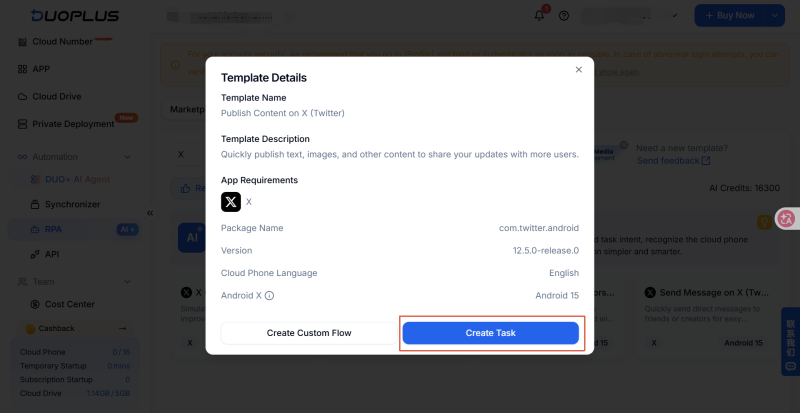
First, find the “X (Twitter) Post Publishing” template in the Template Store. Open its details page and click Create Task.
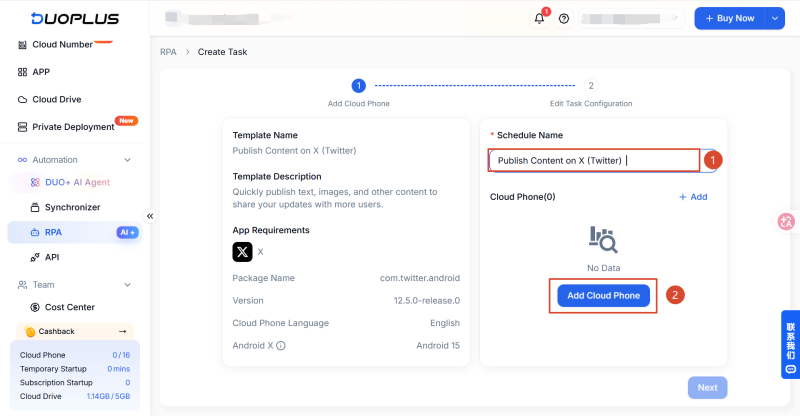
On the task creation page, enter a schedule name so you can identify and manage it later. Then select the cloud phone that will run the task. Click Add Cloud Phone, select the target device from the device list, and click Confirm after checking your selection.
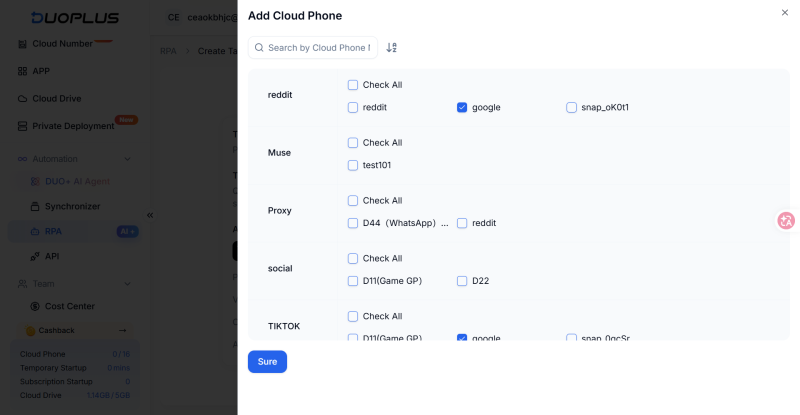
After selecting the device, go to the task configuration page. You can choose either a one-time task or a recurring task, depending on your publishing needs.
If you only need to publish a post once, choose a one-time task. The main settings include post text, file uploads, and the publishing time.
Follow these steps:
①Enter the X post text. Find the text input area on the task configuration page and enter the content you want to publish.
②Upload files for the X post. If the post needs an image or another file, use the upload option on the page to select the relevant file.
③Set the publishing time. Select the time zone and time for the target publishing region. The scheduled task will run according to the local time in the selected time zone.
For example, select the relevant US time zone and set the time to 09:00. The task will then run at 9:00 a.m. in that US time zone.
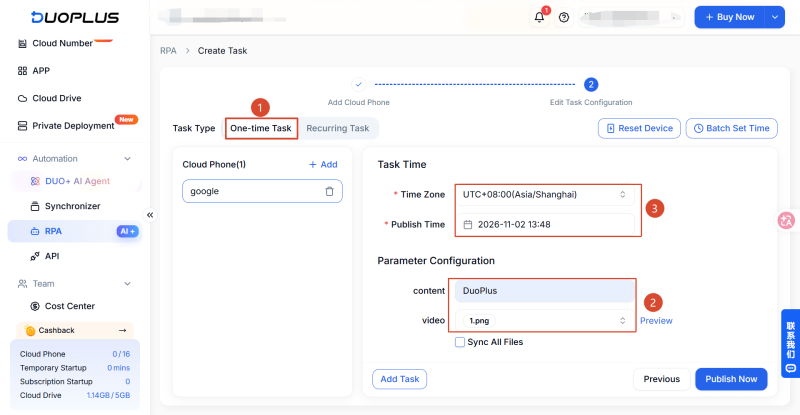
④Submit the task. Check the schedule name, target cloud phone, post content, uploaded files, and publishing time. When everything is correct, click Publish Now on the page to submit the task.
A one-time task is suitable for temporary publishing or content that only needs to be published once. After submission, check the execution result in Task Logs and verify in the X account that the post appears as expected.
If you need to repeat a publishing task at a set frequency, choose a recurring task. In addition to configuring the post content and related files, you need to set the task period, frequency, and specific execution time.
Follow these steps:
①Enter the post content and upload files. As with a one-time task, enter the text to be published and upload the relevant files, if supported by the template.
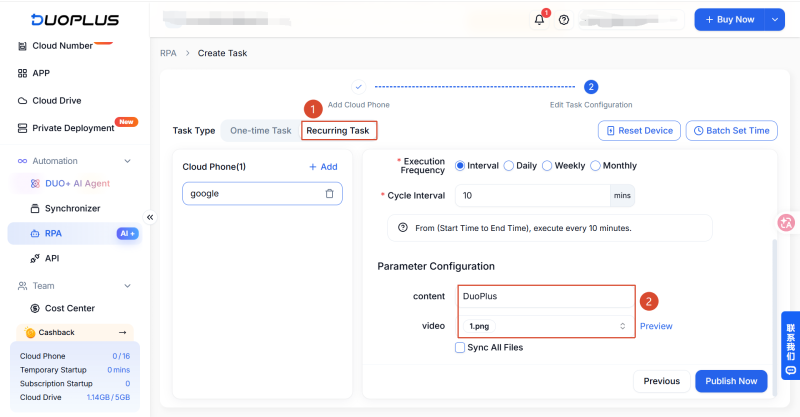
②Select the task time zone. Choose the time zone and time for the target publishing region so the scheduled task runs according to local time in the selected time zone.
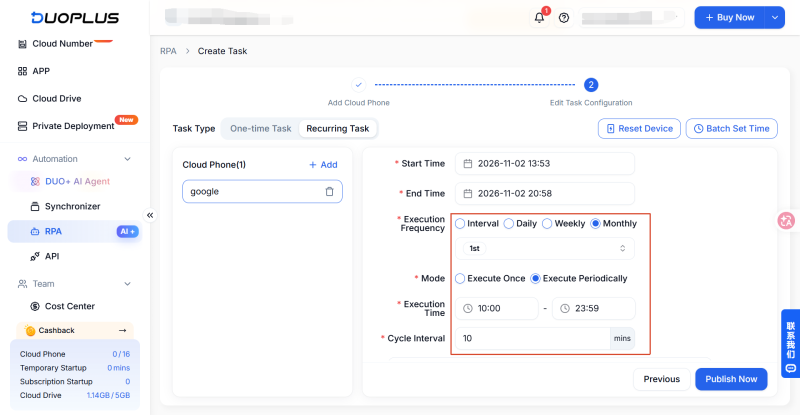
③Set the task start and end time. Based on your content schedule, specify when the recurring task should start and end. This defines the period during which the task is active.
④Choose the execution frequency. DuoPlus RPA recurring tasks support execution by interval, daily, weekly, or monthly. Select the option that matches your publishing schedule.
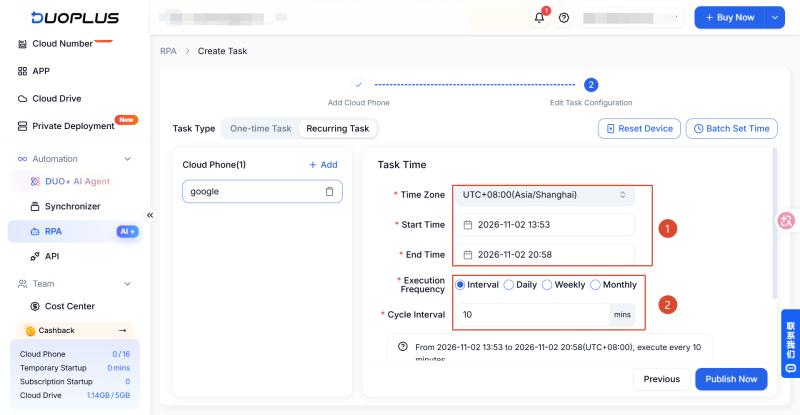
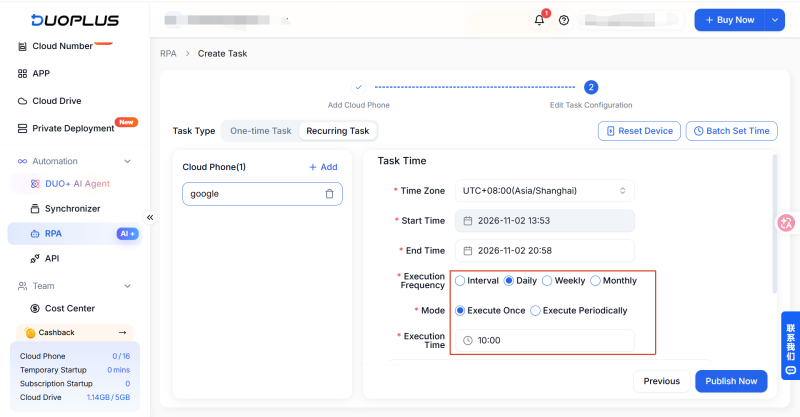
⑤Configure the interval or execution mode, then submit the task. If you choose interval execution, set the interval between runs.
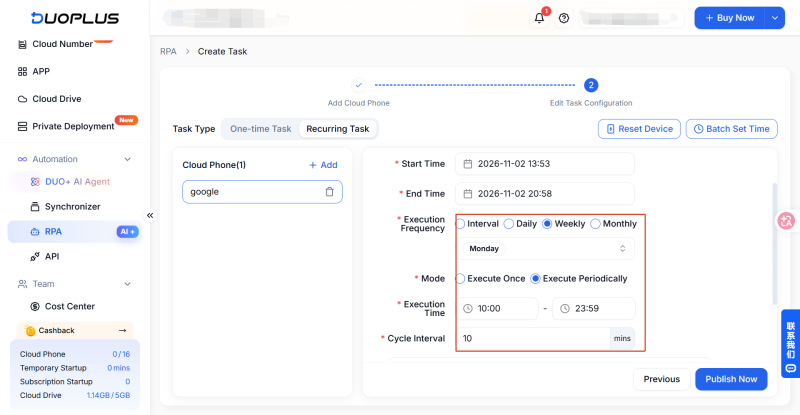
If you choose daily, weekly, or monthly execution, select one of the following modes:
For example, with daily execution, you can schedule the task to execute once at a specific time each day, or set a time window in which it repeats at the configured interval.
The setup logic is the same for weekly and monthly schedules; only the execution dates and time ranges differ.
If the preset template's steps do not match your publishing requirements, return to the X template details page and select Create Flow to open the workflow editor.
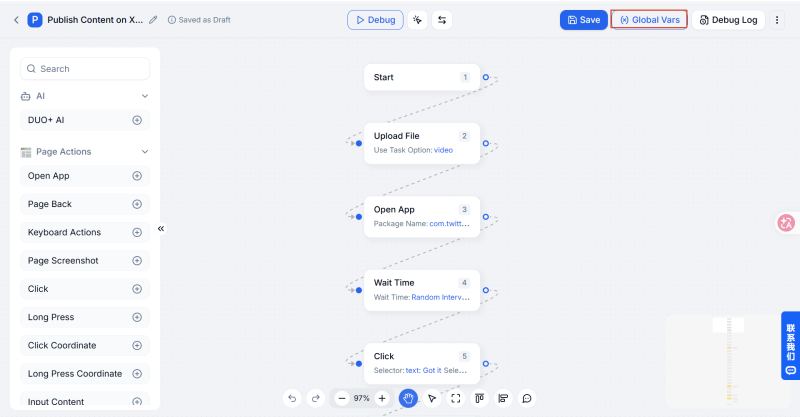
The workflow editor displays operation nodes in a flowchart. You can adjust the relevant steps based on the task logic.
Step1:Set the Flow Name and Related Data
On the editing page, you can first change the workflow name. If needed, you can also set global vars or Debug Log to provide parameters for subsequent operations.
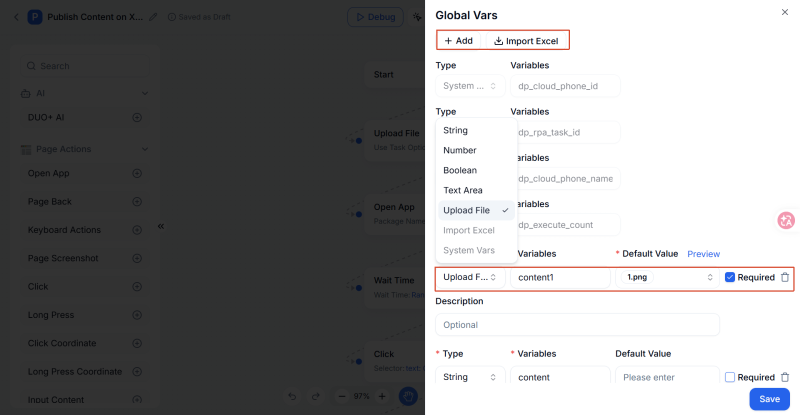
Step2:Adjust the Operation Nodes in the Workflow
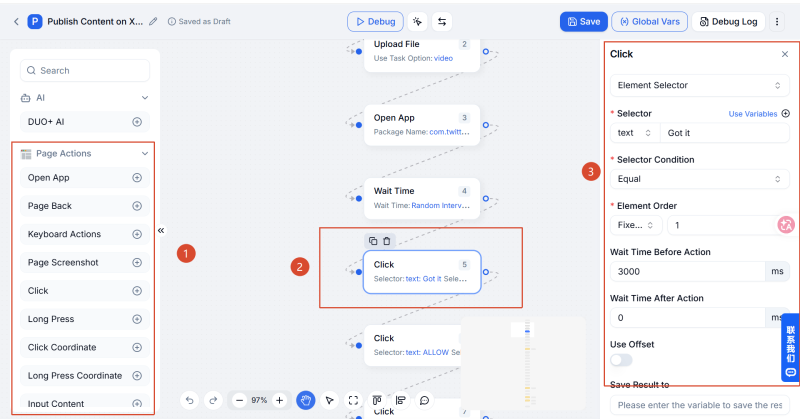
The flowchart displays the current task steps in execution order. Use the operation options on the left to select the actions you need, then modify, add, or delete the corresponding nodes.
For example, if an operation in the existing workflow does not fit the current task, you can adjust that node. If you need to add another operation, add the relevant node and then check that it connects properly with the steps before and after it.
Step3:Debug the Flow and Check the Logs
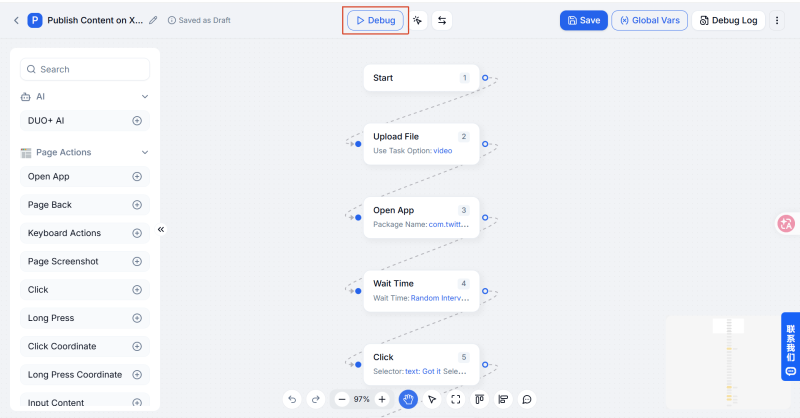
After adjusting the workflow, click Debug to let the cloud phone execute the relevant operations and review the debug log. This helps you determine whether the workflow is running as expected.
If a step is missing, an operation fails, or the result differs from what you expected, check the relevant nodes and parameters first. Make adjustments and run the debug process again.
Step4:Select Cloud Phones and Publish the Task
After confirming that the workflow and debug results meet your requirements, select the cloud phones that should run the task. Then publish the workflow as a scheduled or recurring task, depending on your needs, and configure the corresponding execution schedule.
If an X post is not published as expected after you create a task, first check the task settings and target cloud phone. You can then use DuoPlus task logs to help locate the issue.
If the post does not appear at the expected time, first check whether the time zone and publishing time in the task settings are correct.
For a one-time task, check the scheduled publishing time. For a recurring task, also check the start time, end time, execution frequency, and repeat interval to confirm that the current time falls within the task's active period.
If the task has reached its scheduled time but has not completed successfully, check whether the target cloud phone is running normally and whether the X app can be opened.
Also confirm that you selected the correct cloud phone when creating the task and that the X account is still logged in. If the target device or app has an issue, resolve it before testing the task again.
If the task has run but the expected post does not appear in the X account, review the text and uploaded files to check for missing content or an incorrect file selection.
You can also open the X account profile to verify the publishing result and compare it with the execution result in DuoPlus Task Logs. This can help determine whether the issue occurred during task execution or content publishing.
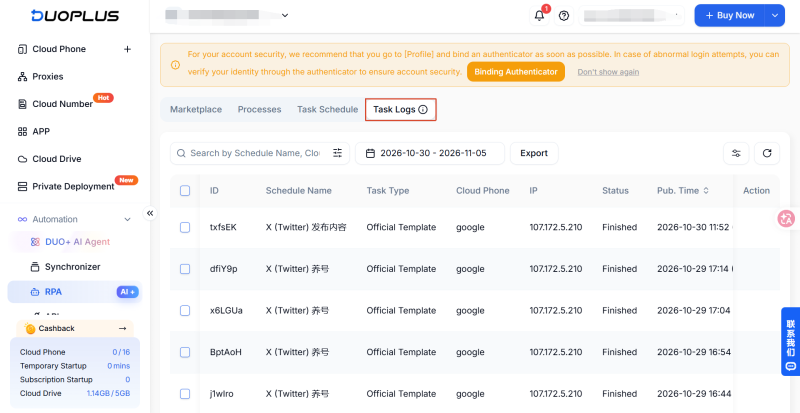
DuoPlus provides Task Logs for viewing the execution results of scheduled tasks. If a task does not complete as expected, open the Task Logs page in the RPA module, find the relevant record, and check its status.
For recurring tasks that have been published, use Task Schedule to view the relevant schedules. Records for scheduled tasks can be checked in Task Logs.
During troubleshooting, identify the stage where the issue occurred before deciding whether to adjust the task parameters or workflow. When managing content across multiple X accounts, prepare different copy and assets based on each account's positioning rather than mechanically publishing identical content.
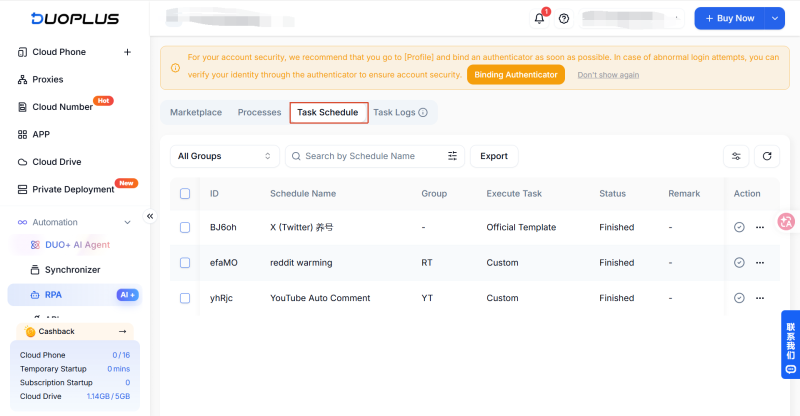
When you manage different X accounts on multiple cloud phones, you need to organize device selection, task categories, and execution schedules in addition to creating individual posting tasks. This helps prevent tasks from becoming difficult to find and manage as their number grows.
When creating an X RPA task, select the cloud phone that will execute it. If your team manages multiple X accounts, organize the relationship between accounts and cloud phones in advance. Choose the target device based on the account's purpose and publishing schedule.
For example, you can assign cloud phones to different brands, projects, or content themes. Before creating a task, verify the target device and account to reduce the risk of publishing a post to the wrong account.
As the number of RPA tasks increases, establish categories based on business projects or task types. This makes different tasks easier to find and manage.
DuoPlus RPA Schedule Management supports custom groups and batch operations. Teams can organize schedules by project or operational task, making it easier to locate the schedules that need attention and reducing the time spent searching for and handling tasks individually.
For tasks that need to be managed centrally, use schedule groups to review and manage related tasks and keep track of their arrangements.
RPA tasks are associated with the devices that execute them, so managing cloud phone resources is also important when operating multiple accounts.
DuoPlus Cloud Phone supports device names, tags, and groups . Teams can establish consistent categories based on projects, account purposes, or task owners. This makes target cloud phones easier to locate and helps align device organization with task management.
For example, when creating or managing an RPA task, identify the relevant project first, then check whether the target cloud phone belongs to the corresponding device group. This can reduce the time spent locating devices and lower the risk of applying a task to the wrong device.
By organizing devices, grouping tasks, and checking execution results, teams can manage cloud phone resources and RPA tasks separately, keeping device management and task scheduling more orderly when managing multiple accounts.
DuoPlus RPA templates let you start with template selection, task creation, and workflow customization, then configure one-time or recurring tasks based on your needs. After submitting a task, check its execution result in Task Logs. If an issue occurs, use the device status, app status, and workflow records to help identify the cause.
For teams managing multiple accounts, RPA schedule groups, batch operations, and cloud phone device names, tags, and groups can help organize task schedules and device resources while reducing repetitive management work. When using RPA to publish posts, prepare different copy and assets for different accounts, and make sure the content complies with X's rules before publishing.
The X template description states that it supports publishing text and images. In the file section of the task configuration page, you can also select videos (such as MP4 files) and images (such as PNG files).
You can search by schedule name or cloud phone name, filter by date range, and export records. Each record displays the task type, status, publishing time, and run time.
Find the paused recurring task in Schedule Management and click Run. This action immediately triggers the first task execution, so check the current execution conditions and task content before proceeding.
For a record with the status “Running” in Task Logs, a red button is available in the Actions column to stop the task. This will not retract a post that has already been published to X; you need to log in to the corresponding account and delete it manually.
An app may work perfectly on a developer's smartphone but suddenly crash on another device, display the wrong currency, …
Telegram is a messaging app many people use for everyday conversations, joining communities, and communicating with …
If engagement suddenly drops after you post on X (formerly Twitter), your account cannot be found in search, or a new …
No need to purchase multiple real phones.
With DuoPlus, one person can operate numerous cloud phones and social media accounts from a single computer, driving traffic and boosting sales for you.