


How to Manage Multiple Social Media Accounts with DuoPlus Cloud Phone: A Guide to Device Names, Tags, and Groups
As TikTok, Instagram, and Facebook become important channels for brand marketing, content creation, and affiliate …
Learn how to use DuoPlus team member management to invite team members, configure feature and cloud phone access permissions, update existing permissions, and share devices for temporary collaboration. Keep permissions aligned with team responsibilities and reduce device misuse and leftover access.

Get an AI-Powered Summary of This Article
Social media operations often involve content publishing, account maintenance, project collaboration, and staff handovers. When managing multiple social media accounts, a team needs to organize its cloud phones and define which backend features each member can use and which devices they can access. Unclear permissions can increase the risk of device misuse and make project handovers more difficult.
DuoPlus provides team member management features that allow administrators to invite members and configure feature permissions and cloud phone permissions through user groups. For temporary collaboration, the cloud phone sharing feature can also give collaborators access to specific devices.
This guide walks through inviting team members, configuring and adjusting permissions, and choosing a device management method based on the duration and nature of the collaboration.
When a team operates multiple social media platforms or serves different clients, it needs to define which cloud phones each member can access to prevent devices from being mixed up or used incorrectly.
For example, devices can be organized by platform, client, or project so that operators can focus on the accounts they are responsible for. This makes devices easier to find and manage while reducing unnecessary access across projects.
Teams should therefore assign cloud phone permissions according to actual job responsibilities rather than allowing every member to access every device by default.
A social media team may include content operators, account managers, and project managers. Content operators may mainly open social media apps, publish content, and handle day-to-day interactions. Project leads may need to manage members, assign devices, and adjust permissions. Because these roles have different responsibilities, their backend feature requirements also differ.
DuoPlus team member management mainly involves two types of permissions:
| Permission Type | What It Controls | Example |
|---|---|---|
| Feature Permissions | Which DuoPlus backend features a member can use | Enable the features required for the member’s day-to-day work |
| Cloud Phone Permissions | Which cloud phones a member can access | Allow only members assigned to the Instagram project to access that project’s devices |
These two types of permissions should be configured together. Permission to use a backend feature does not mean a member should have access to every cloud phone in the team. Likewise, access to a cloud phone does not mean the member needs every administrative feature.
Teams, user groups, and cloud phones are separate management objects in DuoPlus. A team organizes a separate set of resources, user groups centralize member permission settings, and cloud phone permissions control the devices members can access.
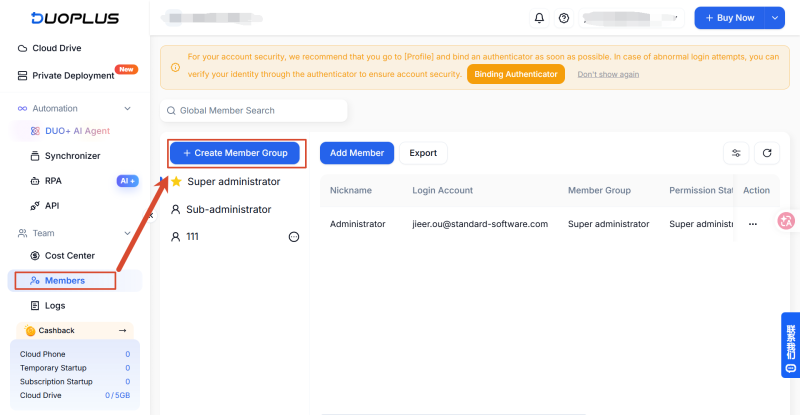
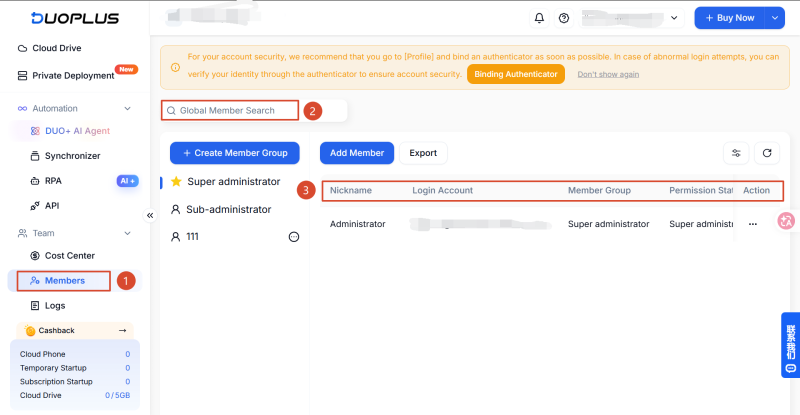
Before configuring permissions, add operators to the relevant team. In Member Management, an administrator can create a regular user group and invite members, or select or create a user group while adding a member.
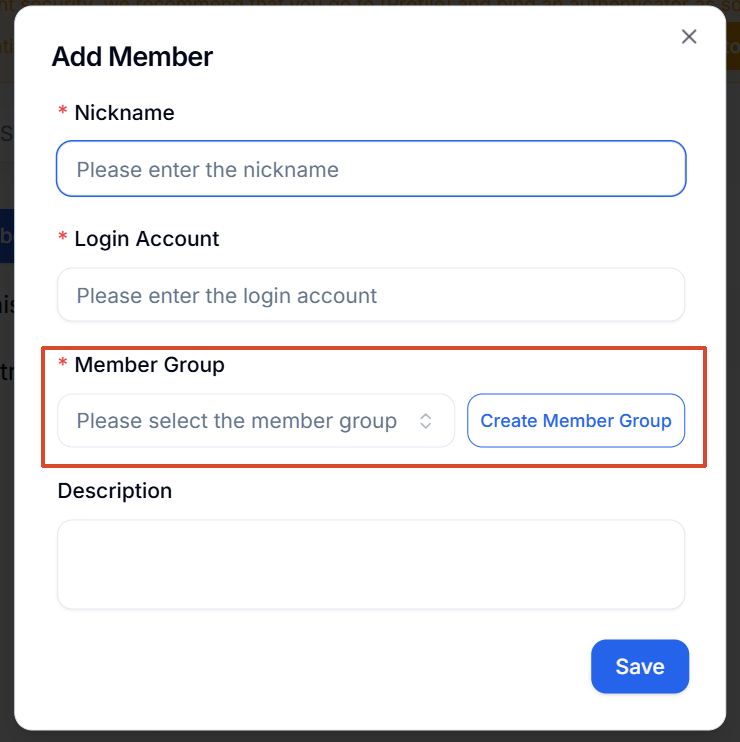
If you have not created a member group yet, create one first.
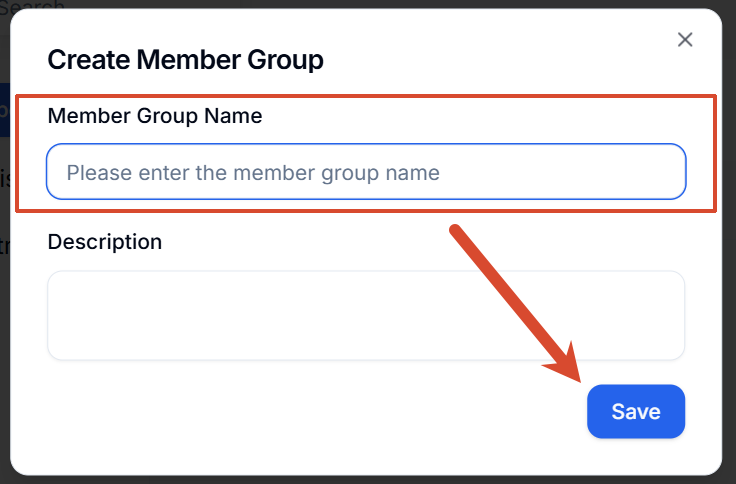
Enter a custom name for the member group.Click Save.
Select the user group you created in the previous step.Click Add Member.
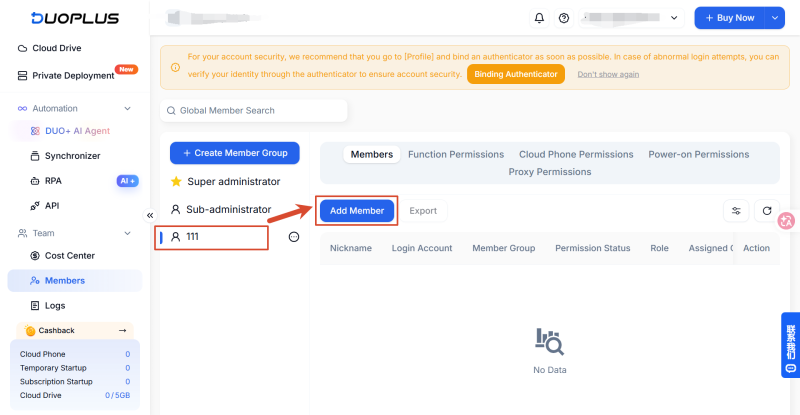
Enter a nickname. For the account name, enter the person’s email address. If the email address is not registered, the invitee will receive a verification code and must verify the email before joining.
After sending an invitation, check whether the member appears in the member list for the relevant team. Do not assume the invitation succeeded simply because the add-member action was submitted.
Steps:
Switch to the team the invitee was added to. Click the team list in the upper-left corner and select the relevant team. You can also switch teams from the action column on the right side of the table in Team Settings.
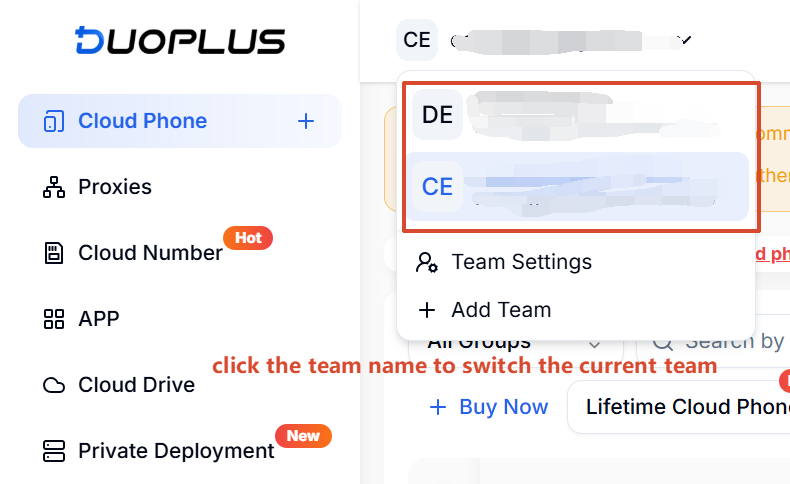
Or open Team Settings and find the member in the list. Confirm that the member appears and check which user group they belong to.
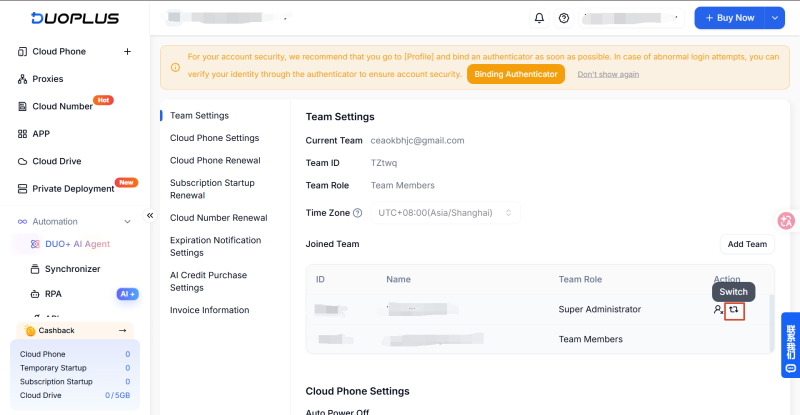
After joining a team, the invitee must also switch to that team to access its resources.
Consider a social media team that manages multiple TikTok, Instagram, and Facebook accounts using several cloud phones. The team lead oversees the operation, TikTok operators are responsible only for TikTok accounts, and Instagram operators manage only Instagram accounts.
If every member can access all cloud phones and management features, accidental operations become more likely and account management across projects can become disorganized. The team should assign permissions according to each member’s role and account responsibilities.
For example, TikTok operators should receive only the feature permissions required for their work and access only the cloud phones assigned to their TikTok accounts. Instagram operators should use a separate group of cloud phones. The team lead can receive permissions appropriate to their management responsibilities.
DuoPlus lets teams assign cloud phones through user groups, Feature Permissions, and Cloud Phone Permissions. The following sections explain how to configure each type.
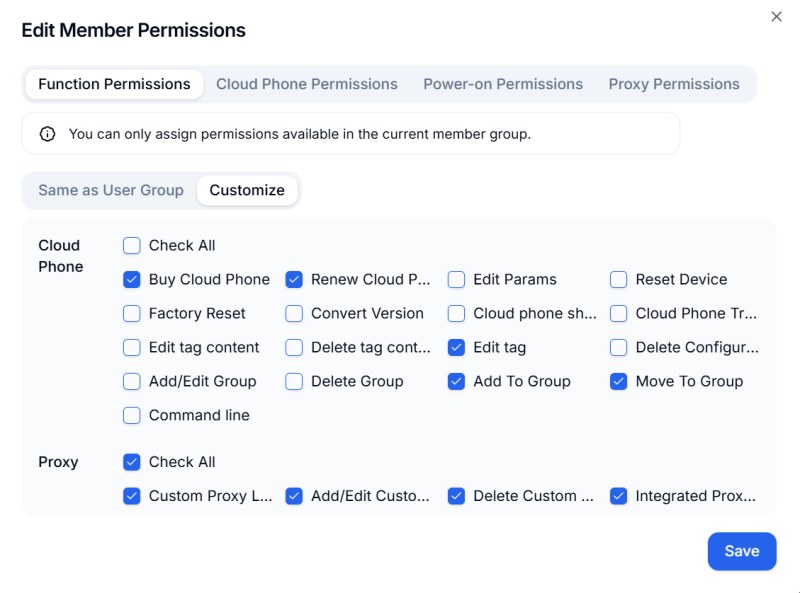
DuoPlus allows different user groups to have different feature permissions. These permissions determine which backend features group members can use.
Steps:
①Switch to the target team and open Member Management.
②Find the regular user group you want to configure.
③Click Funtion Permissions.
④Review the available permission options and select those required for the group’s actual responsibilities.
⑤Click Confirm at the bottom of the page.
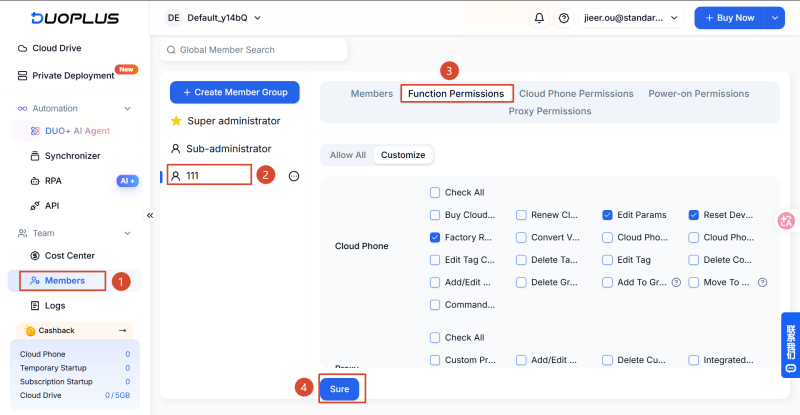
DuoPlus provides funtion permission settings, but the team should decide which funtions to enable based on each role’s responsibilities.
DuoPlus also allows different user groups to have different cloud phone permissions. If a team operates multiple platforms, organize devices by platform, client, or project first, then assign access according to each member’s scope of work.
Steps:
①Switch to the target team and open Member Management.
②Find the regular user group you want to configure.
③Click Cloud Phone Permissions.
④Review the available options and select the cloud phones the group needs to access. You can organize cloud phones into groups by purpose first, then select devices by group when setting permissions.
⑤Click Confirm at the bottom of the page.
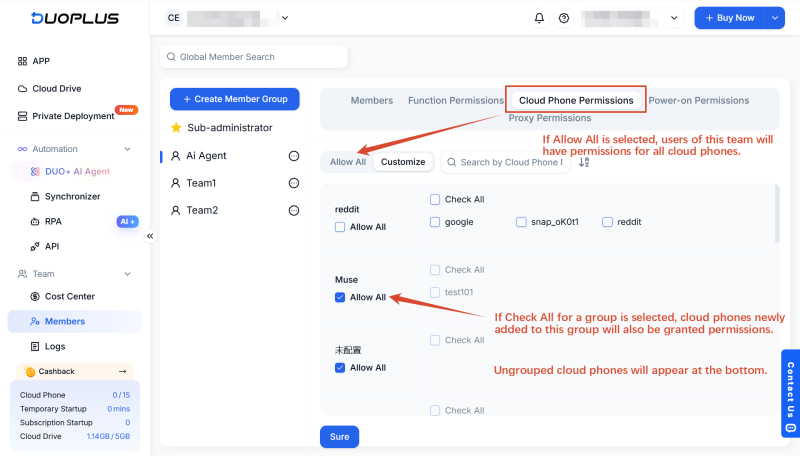
Finally, review the group’s device access scope and confirm that it matches the group’s project responsibilities.
Permission configuration is not a one-time task. As the business grows and projects or personnel change, a member’s existing access may no longer be appropriate. Routine maintenance should focus on whether current permissions still match work requirements, rather than creating new user groups every time.
When an operator starts managing a new social media platform, client, or market, identify the additional devices and features required before updating the relevant permissions. When a member finishes a client project, moves away from a platform, or no longer needs access to specific devices, the administrator should revoke permissions that are no longer necessary.
Use the following principles:
A DuoPlus team administrator can open Member Management, switch to the relevant team, find the member in the list, and manage the member using the controls on the right side of the list.
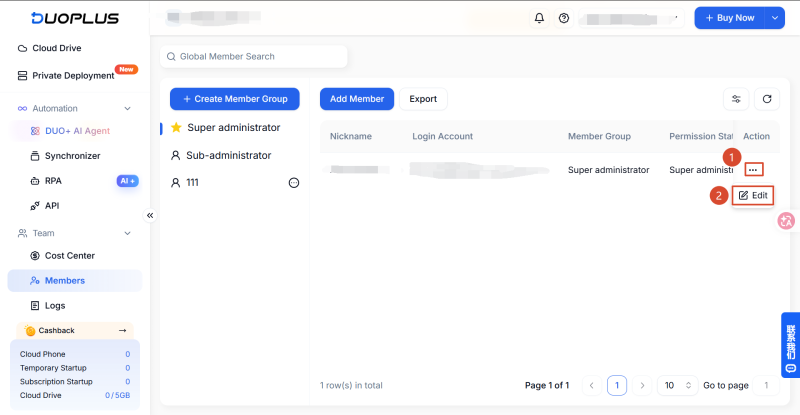
Long-term team collaboration and temporary device collaboration have different requirements. Choose the method that fits the task.
| Collaboration Scenario | Recommended Management Method | Main Consideration |
|---|---|---|
| Ongoing responsibility for a platform or client project | Team member and user group permissions | Feature permissions and device access can be managed over time |
| Several members have similar roles | User group permission settings | Similar roles can be managed through centralized permission settings |
| Temporarily asking someone to operate a specific device | Cloud phone sharing | Suitable for collaboration involving specific devices |
| A project ends or a team member leaves | Review member permissions and relevant shares | Reduce the chance that unnecessary access remains |
If a collaborator will participate in the team’s work on an ongoing basis, use the formal team member management process to assign permissions. If someone only needs temporary access to a particular cloud phone, consider cloud phone sharing.
DuoPlus supports cloud phone sharing. In the cloud phone dashboard, users can select one or more cloud phones and generate a sharing link and password so collaborators can access the shared devices through a web browser.
Share a Single Cloud Phone
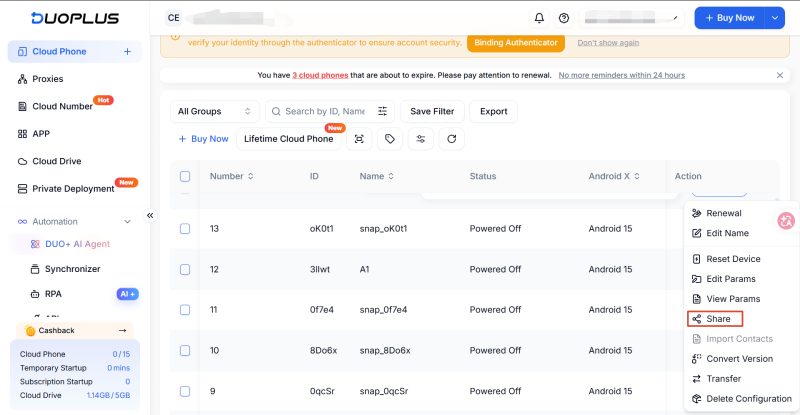
Open the operation menu on the right side of the relevant cloud phone.
Use the sharing option to configure the share.
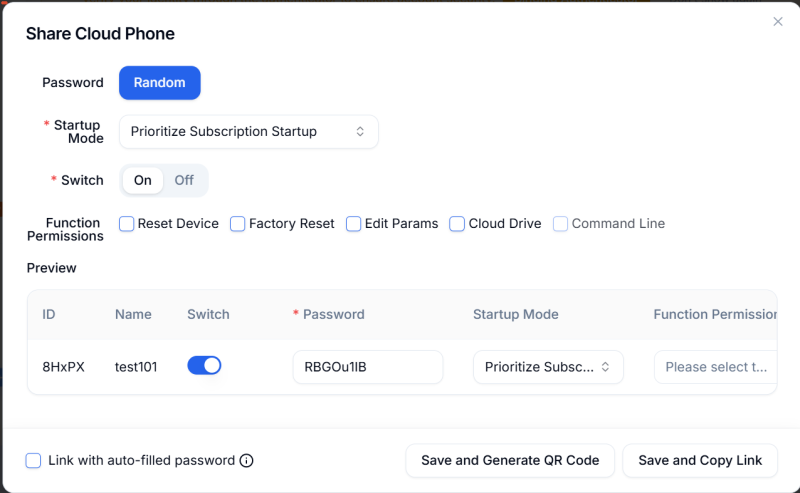
Use the randomly generated password or set your own password. Configure the startup method and sharing toggle, then share the device using a QR code or link.
Share Multiple Cloud Phones
Select the cloud phones you want to share.
Click the “...” menu in the floating toolbar, then select the share option.
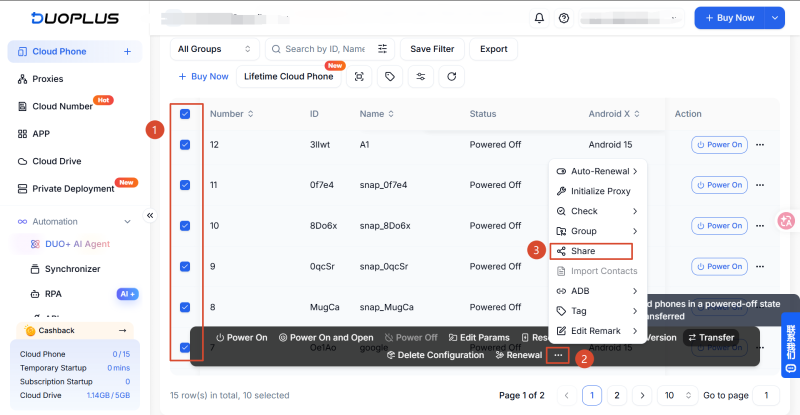
Review the settings and, if needed, synchronize them across all selected cloud phones.
After confirming the settings, generate a QR code or sharing link.
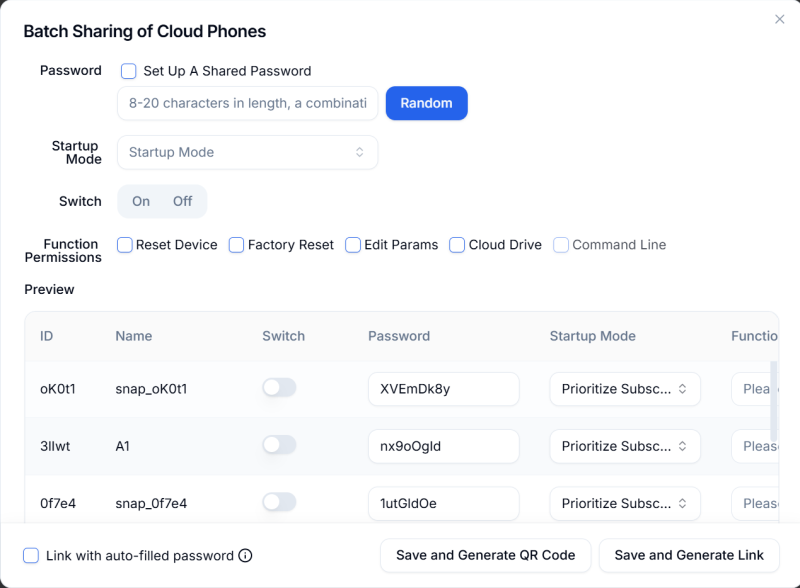
Assigning DuoPlus Cloud Phone and account management permissions to a social media team requires considering member responsibilities, backend features, and device access scope together.
For operators who work with the team on an ongoing basis, invite them through team member management and use user groups to configure Feature Permissions and Cloud Phone Permissions centrally. For temporary device collaboration, use cloud phone sharing when it fits the task.
The key is to keep each member’s access aligned with their responsibilities. Give members only the permissions they need to complete their work, review device and feature access when projects change, and check whether access is still necessary when a member leaves or temporary collaboration ends. These steps help teams maintain operational efficiency while reducing device misuse and leftover permissions.
DuoPlus team management itself is free. Fees for cloud phones and other resources should be considered separately from the team management feature.
Yes. A user can join a team created by someone else, but the team administrator must invite them. Users cannot join another team on their own.
Sub-administrators can manage regular user groups. The permissions of regular members are determined by the settings of their assigned user group.
No. DuoPlus cloud phones can be shared with any user. The recipient does not need a DuoPlus account; they can operate the shared cloud phone using the sharing link and password.
Yes. This option grants the user group access to all cloud phones, including cloud phones added later.
As TikTok, Instagram, and Facebook become important channels for brand marketing, content creation, and affiliate …

TikTok Shop gives sellers multiple ways to reach potential customers, from shoppable videos and livestreams to creator …
When managing multiple social media accounts, you often need to handle large amounts of text, including post captions, …
No need to purchase multiple real phones.
With DuoPlus, one person can operate numerous cloud phones and social media accounts from a single computer, driving traffic and boosting sales for you.