



How to Take Long Screenshots on DuoPlus Cloud Phone: Saving Product Pages and Social Media Posts
E-commerce operations and social media content management often require saving product specifications, descriptions, …
Learn how to use the DuoPlus Cloud Phone clipboard to transfer the same or different text across multiple cloud phones and read clipboard content from other devices. Reuse post captions, comment replies, and other text with less repetitive typing.

Get an AI-Powered Summary of This Article
When managing multiple social media accounts, you often need to handle large amounts of text, including post captions, comment replies, and search keywords. As the number of accounts grows, transferring text quickly between cloud phones and reducing repetitive typing become important parts of daily operations.
DuoPlus Cloud Phone provides clipboard features that let you write the same or different text to multiple cloud phones and read clipboard content from other devices. Used appropriately, these features can simplify text handling across devices.
This guide uses social media captions and comment replies as examples to explain how to use Unified Text, Differentiated Text, and Read Clipboard to improve text workflows when managing multiple accounts.
For creators, brands, and affiliate marketers managing multiple TikTok, Instagram, Facebook, or YouTube accounts, text entry is a recurring part of daily work.
These tasks typically involve three challenges.
The same campaign announcement, product description, or brand statement may need to be posted across several accounts. Even when the copy is identical, you still have to open each target account, find the editor, and paste the text. For people handling many posts and comments every day, these repeated steps can add up to a significant time cost.
Managing multiple accounts does not mean publishing identical content everywhere. For example, the description of the same product may need to be adjusted for different markets, while different brand accounts may use different product links, keywords, or campaign details.
Copying and pasting manually from one cloud phone to another can lead to mistakes, such as using one account’s caption on another account—especially when switching frequently between devices with similar names or multiple social media windows.
Sometimes you need to retrieve existing text from one cloud phone and use it on another. For example, an account may already contain product keywords, search terms, or an operational note that you want to reuse. Reading and copying the text directly can be more convenient than retyping it or repeatedly switching between screens.
DuoPlus clipboard features can help with these tasks. On the Operation Sync page, you can write the same text to multiple cloud phones, write different content to individual devices, or batch-read clipboard text from cloud phones and select the content to copy to the current device.
Keep in mind that the clipboard handles writing, reusing, and transferring text. It does not generate captions or automatically reply to comments. You still need to prepare and review the text, paste it into the correct field on the target cloud phone, and check the account and content before publishing or sending a reply.
The workflow is straightforward. With DuoPlus, prepare the copy on your computer, write the text to the clipboard of the target cloud phone, and then paste it into Instagram.
Draft the Instagram caption on your computer. Before transferring it, check spelling, punctuation, line breaks, hashtags, and whether the caption matches the intended image or video.
If you plan to publish across multiple accounts, organize the captions in advance:
Same text: Prepare one version for posts that need identical copy.
Different text: Prepare a separate caption for each account to avoid mixing up devices and content.
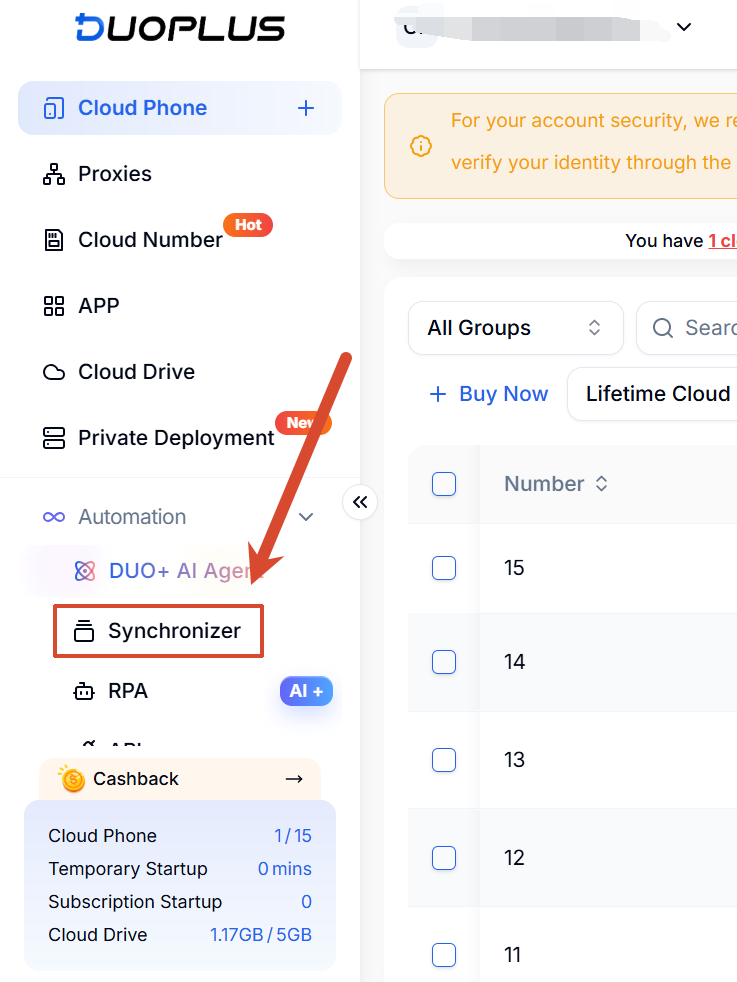
Sign in to DuoPlus and open the Synchronizer. Select the cloud phone version you want to use.
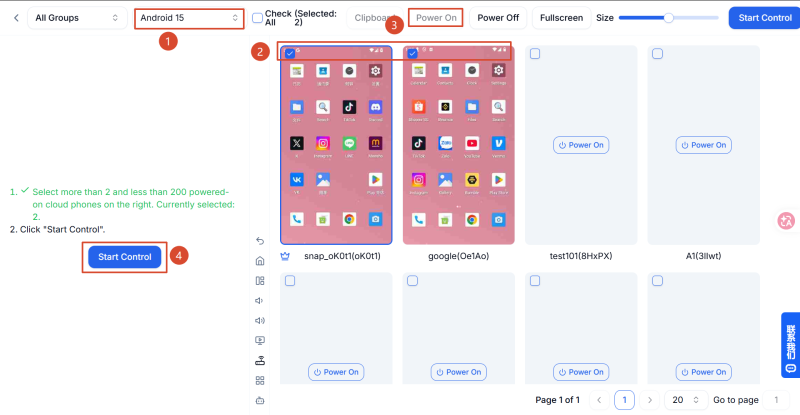
Select the cloud phones that should participate in synchronized operations, then click Power On and wait for startup to finish.
Click Start Control.
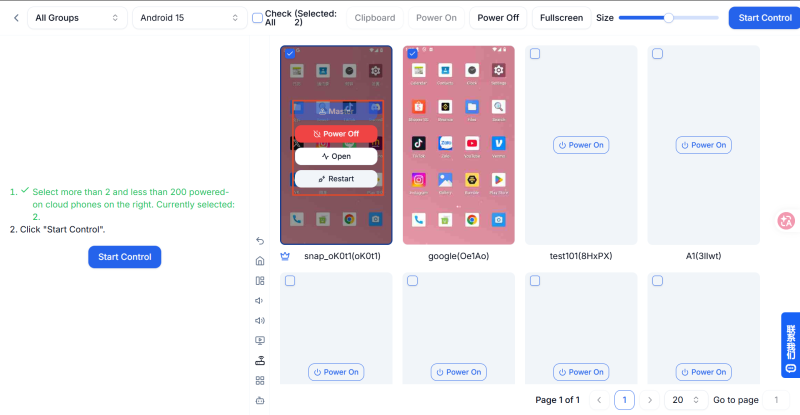
You can hover over a secondary device to switch the master control, close the secondary device, or open the cloud phone for viewing. Uncheck a device to remove it from the synchronized group; select it again to add it back.
Once control has started, click Clipboard.
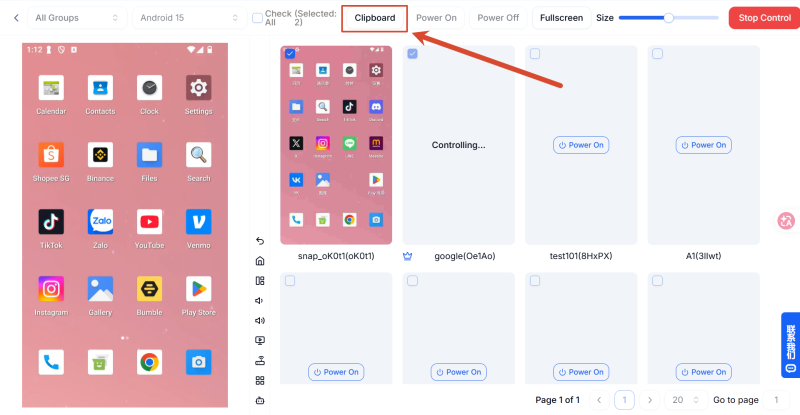
Choose the appropriate option based on how you want to distribute the captions:
Unified Text: Writes the same text to the clipboard of every cloud phone participating in synchronized control. Use this when multiple cloud phones need the same caption.
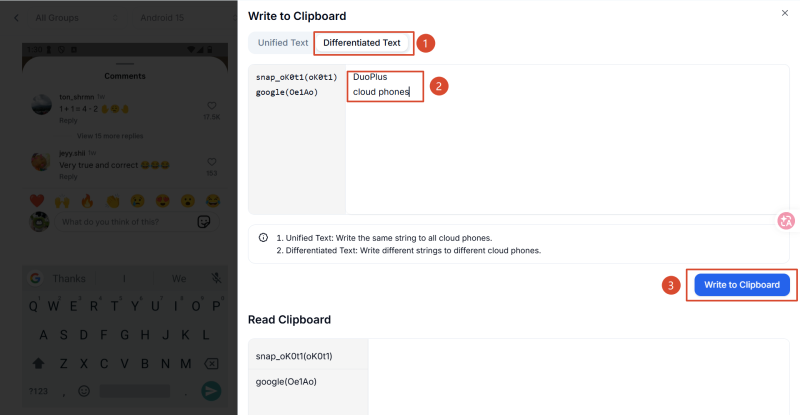
Differentiated Text: Writes different text to different cloud phones. Each line corresponds to a cloud phone, so check the order carefully to ensure each caption matches the intended device.
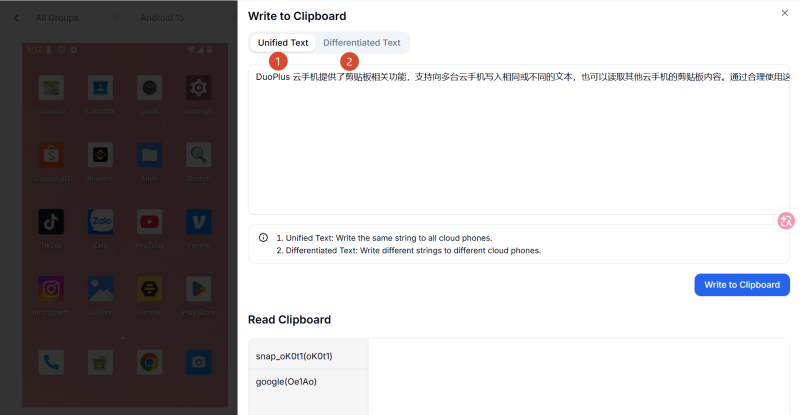
After writing the text to the clipboard, switch to the relevant cloud phone and open Instagram. Confirm that the account currently signed in is the one intended for the post.
Follow the posting flow available in the current version of Instagram, select the image or video for the post, and open the post editor.
In the Instagram post editor, locate the field for the caption. Tap or long-press the text field and select Paste from the system menu.
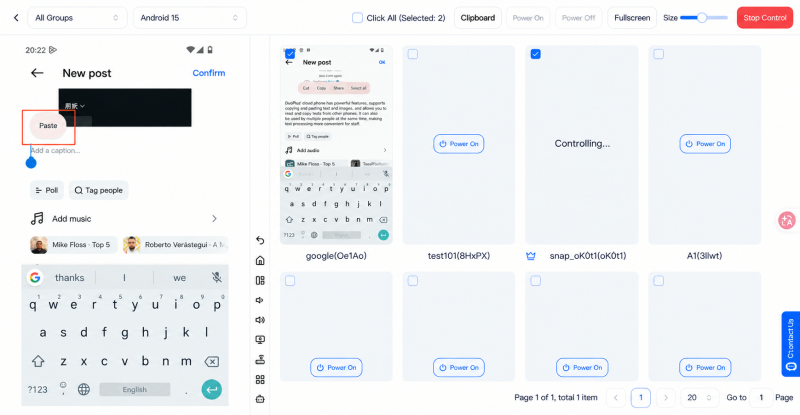
After pasting, check that the caption is complete. Pay particular attention to line breaks, hashtags, special characters, and the ending of the text. If anything is missing or looks different from the original, correct it before continuing.
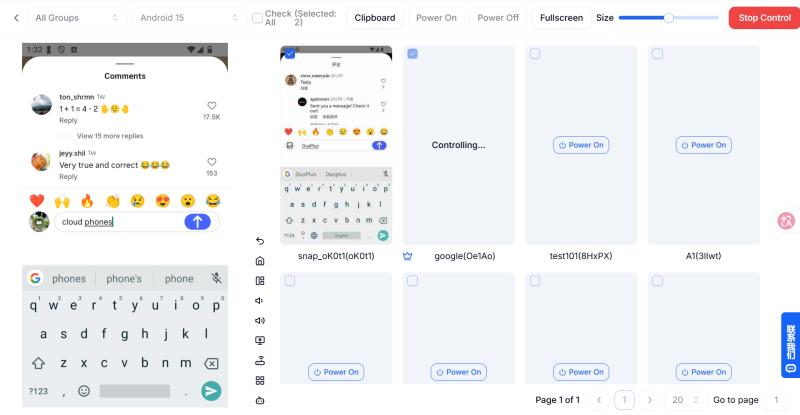
Once you have checked the content, follow the prompts in Instagram and confirm that the image or video, caption, and target account are all correct before publishing. After publishing, click Stop Control in the upper-right corner to stop control.
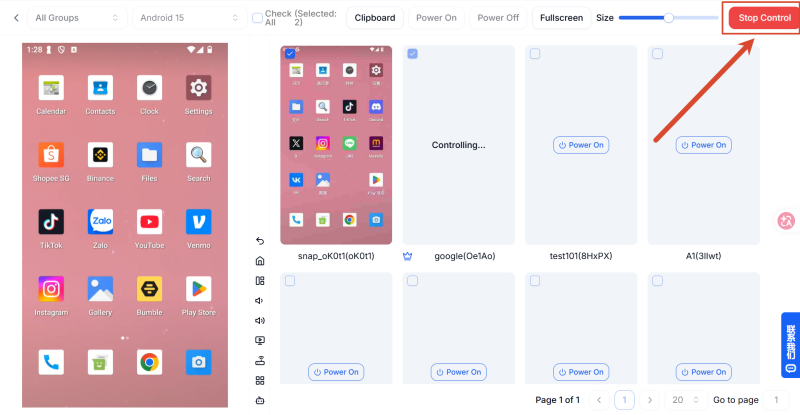
If you plan to publish different Instagram posts on two cloud phones, prepare both captions in advance and use Differentiated Text to write them to the devices. This reduces the need to switch between devices and copy text repeatedly. Because each line of Differentiated Text maps to a cloud phone, confirm the participating devices and the order of the captions first.
Note: The first clipboard write on Android 12 may be delayed. Make sure the proxy IP network on the cloud phone is available while the text is being written.
Replying to social media comments also involves a lot of text entry. You may need to answer questions about product use, provide campaign details, or explain how to purchase an item. If you manage multiple accounts, preparing replies to frequently asked questions in advance and transferring them through the clipboard can make this work more efficient.
Prepare a reply based on the actual comment. For recurring questions across several accounts, you can create reviewed standard responses. For questions involving orders, prices, product specifications, or a user’s specific circumstances, make sure the reply reflects the actual situation.
If multiple cloud phones need the same standard reply, use Unified Text. If different accounts need different responses, use Differentiated Text to prepare the appropriate text for each cloud phone.
The workflow is the same as described above:
1.Open the DuoPlus Operation Sync page.
2.Select the cloud phones to control and click Start Control.
3.Open Clipboard.
4.Choose Unified Text or Differentiated Text based on the replies.
5.Check that each text matches the intended device, then write the text to the clipboard.
1.Open the relevant social media app on the target cloud phone.
2.Find the post and the specific comment you need to reply to.
3.Tap the reply input field.
4.Paste the text from the clipboard.
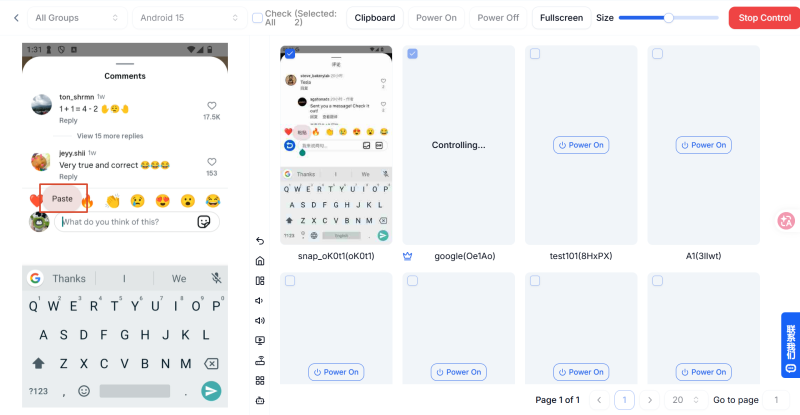
5.Check that the reply matches the comment, then send it once you have confirmed it is correct.
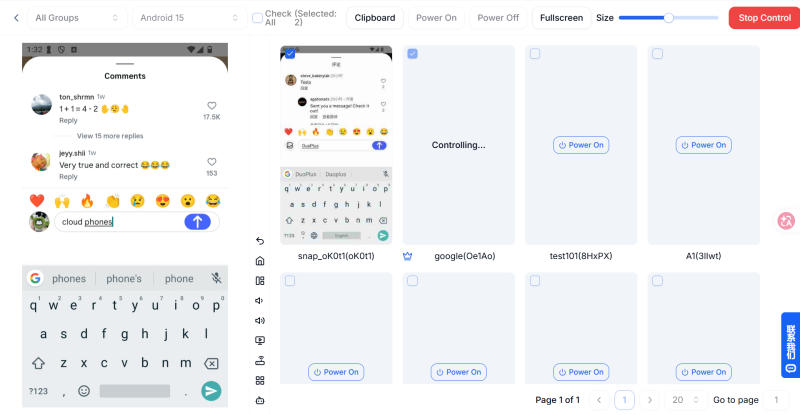
Do not check only the reply text itself. Confirm that the page belongs to the correct account, that you are replying to the intended user’s comment, and that you have not missed any necessary context.
If a comment concerns a complaint, refund, order status, or another issue that requires individual handling, review the situation before responding. Do not apply the same standard reply indiscriminately to different cases.
In addition to writing text to cloud phone clipboards, DuoPlus lets you batch-read clipboard content from multiple cloud phones on the Operation Sync page and select content to copy to the current device.
This is useful when you need existing text from another cloud phone. For example, if one device contains product keywords, search terms, or an operational note you want to reuse, read the clipboard content from the relevant device and copy the required text to the current device. This can reduce device switching and repetitive typing.
Sign in to the DuoPlus dashboard and open Operation Sync. Select the cloud phones that should participate and start them. After startup, select the target cloud phones and click Start Control. Before reading the clipboard, identify which device contains the text you need.
1.Open Clipboard on the Operation Sync page.
2.Find and use Read Clipboard.
3.Batch-read clipboard content from the relevant cloud phones.
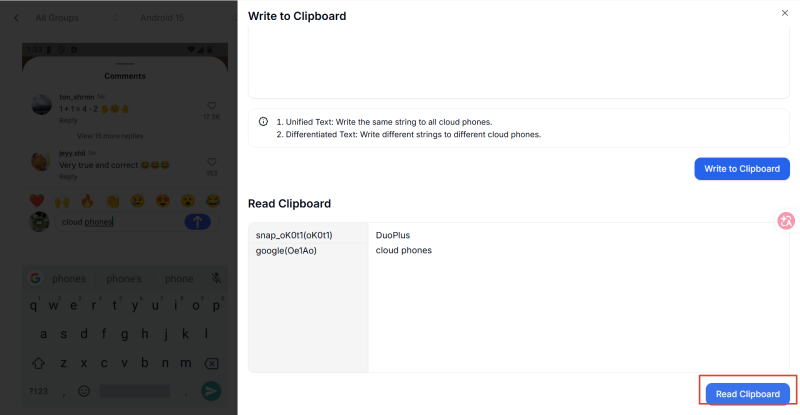
4.Review the results and confirm that each item corresponds to the intended device.
Read Clipboard lets you collect existing text from multiple cloud phones in one place instead of opening each device individually. If different accounts store different search keywords or operational text, read the content first and then select what you need.
Use the displayed results as the source of truth. If a device does not contain the text you need, check whether the correct content was copied or written to that device. Do not treat blank or outdated content as the latest version.
After reading the clipboards, find the text you want to reuse, select it, and copy it to the current device. You can then paste it into the appropriate field, such as a social media search box, post editor, or another text input area.
| Feature | Main Function | Typical Use Case |
|---|---|---|
| Unified Text | Writes the same text to multiple cloud phones. | Several Instagram accounts need the same campaign details or standard text. |
| Differentiated Text | Writes different text to the corresponding cloud phones. | Different Instagram accounts need different captions or search keywords. |
| Read Clipboard | Batch-retrieves clipboard content from multiple cloud phones. | Retrieve existing text from cloud phones and copy selected content to the current device. |
The DuoPlus Cloud Phone clipboard is designed to write, read, and reuse text across multiple devices. Combined with Operation Sync, it lets you control selected cloud phones in one place and reduces the time spent switching between devices and entering text repeatedly.
If you need to automate repetitive tasks further, you can use DuoPlus RPA or AI Agent based on your workflow.
For people managing multiple TikTok, Instagram, Facebook, and other social media accounts, entering text and transferring it between devices are recurring tasks. Unified Text, Differentiated Text, and Read Clipboard help distribute and reuse text across multiple cloud phones with less repetitive copying and pasting.
Choose the writing method based on whether the text is the same across devices. When you need existing content from another device, use Read Clipboard. Combining careful text preparation, device mapping, pasting, and final checks can make multi-account workflows clearer and help reduce mismatched captions and repeated input.
If your daily workflow involves multiple cloud phones and social media accounts, consider using DuoPlus Operation Sync and clipboard features to manage repetitive text-handling steps in one place.
1.Why doesn’t pasted text appear immediately after writing it to the DuoPlus Cloud Phone clipboard?
First, confirm that the write operation has finished, the target cloud phone is running normally, and the correct input field is open in the app. The first clipboard write on an Android 12 cloud phone may take some time, and the proxy IP network on the cloud phone must be available during the write process. If there is a delay, wait for the operation to finish and check again.
2.What should I do if Differentiated Text is assigned to the wrong device?
Pause any further publishing, check the order of the cloud phones and the corresponding lines of text, then write the text again and verify the pasted result. If incorrect content has already been published or sent, review and address it promptly based on the situation.
3.Why isn’t the clipboard content read from a cloud phone the latest text?
Read Clipboard retrieves the content currently available from the device. If the device still contains older text, the result may not be the version needed for the current task. Before reading, confirm that the correct text has been copied or written to the target device, and verify the result again.
4.When should I use Unified Text versus Differentiated Text?
Use Unified Text when all target cloud phones need the same text. Use Differentiated Text when different cloud phones need different captions, keywords, or replies. The deciding factor is whether the text is the same—not the number of accounts. Even with only a few devices, if the content differs, map each text to its intended device to avoid mistakes.
5.Will the DuoPlus Cloud Phone clipboard automatically publish posts or send comments?
No. The clipboard is used to write, read, and transfer text. After pasting, you still need to check the target account, text, and input field, then follow the social media app’s normal workflow to publish the post or send the reply.
E-commerce operations and social media content management often require saving product specifications, descriptions, …
Muse has recently become one of the most talked-about AI Agent products in the AI tools space. As a new AI Agent from …

OpenAI Codex is an AI coding agent designed to help developers write, modify, review, and deliver code. It is available …
No need to purchase multiple real phones.
With DuoPlus, one person can operate numerous cloud phones and social media accounts from a single computer, driving traffic and boosting sales for you.