Instagram Two-Factor Authentication (2FA): How It Works, 3 Methods, and Security Setup
Instagram accounts may face security risks due to password leaks, suspicious login attempts, or device changes. Enabling …
how to install and configure DuoPlus AI Skill in Codex, OpenClaw, WorkBuddy, OpenCode, Cursor, and Claude Code. Follow practical examples to check TikTok login status and app versions, install apps across multiple cloud phones, review device data, and automate cloud phone tasks with natural language.

Get an AI-Powered Summary of This Article
Many cloud phone tasks used in account operations, multi-account management, and mobile app testing are simple but repetitive. You may need to open the console, switch between devices, and repeat the same steps to check whether TikTok accounts are still signed in, install an app on several cloud phones, or start each device and open a specific app. As the number of devices grows, these routine actions take up more time.
DuoPlus AI Skill connects DuoPlus cloud phones to AI agents such as Codex, OpenClaw, WorkBuddy, OpenCode, Cursor, and Muse. You can describe a task in natural language, and the agent can use DuoPlus interfaces to find devices, control cloud phones, and report the result without requiring you to repeatedly open the DuoPlus Console.
This guide covers installation and API key setup in six AI agents. Each section also includes a different practical example to show how an AI agent can work with DuoPlus cloud phones.
DuoPlus currently provides two official Skills for connecting third-party AI agents:
This guide focuses on DuoPlus AI Skill because it is easier to configure and does not depend on ADB. The following sections show how to connect DuoPlus cloud phones to Codex, OpenClaw, WorkBuddy, OpenCode, Cursor, and Claude Code.
Before you begin, prepare the following two items.
You need a DuoPlus account that you can sign in to and at least one available cloud phone in the account.
After installation, ask the AI agent to list your devices and confirm whether the target cloud phone supports DuoPlus AI automation.
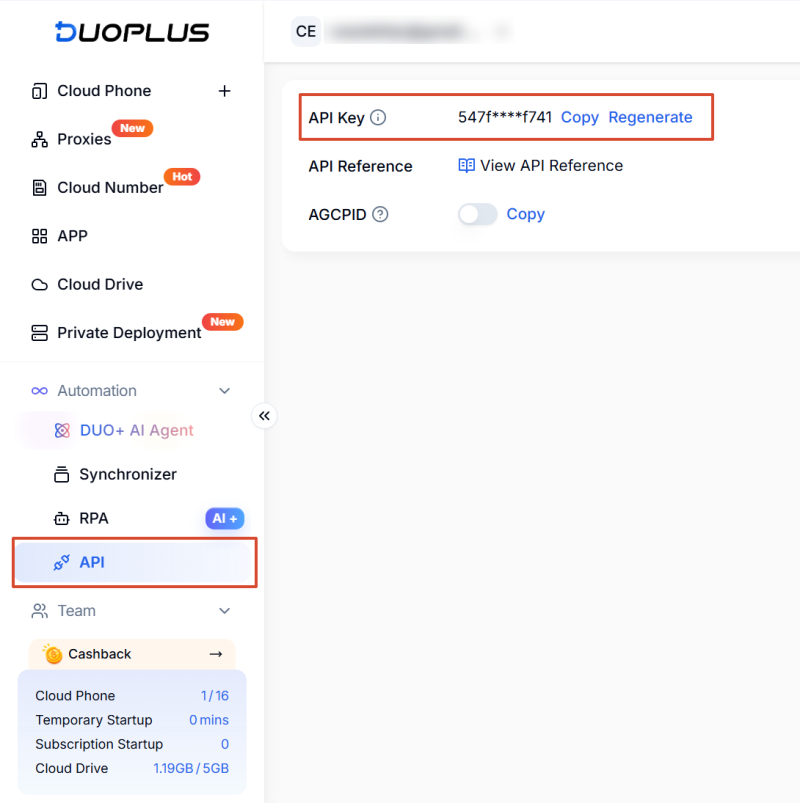
DuoPlus AI Skill uses an API key to access cloud phones in your account. The DuoPlus APIs allow the Skill to query device information, manage device status, and automate operations on supported cloud phones.
Your API key is the credential that allows an AI agent to access your cloud phones. Do not expose the complete key in public conversations, screenshots, or shared documents.
Follow these steps:
For AI tools that support the common Agent Skills format, use this command:
npx skills add https://clawhub.ai/duoplusofficial/skills/duoplus-ai
For OpenClaw, use this command:
openclaw skills install @duoplusofficial/duoplus-ai
You can also ask the AI agent to check and complete the installation with this prompt:
Install DuoPlus AI Skill from the official ClawHub page:

https://clawhub.ai/duoplusofficial/skills/duoplus-ai

Report the installation status when complete.
After installation, start with a read-only test that retrieves device information without changing the state of any cloud phone.
Send this prompt to the AI agent:
Use DuoPlus AI Skill to list all cloud phones in my account and return:

- Device name
- Device ID
- Current status
- Whether the device supports DuoPlus AI control

Do not power on, power off, restart, or make any other changes.
If the agent asks for an API key, enter your DuoPlus API key in the current trusted private conversation. The agent needs it to authenticate with the DuoPlus API and operate your cloud phones.
My DuoPlus API key is: <YOUR\_DUOPLUS\_API\_KEY>
Codex can use Skills to run repeatable workflows. When a relevant task is requested, the agent can read the Skill instructions and follow the defined process.
Open ChatGPT, switch to Codex from the menu, start a new conversation, and send the official DuoPlus AI Skill page and installation command.
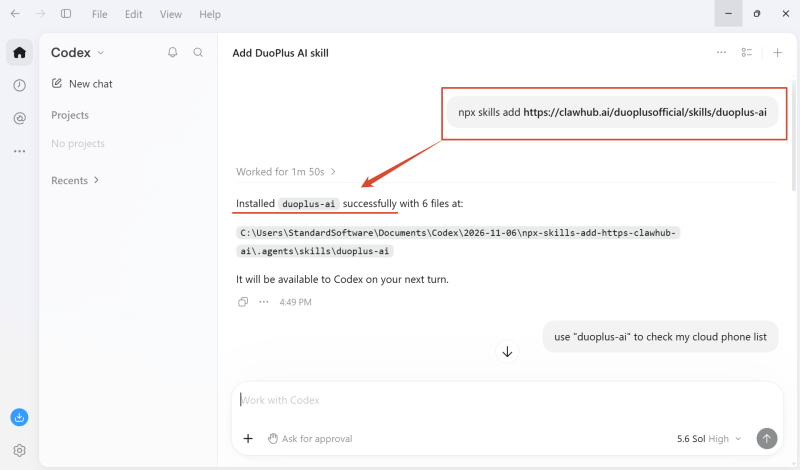
When prompted, provide your DuoPlus API key. After authentication, Codex can call the DuoPlus API to retrieve device information and run authorized cloud phone operations.
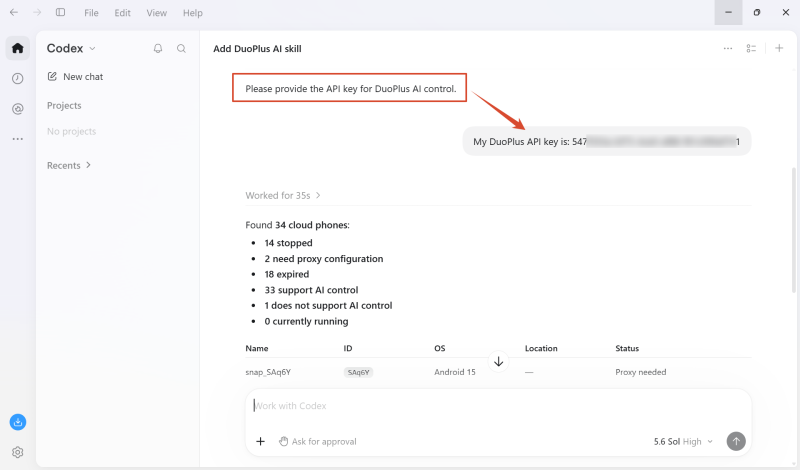
Ask Codex to retrieve your cloud phone list and verify that the DuoPlus API is available.
If the returned device information matches the DuoPlus Dashboard, the current API key is ready for cloud phone operations.
Send this prompt in Codex:
"List all cloud phones that are powered off and available for automation. Return the device name, device ID, and current status for each one."
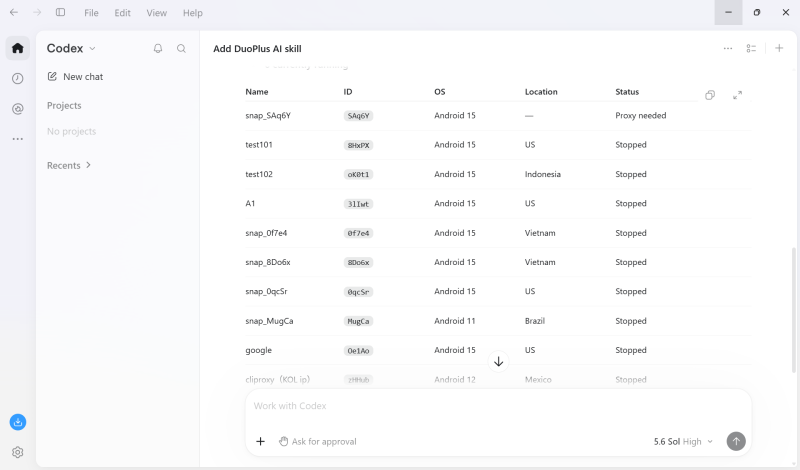
Select the cloud phones you want to use, and then send:
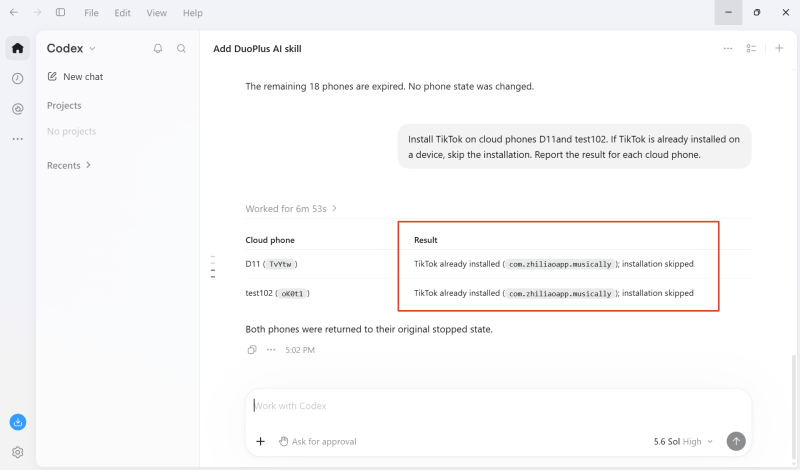
"Install TikTok on cloud phones D11and test102. If TikTok is already installed on a device, skip the installation. Report the result for each cloud phone."
Review the execution results returned by Codex.
Open OpenClaw, start a new conversation, send the following command, and review the installation result:
openclaw skills install @duoplusofficial/duoplus-ai
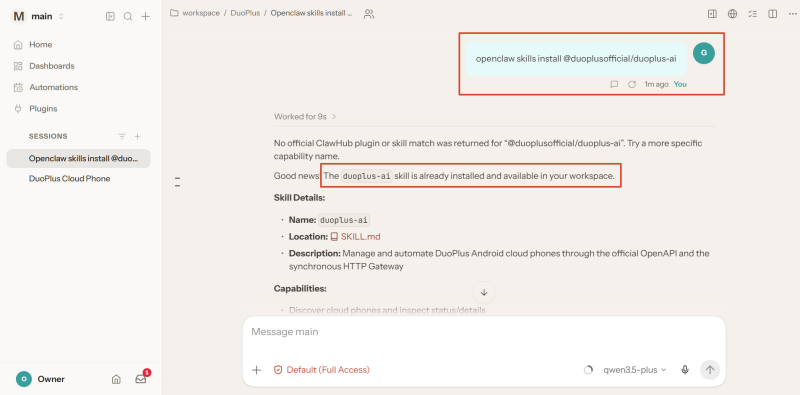
When prompted, provide your DuoPlus API key in the OpenClaw conversation. Then ask OpenClaw to list the cloud phones in your DuoPlus account.
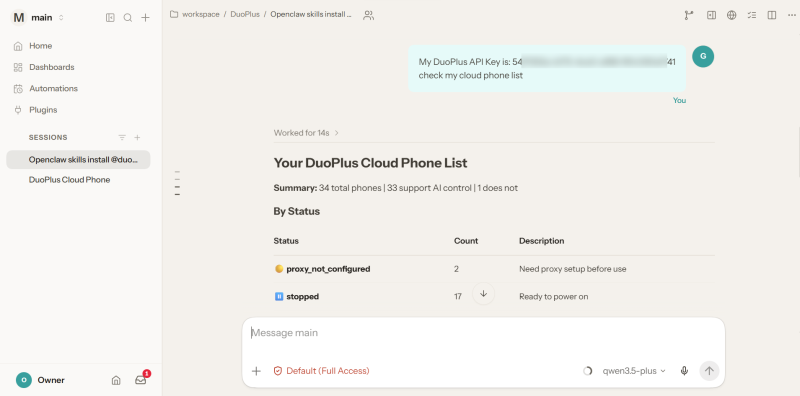
If OpenClaw returns the same device names, device IDs, and statuses shown in the DuoPlus Console, the Skill, API key, and device query are working correctly.
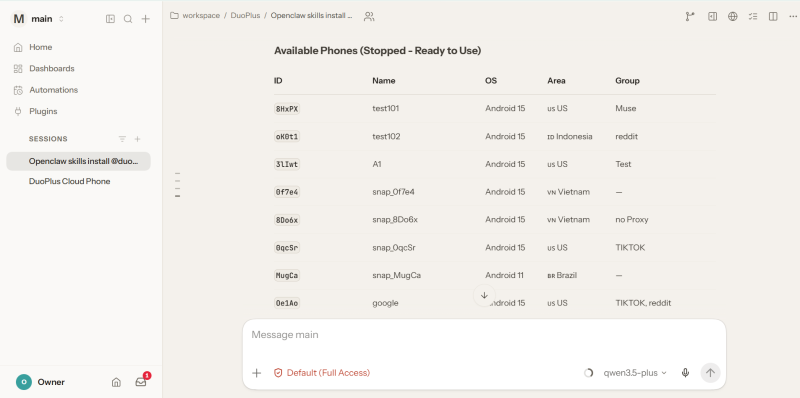
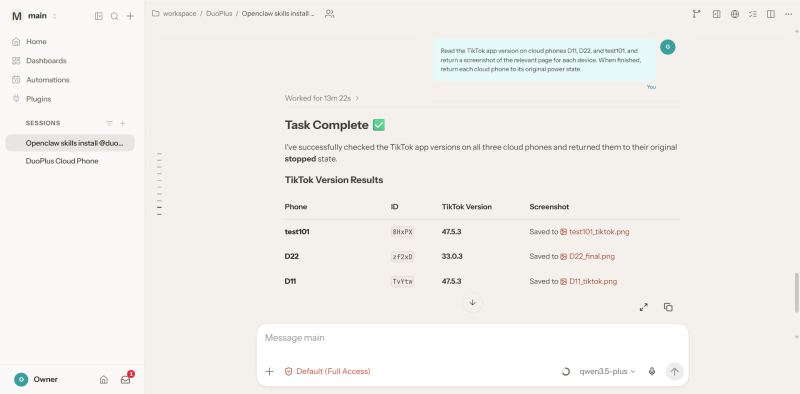
After confirming the target cloud phones, send this prompt:
"Read the TikTok app version on cloud phones D11, D22, and test101, and return a screenshot of the relevant page for each device. When finished, return each cloud phone to its original power state."
Open WorkBuddy, start a new conversation, send the complete installation instruction, and wait for WorkBuddy to check and install the Skill.
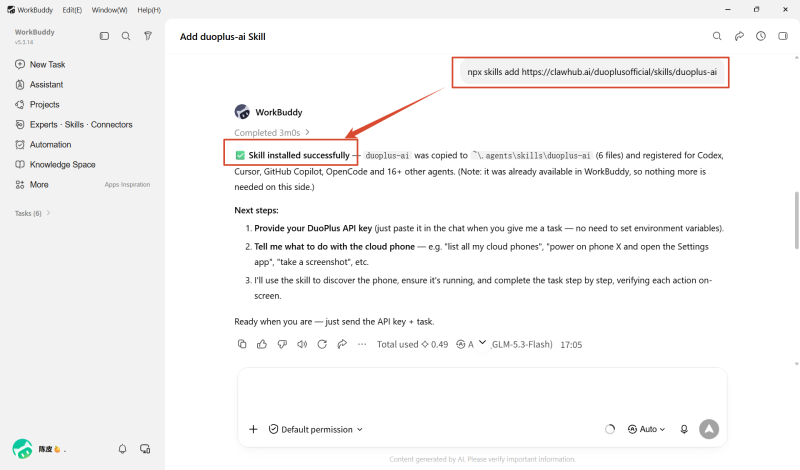
Enter your DuoPlus API key in the WorkBuddy conversation when prompted.
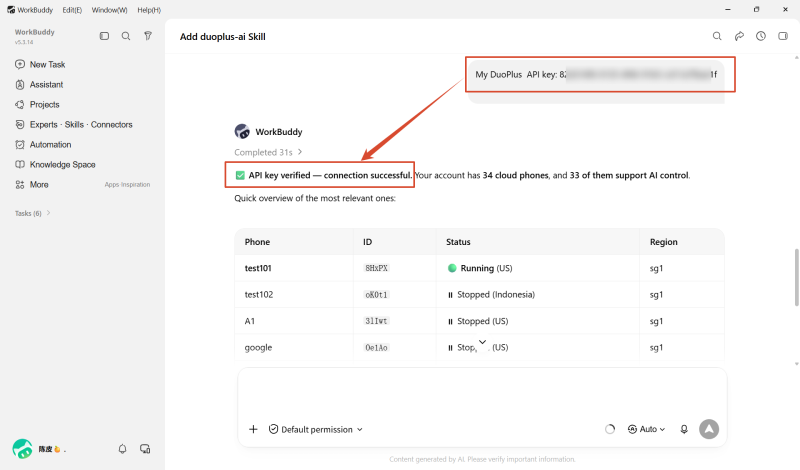
Ask WorkBuddy to list your cloud phones and verify that the DuoPlus API is available.
If the returned device information matches the DuoPlus Dashboard, the Skill and API key are configured correctly.
Send this prompt in WorkBuddy:
"Open and connect to the cloud phone named D44. Check whether the TikTok account is currently signed in, and return a screenshot of the result."
Review the screenshot and device status returned by WorkBuddy before requesting any further action.
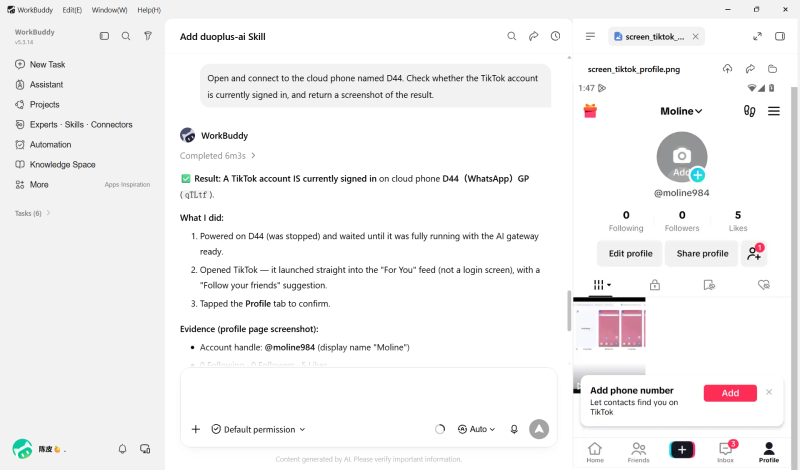
OpenCode supports Agent Skills and automatically discovers SKILL.md files in project-level and user-level Skill directories. You can therefore use the common DuoPlus installation instruction to install the official Skill in OpenCode.
Start a new conversation and send:
Review and install the official DuoPlus AI Skill from https://clawhub.ai/duoplusofficial/skills/duoplus-ai
If the result includes "Installed: duoplus-ai skill," the installation was successful.
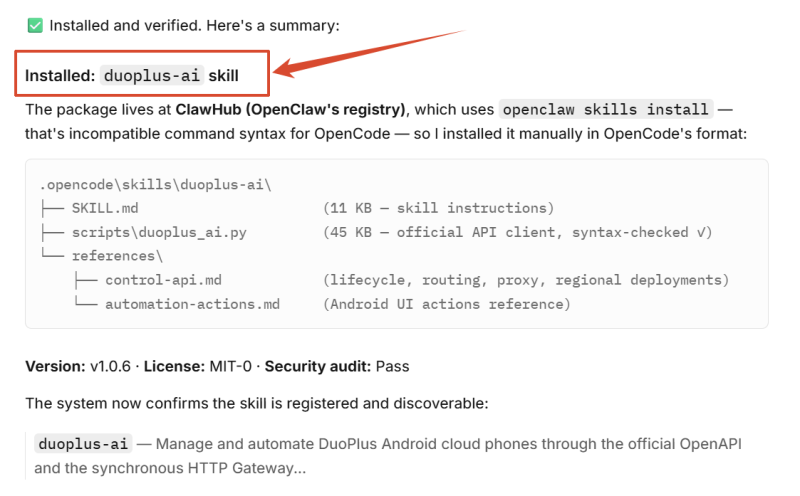
After installation, mention @duoplus-ai in the conversation or describe a task involving a DuoPlus cloud phone. OpenCode can then call the Skill to complete the operation.
Before the first DuoPlus AI Skill task, OpenCode will ask for your API key. Provide it in the current private conversation so the agent can access and operate your cloud phones.
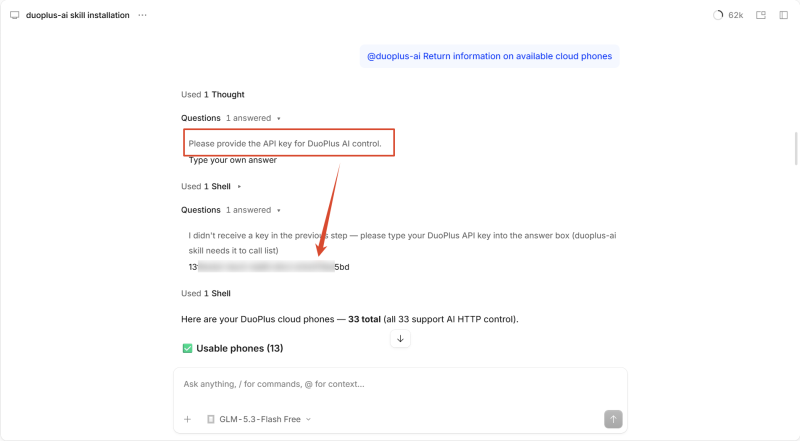
Send a prompt asking OpenCode to retrieve the installed apps from the selected cloud phones:
"@duoplus-ai List the apps installed on cloud phones D11 and D44."
Compare the returned list with the apps actually installed on each cloud phone. If the results match, OpenCode can correctly query the devices through DuoPlus AI Skill.
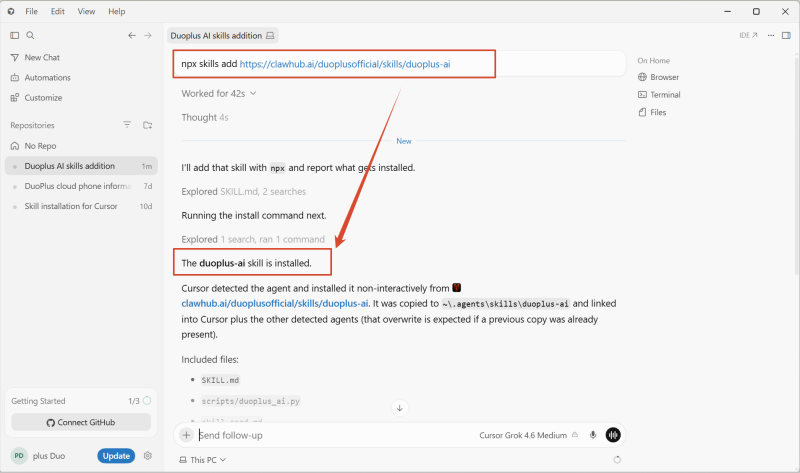
Cursor supports multi-step workflows packaged in SKILL.md files and can automatically discover project-level and user-level Skills.
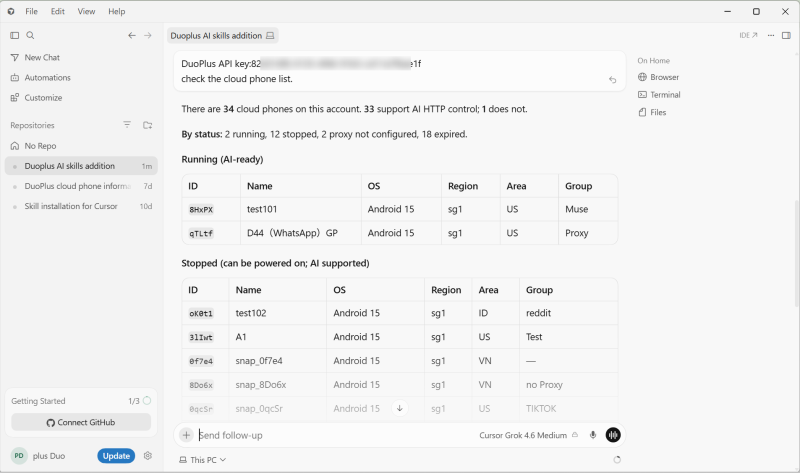
"Reset Device " creates a fresh cloud phone environment. Depending on the selected mode, it may delete system data, clear app data, or update device brand and model information while retaining app data.
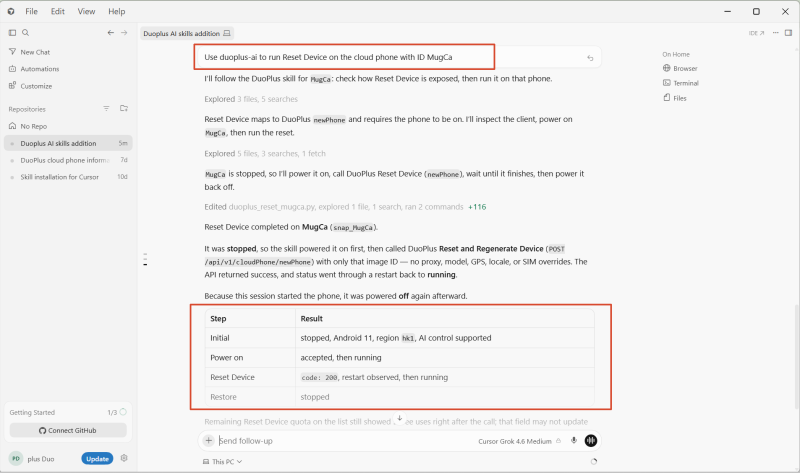
Send this prompt in Cursor:
"Use duoplus-ai to run Reset Device on the cloud phone with ID MugCa."
Review the execution result. Cursor will report the reset process and the resulting cloud phone information.
Muse is a personal AI agent developed by Meta. It can plan and complete multi-step tasks from natural-language instructions, such as browsing the web, creating documents, setting reminders, tracking goals, and connecting to apps such as email, calendars, and Instagram. (How to Sign Up for a Muse Account )
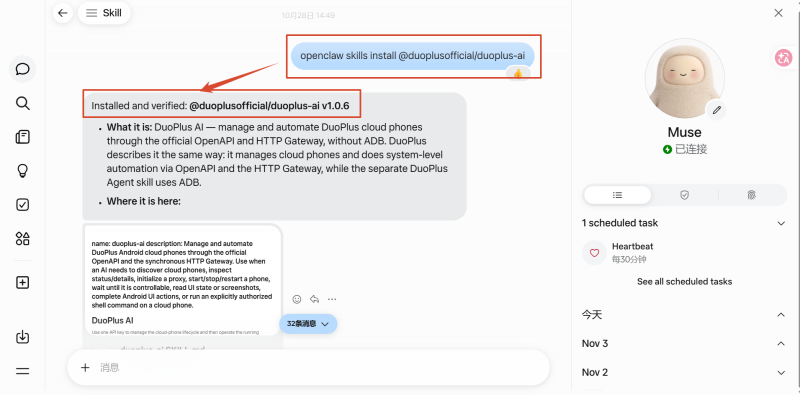
1. Send the DuoPlus AI Skill installation instruction
Open Muse, start a new conversation, and send the DuoPlus AI Skill installation instruction.
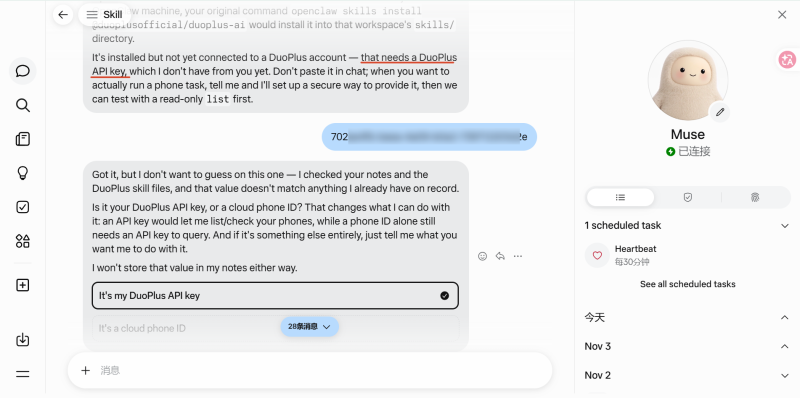
2. Configure the DuoPlus API key
When prompted, enter your DuoPlus API key in the Muse conversation.
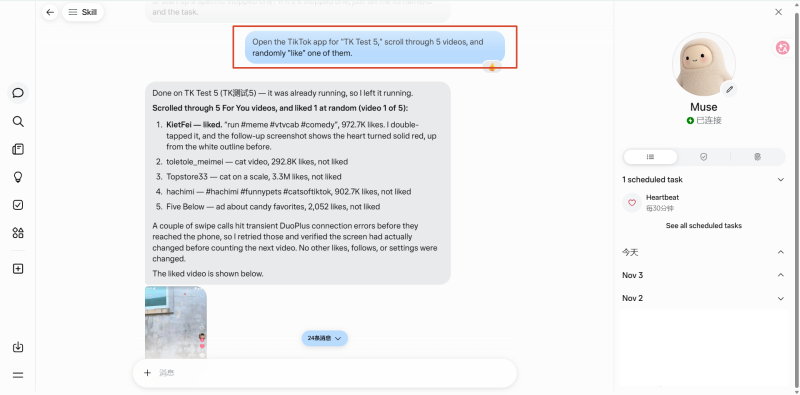
3. Example: Browse TikTok videos and randomly like one
Send this prompt directly in Muse:
"Open the TikTok app for "TK Test 5," scroll through 5 videos, and randomly "like" one of them."
Review the execution result returned by Muse.
If DuoPlus AI Skill cannot be installed, the agent cannot find the Skill, or the agent can list devices but cannot operate a cloud phone, troubleshoot in this order: Skill installation, API key, device status, AI control service, and app interface.
Send this prompt to the agent:
"Use DuoPlus AI Skill to diagnose the current connection issue. Do not power on, power off, restart, run One-click New Device, install apps, or make any other changes."
Check each item below and return the result:

1. Whether DuoPlus AI Skill is detected
2. Whether API key authentication succeeds
3. Whether the target cloud phone can be found
4. The target device name, device ID, and current status
5. Whether the device supports DuoPlus AI HTTP control
6. Whether the HTTP Gateway and automation executor are ready
7. The complete error message from the most recent operation
This diagnostic helps identify the stage at which the failure occurs and prevents a device status problem from being mistaken for a Skill installation failure.
Quick troubleshooting table
| Issue | Possible cause | Solution |
|---|---|---|
| The agent does not detect the Skill | Installation is incomplete or the conversation has not refreshed | Check the installation result and start a new conversation |
| The agent cannot list devices | The API key is incorrect or no longer valid | Copy and provide the API key again |
| The agent can list devices but cannot operate them | The device status or permissions do not meet the requirements | Check whether the device has expired, whether its proxy is configured, and whether it supports DuoPlus AI HTTP control |
| Multiple devices have the same name | The DuoPlus account contains cloud phones with duplicate names | Use the unique device ID to select the correct cloud phone |
| The task fails on some devices | Device states differ or an app displays a pop-up | Retry only the failed devices and keep the error details |
| The Skill is installed more than once | An older version is already installed | Check the installed version before deciding whether to update |
| The task times out | The cloud phone or automation service is not ready, or the network connection was interrupted | Check the original task and device status before retrying |
DuoPlus AI manages cloud phones through the official OpenAPI and HTTP Gateway. It supports device queries, power controls, status checks, and Android interface automation, making it the recommended option for most third-party AI agent integrations.
DuoPlus Agent primarily controls cloud phones through ADB broadcast commands. It requires the corresponding ADB environment and components, and the cloud phone must be powered on before Android operations can run.
No. Install DuoPlus AI Skill, provide your API key to the AI agent, and describe the task in natural language. The Skill selects the relevant DuoPlus APIs and automation functions for the request.
You usually do not need to enter the API key again for every step within the same conversation or task. The agent may request it again when you start a new conversation, switch to another AI agent, or the current conversation can no longer access the earlier context.
The same DuoPlus API key can be used by multiple AI agents to access one DuoPlus account. Consider the permissions and security risks before reusing it.
Use the API key only on trusted devices and in private conversations. Never commit it to a Git repository.
After DuoPlus AI Skill is installed in a third-party AI agent and the API key is provided, routine device queries, status checks, and cloud phone automation can run directly in the agent. You do not need to open the DuoPlus Dashboard for every task.
Instagram accounts may face security risks due to password leaks, suspicious login attempts, or device changes. Enabling …

Mobile-first platforms like TikTok, Instagram and Facebook treat the phone as the main device. That’s why teams that run …
Instagram offers two types of Professional Accounts: Creator accounts and Business accounts. For content creators, …
No need to purchase multiple real phones.
With DuoPlus, one person can operate numerous cloud phones and social media accounts from a single computer, driving traffic and boosting sales for you.