



How to Assign DuoPlus Cloud Phone and Account Management Permissions to Your Social Media Team
Social media operations often involve content publishing, account maintenance, project collaboration, and staff …
Wondering if you can have more than one Venmo account? Learn the official rules for personal and business profiles, risks of duplicate accounts, and how to use cloud phones for secure mobile workflows.

Get an AI-Powered Summary of This Article
Venmo is one of the most popular peer-to-peer payment apps in the United States, widely used for splitting bills, paying friends, receiving small business payments, and managing everyday transactions. As more people use Venmo for both personal and business purposes, a common question comes up: Can you have more than one Venmo account?
The answer depends on what kind of account you want to create. Venmo generally allows each individual to maintain only one personal account. However, Venmo also offers a Business Profile, which lets eligible users separate business transactions from personal payments under the same main Venmo identity.
This guide explains Venmo’s official account rules, the risks of creating unauthorized duplicate accounts, how Business Profiles work, and how cloud phone solutions like DuoPlus can help teams manage legitimate mobile workflows in a more organized and secure way.
If you're wondering "can I have more than one Venmo account?", the short answer is: Venmo allows one personal account per user, but you can add a Business Profile to separate personal and business finances. This article explains the rules, risks, and how to manage Venmo-related workflows safely and responsibly.
For most users, one personal Venmo account is enough for everyday transactions. If you also sell products, provide services, freelance, or operate a small business, Venmo’s Business Profile feature is the recommended way to keep business payments separate from personal transfers.
Trying to create multiple personal accounts to bypass limits, avoid verification, or separate activities outside Venmo’s approved structure can lead to serious account issues.
Venmo’s terms of service state that each user may have only one personal account. A personal account is linked to your identity, phone number, email address, payment methods, and bank details.
Creating a second personal account using the same or misleading information may violate Venmo’s rules. Even if you use a different email address or phone number, Venmo may still require identity verification and may review account activity for compliance.
If Venmo determines that an account violates its policies, it may restrict access, request additional verification, freeze funds, or close the account.
Venmo offers a Business Profile feature that lets you run a separate account for business transactions under your existing personal account. This is the only official way to have two Venmo accounts. With a Business Profile, you can:
Accept payments with a business name.
Separate personal and business transactions.
Use a different email or phone number for notifications (though your personal credentials still back the account).
Launch the Venmo app on your mobile device. Tap the menu icon or profile/settings area, depending on your app version, and open the account settings section.
Before creating a Business Profile, make sure your personal Venmo account information is accurate and up to date. This includes your legal name, email address, phone number, and payment methods.
Under the account or profile section, look for the option to create a Business Profile. Tap Create Business Profile and follow the setup prompts.
Venmo may ask you to confirm that you intend to use the profile for business-related payments. You should only create a Business Profile if you plan to use it for legitimate commercial activity.
Provide your business name, category, and contact information. Venmo may ask you to verify your identity or business license. Once approved, your Business Profile will appear alongside your personal account. You can switch between them easily.
Managing financial accounts requires extra care. Venmo is a regulated payment platform, and it may monitor account activity to prevent fraud, unauthorized transactions, money laundering, and policy violations.
Using multiple unauthorized accounts, sharing devices carelessly, or mixing personal and business workflows can create account security and compliance risks.
Venmo uses device fingerprinting to identify the hardware, operating system, IP address, and other unique identifiers. If you run two accounts (even one personal and one business) on the same phone, Venmo can link them. While having a Business Profile is allowed, using multiple personal accounts on one device flags your account for review.
If Venmo detects policy violations, it may:
These actions can disrupt your business and personal finances. For more on technology isolation, see our guide on What is a cloud phone?
Cloud phones are virtual Android devices hosted in the cloud. They provide remote mobile environments that can be accessed from a desktop or another device. Businesses and teams often use cloud phones for app testing, account workspace organization, customer support workflows, and mobile operations.
When used responsibly, a cloud phone can help keep workflows organized. However, cloud phones should not be used to create unauthorized financial accounts, bypass identity checks, or avoid Venmo’s account limits.
Cloud phones provide independent Android environments with separate app storage, settings, and device workspace. This can be useful for separating legitimate work tasks, such as:
For Venmo specifically, users should only access accounts they are authorized to use and should follow Venmo’s terms of service. If you use a Venmo Business Profile, a cloud phone may help separate business operations from personal device usage, but it does not change Venmo’s account rules.
DuoPlus provides cloud-based Android environments that allow users to organize mobile workflows more efficiently. Each cloud phone can operate as a separate workspace with its own apps, settings, storage, and access permissions.
For businesses, DuoPlus can support:
For financial apps like Venmo, DuoPlus should be used only for legitimate access, secure workflow management, and authorized business use—not to bypass account restrictions or create duplicate personal accounts.
If your goal is to manage Venmo responsibly, the safest approach is to use one personal Venmo account and, if eligible, create one Venmo Business Profile. DuoPlus can help organize the mobile workflow around that structure.
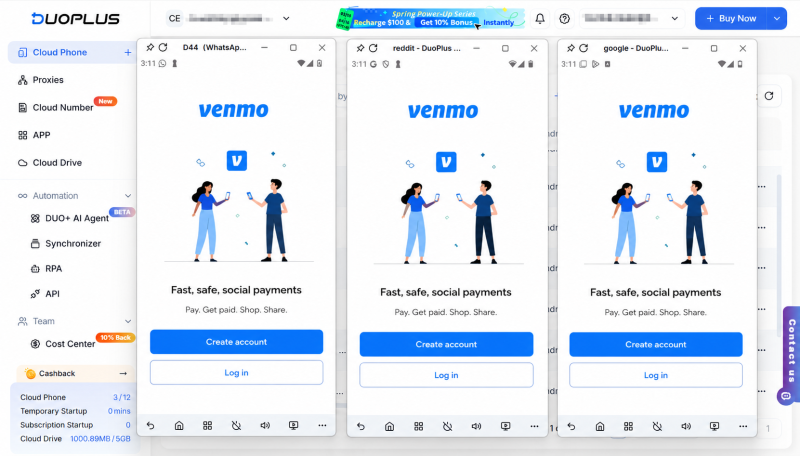
Sign up for DuoPlus . In your dashboard, create a new cloud phone instance. Each instance is a standalone Android environment.
Assign a unique IP address (choose from multiple locations) and set up a separate Google Play account. Install Venmo on each cloud phone and log in with the appropriate credentials.
DuoPlus supports team management: invite colleagues to share specific cloud phones. You can also use RPA (robotic process automation) to automate repetitive tasks like sending payments or generating reports, streamlining multi-account management.
No. Venmo’s policy generally allows only one personal account per user. Attempting to create a second personal account may violate Venmo’s terms of service and can result in account limitations or suspension.
If you need to separate personal and business payments, use Venmo’s Business Profile feature instead.
Venmo requires phone number verification for account setup and security. Your personal Venmo account should be linked to your own valid phone number.
For a Business Profile, Venmo may allow business-related contact information in certain areas of the profile, but the Business Profile is still connected to your main Venmo account. Always follow Venmo’s official setup instructions.
Generally, Venmo does not allow multiple independent accounts to share the same phone number. A phone number is typically tied to account verification and security.
If you are trying to separate business and personal activity, creating a Business Profile is the recommended option.
Using a cloud phone as a remote device environment is generally a legitimate technology use case. However, how you use it matters.
Using a cloud phone to access your own authorized Venmo account or manage a legitimate Business Profile may be acceptable, provided you comply with Venmo’s terms and applicable laws. But using cloud phones to create unauthorized accounts, bypass account limits, avoid verification, or conceal prohibited activity can violate Venmo’s policies and may create legal or financial risks.
Always use financial apps transparently and responsibly.
Venmo generally allows one Business Profile connected to a personal Venmo account. If you operate multiple business lines, check Venmo’s latest policy or consider using accounting tools, transaction notes, separate business records, or other payment processors designed for multi-business management.
Do not create multiple personal accounts to work around Business Profile limits.
If Venmo detects unauthorized multiple personal accounts, suspicious activity, or policy violations, it may freeze funds, restrict payments, request verification, suspend accounts, or permanently close them.
Using a Business Profile is the official way to separate business transactions. Creating duplicate personal accounts is risky and may disrupt your access to Venmo.
If you need a more organized way to manage mobile business workflows, DuoPlus Cloud Phone can help you separate workspaces, support remote access, and improve team collaboration.
For Venmo, the safest approach is to follow Venmo’s official rules: maintain one personal account and use a Business Profile if you need business payment separation.
Try DuoPlus Cloud Phone to build a cleaner, more secure mobile workflow for app testing, business operations, and team management.
Social media operations often involve content publishing, account maintenance, project collaboration, and staff …
As TikTok, Instagram, and Facebook become important channels for brand marketing, content creation, and affiliate …

TikTok Shop gives sellers multiple ways to reach potential customers, from shoppable videos and livestreams to creator …
No need to purchase multiple real phones.
With DuoPlus, one person can operate numerous cloud phones and social media accounts from a single computer, driving traffic and boosting sales for you.