



How to Log In to Telegram Without Your Phone Number
Telegram is a messaging app many people use for everyday conversations, joining communities, and communicating with …
Learn how to test Android app compatibility across devices. This guide covers Android versions, hardware, screen layouts, performance, network settings, emulators, physical phones, and cloud phones for multi-device testing.

Get an AI-Powered Summary of This Article
An Android app may work perfectly on one phone but behave differently on another. Differences in Android versions, device hardware, screen sizes, system settings, and network conditions can all affect how an app runs.
That is why Android app compatibility testing is an important part of application testing before and after release. By testing an app across multiple devices, developers can identify compatibility issues that may not appear during development on a single phone.
This guide explains what Android device compatibility testing involves, how to choose different Android devices for testing, and how to test an Android app on multiple devices using physical phones, emulators, and cloud phones.
Android app compatibility testing is the process of checking whether an Android application works as expected across different Android devices and system environments.
A developer may test an app on one Android phone during development, but real users may have completely different devices. For example, one user may have a newer Samsung phone with a high-end processor, while another may use an older Android device with less memory and a different screen resolution.
These differences can affect:
The goal is not simply to confirm that the app can open. The goal is to verify that its important features continue to work under different device conditions.
Android device compatibility usually involves several dimensions:
| Compatibility Area | What to Test |
|---|---|
| Android version | Installation, APIs, permissions, updates, core functions |
| Device hardware | CPU, memory, camera, microphone, GPS, sensors |
| Screen | Resolution, aspect ratio, font size, portrait and landscape |
| Performance | Startup, loading, memory usage, long-running tasks |
| System settings | Language, permissions, time zone, regional settings |
| Network | Wi-Fi, mobile data, unstable connections, network switching |
The exact testing scope depends on the application. A video app, for example, may require more attention to playback and performance, while a location-based app needs more extensive GPS and network testing.
Testing every Android phone is usually impractical. Instead, create a test device matrix that represents the environments your users are most likely to have.
Start with the minimum Android version supported by the app, then include commonly used and newer versions.
Different Android versions may handle permissions, background processes, storage, and system APIs differently.
At minimum, check whether users can:
Testing the minimum supported version is particularly important because compatibility problems are often easier to miss when development takes place on newer Android versions.
Different Android devices can have very different hardware configurations.
For example, include a combination of:
For apps that rely on hardware, also test camera, microphone, GPS, sensors, Bluetooth, or other relevant functions.
The purpose is not to build the largest possible device list. It is to cover the combinations most relevant to the application.
A responsive interface on one phone may not look the same on another.
Check whether:
Forms, login pages, payment screens, video players, and other interactive interfaces usually deserve additional testing.
Once the test scope is defined, the next step is to run the same application and test cases across the selected environments.
A simple test Android app on multiple devices workflow can be divided into four steps.
List the Android versions, device configurations, screen environments, and network conditions you need to cover.
For example:
| Device Environment | Android Version | Main Test |
|---|---|---|
| Device A | Older supported version | Installation and core features |
| Device B | Common version | Full functional testing |
| Device C | Latest version | New API and compatibility testing |
| Device D | Lower-performance configuration | Performance and stability |
| Device E | Different screen size | UI and layout |
This matrix makes it easier to see which environments have been tested and which still need coverage.
Install the same application version on each test environment.
Keep other variables as consistent as possible, including:
Otherwise, it can be difficult to determine whether a difference comes from the Android device or from the test conditions.
Use the same workflow on each Android device.
For example:
Open the app → Log in → Open the target feature → Complete the task → Exit and reopen the app → Record the result
This is particularly useful for application testing because it makes results easier to compare.
For each device, record:
If a problem appears on one device, keep that environment available instead of immediately resetting it.
For example, if an app crashes after login on a particular Android version, preserve the same environment and repeat the test after the developer releases a fix.
Then test the updated version on other devices to check whether the fix creates compatibility problems elsewhere.
This turns compatibility testing into a repeatable regression testing process rather than a one-time check before release.
There is no single testing environment that covers every compatibility requirement. Physical Android devices, emulators, and cloud phones have different use cases.
Physical phones provide real hardware and are important for testing:
They are especially useful for final validation and hardware-dependent applications.
The main limitation is scalability. Maintaining many physical Android devices requires additional hardware, storage, maintenance, and manual switching.
Android emulators provide virtual Android environments on a computer. They are useful during development for quickly testing different Android versions, screen sizes, and configurations.
They work well for:
Emulators are convenient, but they cannot completely reproduce physical hardware, battery behavior, heat, sensors, or manufacturer-specific system behavior.
Cloud phones provide remotely accessible Android environments that can be created, configured, and managed without maintaining a physical device for every test environment.
They are useful when application testing requires:
This makes cloud phones particularly useful for teams that need to test Android apps across multiple devices without purchasing and maintaining a large physical device collection.
When the testing scope expands from a few devices to multiple Android environments, managing each test environment separately can become time-consuming.
DuoPlus Cloud Phone provides remotely accessible Android environments that can be organized according to Android version, device configuration, or testing purpose.
Start by creating separate cloud phone environments based on your compatibility test matrix.
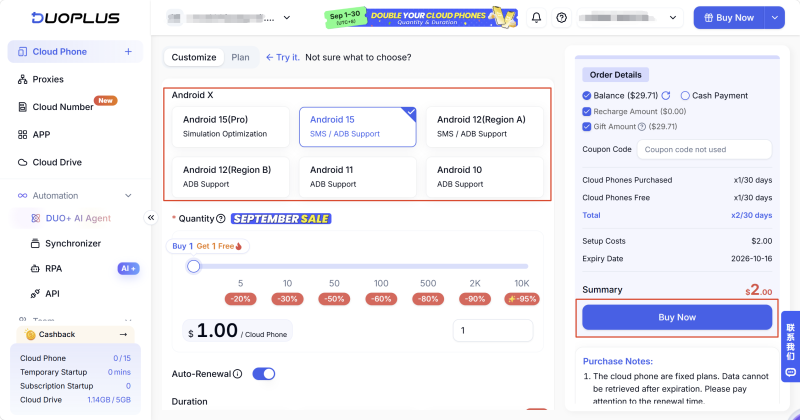
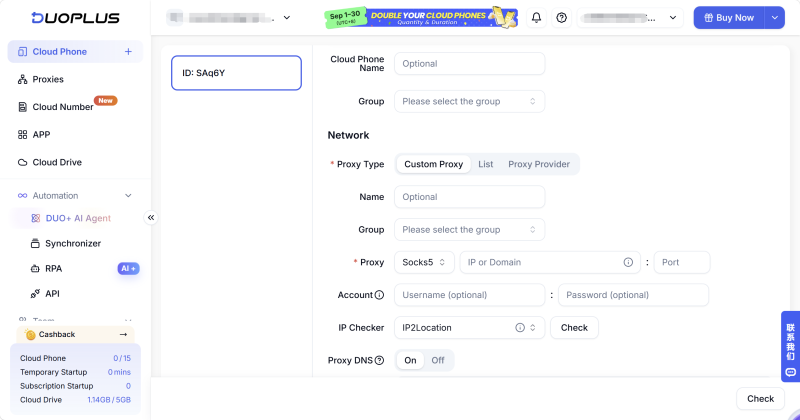
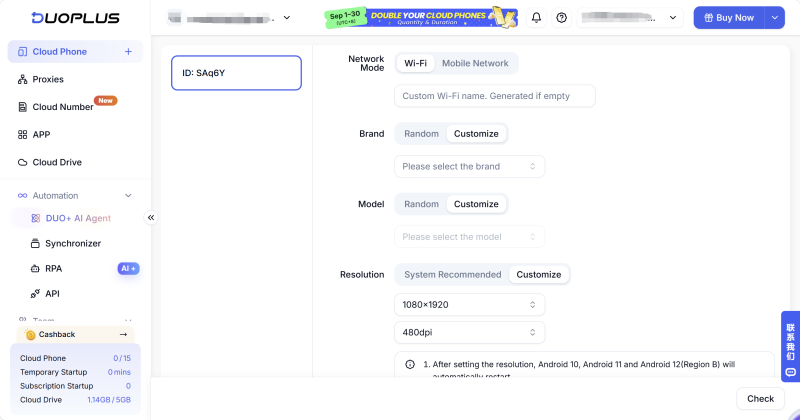
For example:
Give each environment a clear name so testers can quickly identify its purpose.
Install the same APK or application version across the required cloud phones.
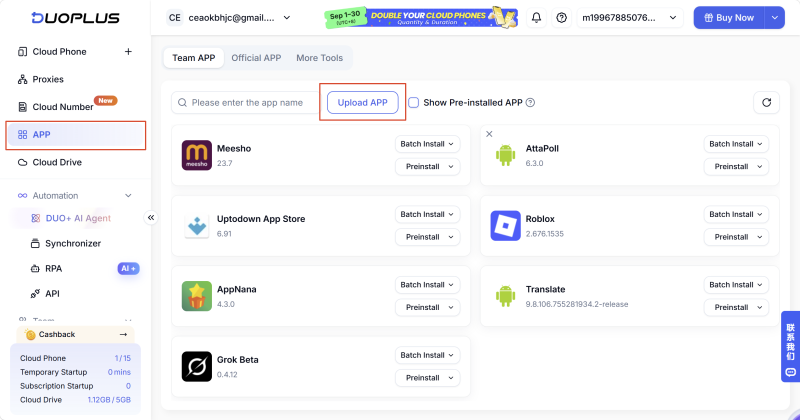
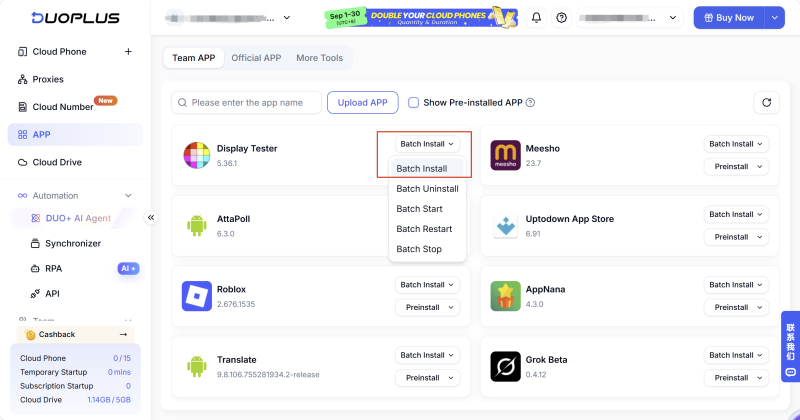
Then run the same test cases in each environment.
For example:
Create environments → Install the same app version → Run the same workflow → Record results → Compare issues
Keeping the application version and test workflow consistent makes differences between Android environments easier to identify.
Suppose an application works normally on most devices but crashes on one specific Android environment.
Instead of recreating the environment later, keep that cloud phone available for further testing.
After the application is updated, run the same steps again and compare the results.
This can be particularly useful for:
When there are many test environments, repeatedly switching between individual devices can slow down the testing process.
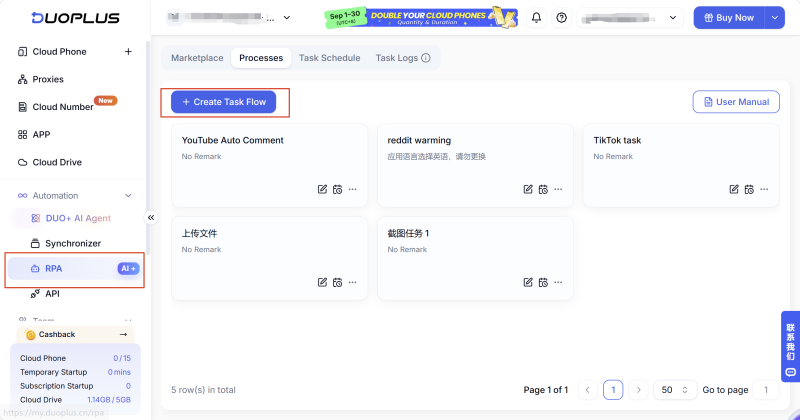
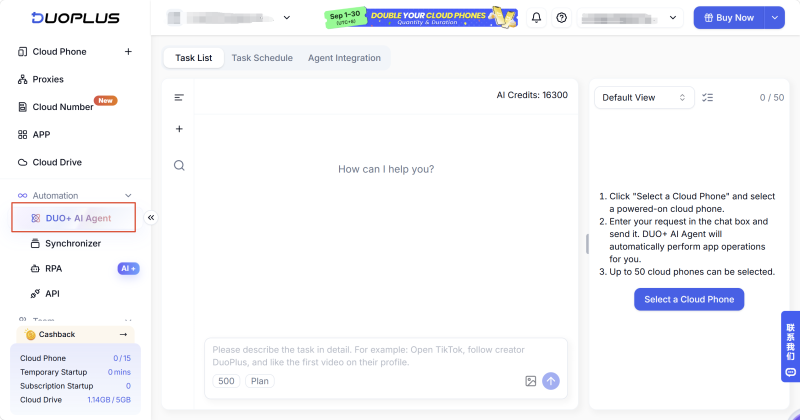
DuoPlus allows teams to manage multiple cloud phones centrally, making it easier to start, stop, restart, reset, and organize different Android environments.
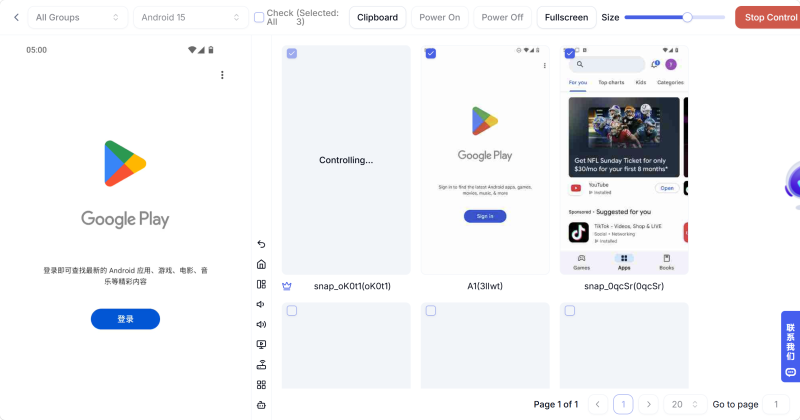
For repetitive test workflows, RPA and AI Agent features can also be used to automate certain actions, depending on the application's testing requirements.
Android app compatibility testing is about more than checking whether an app works on the developer's phone. Different Android versions, hardware configurations, screen sizes, system settings, and network conditions can all affect application behavior.
A practical multi-device testing process is:
Define the test scope → Build a device matrix → Test across different Android devices → Record compatibility issues → Reproduce and retest
Physical Android devices are important for real hardware validation, while emulators are useful for development and debugging. Cloud phones can fill the gap when you need to create, maintain, and test multiple Android environments at scale.
By combining these methods, teams can improve Android device compatibility coverage while making repeated application testing and issue reproduction easier.
There is no fixed number. The required coverage depends on the app's target users, supported Android versions, device requirements, and core features.
A practical approach is to select representative devices rather than trying to test every Android model.
Functional testing checks whether a feature works as designed.
Android compatibility testing checks whether those functions continue to work across different Android versions, devices, screen environments, and system configurations.
The two are related and are often performed together.
Yes. Android emulators and cloud phones can provide additional Android environments without requiring a physical phone for every test configuration.
However, physical devices are still useful for hardware-specific testing such as battery, heat, sensors, and real-world device performance.
First compare the two environments:
Then reproduce the same workflow on both devices. This helps narrow down whether the problem is related to Android version, hardware, UI layout, system settings, or network conditions.
Telegram is a messaging app many people use for everyday conversations, joining communities, and communicating with …
If engagement suddenly drops after you post on X (formerly Twitter), your account cannot be found in search, or a new …
Social media operations often involve content publishing, account maintenance, project collaboration, and staff …
No need to purchase multiple real phones.
With DuoPlus, one person can operate numerous cloud phones and social media accounts from a single computer, driving traffic and boosting sales for you.