




Instagram Creator Account vs. Business Account: Which Is Right for You?
Instagram offers two types of Professional Accounts: Creator accounts and Business accounts. For content creators, …
Learn how to use ADB with cloud phones for Android app testing, including app deployment, command execution, log collection, file transfer, multi-device testing, and common testing workflows.

Get an AI-Powered Summary of This Article
Android app testing often involves repeatedly installing apps, testing different versions, performing fixed operations, and checking runtime logs. As testing expands from a small number of physical phones to multiple devices, operating each device individually can increase both preparation and execution costs.
ADB (Android Debug Bridge) allows a computer to communicate with Android devices and perform tasks such as app installation, launching, debugging, and log collection. When combined with cloud phones, these operations can be performed in remote Android testing environments for multi-device testing, repetitive testing, and compatibility validation.
This guide explains common use cases for ADB in cloud phone testing and shows how to set up a basic ADB cloud phone testing workflow.
logcat logs, and transferring test files.ADB (Android Debug Bridge) is an Android debugging tool that establishes communication between a computer and an Android device. Once connected, you can use ADB to perform common device operations such as installing and uninstalling apps, launching applications, transferring files, checking device information, and collecting runtime logs.
In Android app testing, ADB is commonly used to deploy test builds, perform repetitive operations, and troubleshoot application issues.
Cloud phones provide Android device environments running in the cloud, so testing teams do not need to purchase and maintain large numbers of physical devices. Cloud phones can also support different device models, Android versions, and basic configurations, making it easier to prepare different testing environments and verify how an app performs under different device conditions.
Once ADB is connected to a cloud phone, testers can deploy, debug, and test apps across different Android environments remotely. If a device encounters a system or environment issue, the cloud phone can also be refreshed or reset to restore the testing environment without the time and effort required to reflash a physical phone.
For teams that need multiple Android environments or repeatedly execute the same testing workflow, cloud phones can provide a flexible device foundation for ADB-based testing.
ADB is mainly used for version management, command execution, log troubleshooting, and file transfer when testing apps on cloud phones. For scenarios that require frequent testing of different app versions or repeating the same testing tasks across multiple cloud phones, ADB can reduce a significant amount of manual work.
During app testing, testers often need to repeatedly install different APK versions or uninstall the current version before deploying a new test package. With ADB, you can directly run installation and uninstallation commands, such as adb install to install an APK and adb uninstall to remove a specified app.
This makes it easier to switch between old and new test versions without manually opening the cloud phone, locating the APK, and installing it each time. It is particularly useful when test builds need to be replaced frequently.
ADB is not limited to app installation. You can also use adb shell to execute Android system commands, such as launching a specific Activity, performing application operations, or checking device status.
If certain testing steps need to be repeated, ADB commands can be combined with scripts to automate these operations. For example, when testing an app's launch process, a script can repeatedly launch the application, execute specified commands, and then continue with the next round of testing based on the results.
When an app crashes, fails to launch, or behaves unexpectedly, it can be difficult to identify the cause through the interface alone. ADB's adb logcat command can be used to collect Android system and application runtime logs in real time.
Testers can use these logs to inspect the app launch process, crash information, and other runtime errors. For example, if an app crashes immediately after launch, you can first use logcat to collect the relevant error messages and then investigate the issue based on the testing environment and app version.
App testing often requires files to be transferred between a computer and a cloud phone, such as test images, videos, configuration files, test data, and runtime logs.
ADB can be used to push test files from a computer to a cloud phone or pull logs and test results from the cloud phone to the local computer. This reduces the need to manually locate and transfer files through the cloud phone interface.
Connecting a single device is only the basic use case for ADB. When testing is expanded to multiple cloud phones, you can use each device's IP address and port to specify the target device and execute commands such as app installation, app launching, and log collection.
For example, if the same app needs to be tested across multiple independent cloud phone environments, you can establish ADB connections to each device and combine them with scripts to execute the same testing tasks in parallel or in batches.
For cloud phone testing with platforms such as DuoPlus Cloud Phone, this approach combines ADB's device control capabilities with multiple cloud Android environments. This allows testing teams to perform repeated tests across different device configurations without maintaining a large inventory of physical Android devices.
If you want to use ADB for cloud phone testing, the basic process is relatively straightforward. Using DuoPlus as an example, you first need to configure ADB connection permissions, enable ADB for the target cloud phone, and then establish a connection through an ADB client on your computer.
Once connected, you can use ADB to install apps, execute commands, transfer files, and collect logs from the cloud phone.
First, prepare the cloud phone environment according to your testing requirements. You can adjust the Android version, device model, resolution, and other basic configurations.
Before testing begins, it is recommended to record the device name, Android version, app version, and assigned testing task for each device. This makes it easier to identify the testing environment associated with an issue and compare results across different test runs.
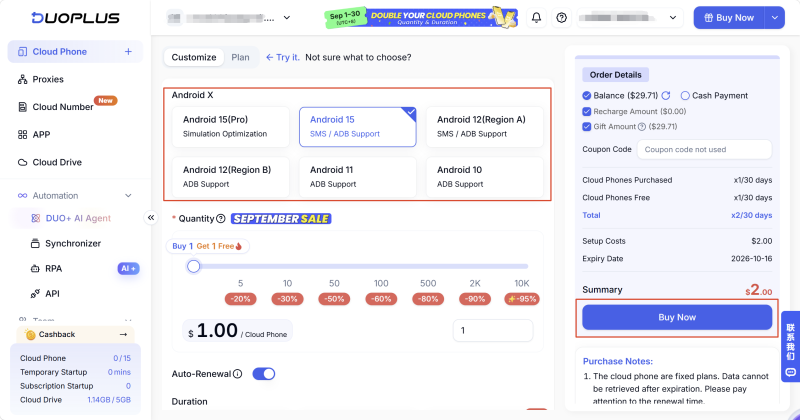
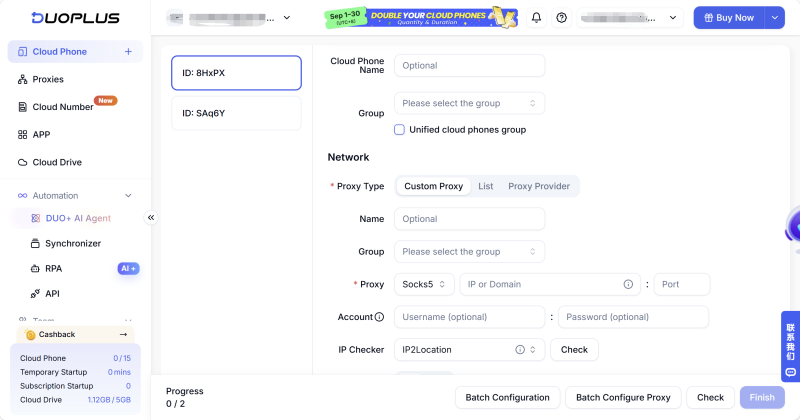
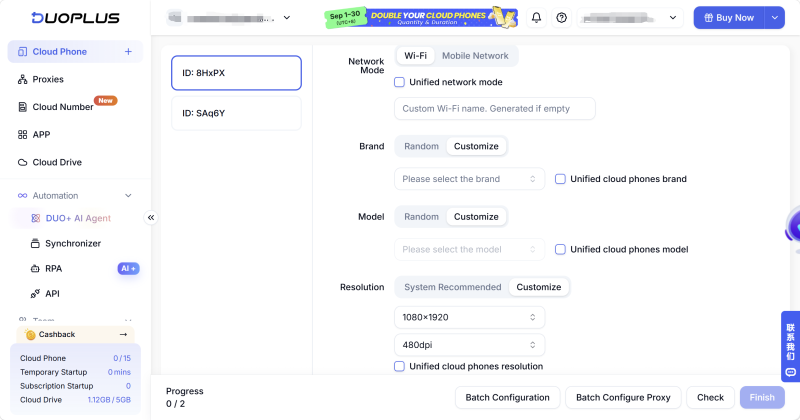
Then install the APK you need to test on the cloud phone. If the same app version needs to be tested across multiple environments, you can deploy the same APK to multiple devices to keep the application version consistent throughout the test.
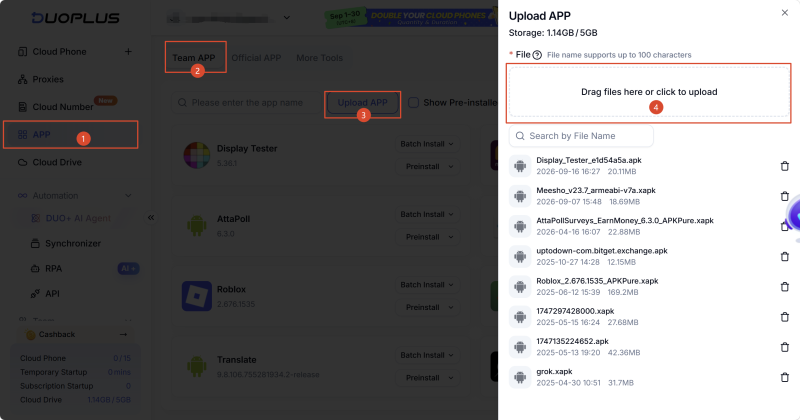
When comparing old and new versions, you can keep the existing test environment and deploy the new version to designated devices.
Because ADB provides relatively high-level device access, DuoPlus requires users to configure the IP addresses that are allowed to establish ADB connections.
You can add allowed IP addresses to the ADB connection IP allowlist in Team Settings. Up to 10 IP addresses can be configured.
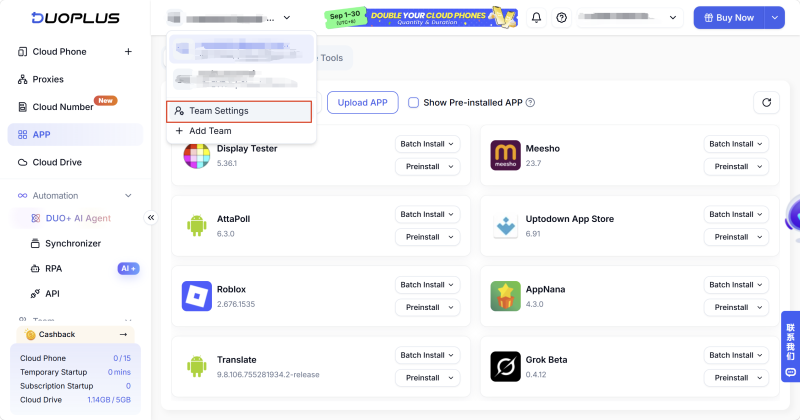
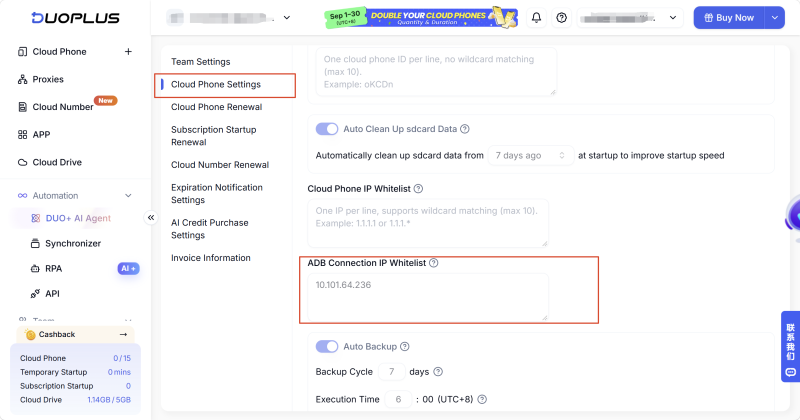
Once configured, only IP addresses on the allowlist can connect to the corresponding cloud phones. When testing is complete, it is also recommended to disable ADB on cloud phones when it is no longer needed to reduce unnecessary security exposure.
In the DuoPlus cloud phone list, you can enable ADB for an individual cloud phone or enable it for multiple cloud phones in batches.
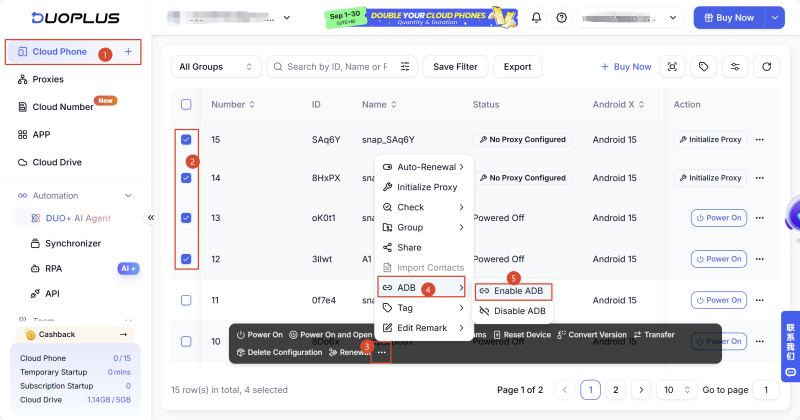
For multi-device testing, you can prepare the required test devices first and then enable ADB for them in batches, reducing the amount of repetitive configuration.
You need to install the ADB client on your computer first. Windows users can use CMD, while macOS and Linux users can use Terminal.
After obtaining the ADB connection command for the corresponding cloud phone from the DuoPlus console, run it in your computer's terminal.
The basic command format is:
adb connect [IP]:[Port]
After connecting, you can use the following command to view currently connected devices:
adb devices
If you need to connect to multiple cloud phones at the same time, you can use each device's IP address and port to distinguish between different testing environments. DuoPlus provides the corresponding connection information in the console, so you do not need to manually locate the ADB address of each cloud phone.
Once the ADB connection is established, you can perform various testing operations on the target cloud phone, such as installing a test app, running ADB commands, transferring test files, or combining ADB with test scripts to perform repetitive operations.
When multiple cloud phones are connected, you can use the device IP address and port to specify the target device. For example:
adb -s [IP]:[Port] shell [command]
This allows different testing tasks to be assigned to the appropriate cloud phone and helps prevent commands from being executed on the wrong testing environment.
After testing is complete, you can disconnect the ADB connection:
adb disconnect [IP]:[Port]
If you do not need to continue using ADB, you can also disable the ADB function on the cloud phone. For long-running testing environments, disabling unused ADB connections can help reduce unnecessary device exposure.
ADB is particularly useful for scenarios that involve multiple Android environments, batch app deployment, repetitive testing tasks, or remote device debugging.
If testing involves physical hardware such as Bluetooth, GPS, or NFC, real devices should still be included in the testing process.
In Android app testing, ADB mainly handles device connectivity, operations, and debugging. By running ADB commands from a computer, testers can install apps, switch between versions, perform repetitive operations, collect logs, and transfer files.
Cloud phones, on the other hand, provide remotely manageable Android testing environments. By combining ADB with cloud phones, testers can not only execute testing operations through commands but also prepare multiple Android environments based on their testing requirements for version deployment, repetitive testing, log troubleshooting, compatibility validation, and regression testing.
For teams that need multi-device, repetitive, or remote Android testing, combining ADB with cloud phones can provide a more flexible way to execute and manage testing workflows.
Before connecting ADB to a cloud phone, make sure the cloud phone provider supports ADB and that your account and device have the required permissions.
Some platforms may require you to enable remote debugging, configure a dedicated connection address, or authorize the device before establishing an ADB connection.
You should also make sure that the network connection is stable and that the ADB tools are installed on your computer. Connection methods, device limits, and supported operations may vary between cloud phone providers, so check the provider's documentation for the specific requirements.
Yes. You can select the Android version, device model, and other basic configurations according to your testing requirements and try to keep the environment consistent throughout the test.
This can help reduce the impact of environmental changes on test results.
You can organize testing records by device ID, Android version, app version, and testing date.
For issues that need further investigation, it is also useful to save the reproduction steps, runtime logs, and relevant screenshots so that the problem can be identified and reproduced more easily.
Cloud phones are suitable for scenarios such as version validation, functional regression testing, compatibility testing, and batch app deployment.
If the test focuses on real hardware behavior or changes in physical network signals, physical devices should be included as part of the testing process.
Instagram offers two types of Professional Accounts: Creator accounts and Business accounts. For content creators, …
You moved your accounts to DuoPlus cloud phones to stop them getting linked. Each one runs on its own Android device, …
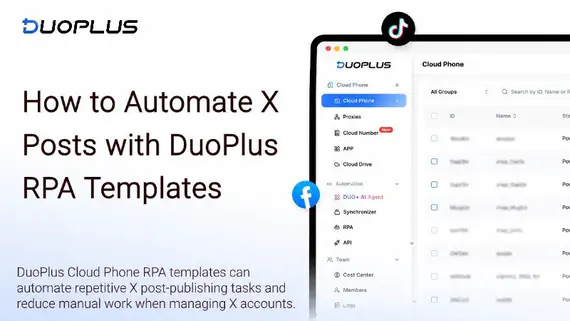
When managing X (Twitter) accounts, some daily tasks need to be repeated, such as publishing posts, checking task …
No need to purchase multiple real phones.
With DuoPlus, one person can operate numerous cloud phones and social media accounts from a single computer, driving traffic and boosting sales for you.